The Snap-on® Cloud Using the Snap-on Cloud
209
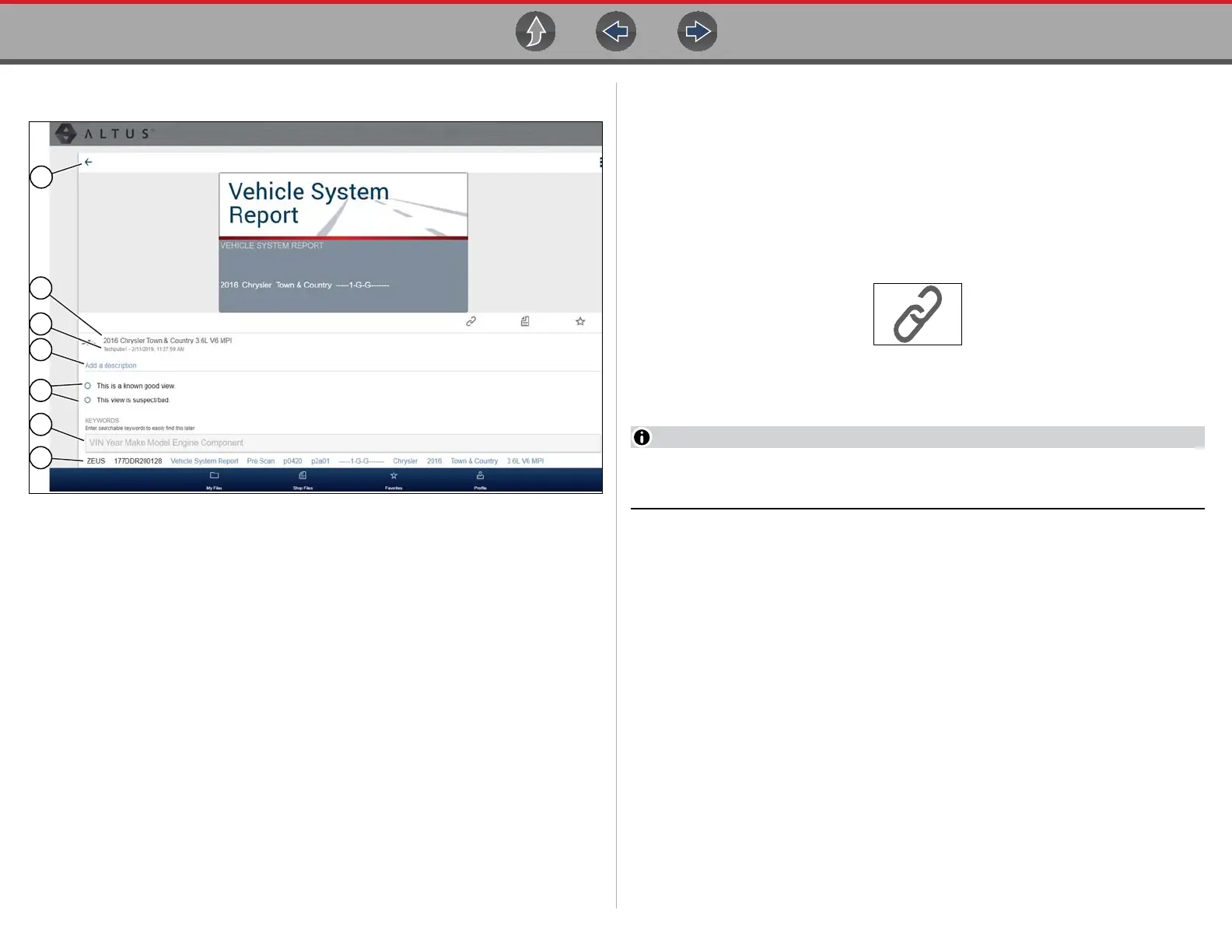
The following describes File Detail card features.
Figure 17-11
1— Back Icon - Returns to My Files
2— File Name (user entered searchable text) - Select the file name to open the
editor. Enter text (alphanumeric) in the field as desired.
3— Your Account Username (and timestamp) - See Account on page 215 for
additional information. The timestamp indicates the date/time the file
posted on ALTUSDRIVE.com
4— Description (user entered searchable text) - Enter text (alphanumeric) in the
description field as desired.
5— Known Good / Bad Checkboxes (user defined and searchable) - Selecting
a checkbox automatically creates a tag (e.g. #good) and is displayed in the
Active Tag(s) field.
6— Tag (user entered searchable text) - Enter text (alphanumeric) in this field as
desired. Tagging a file allows you to associate (tag) descriptive text to a file.
Tagging can be used to associate multiple files with a common tag. The tag
text then can be used when performing a search to find all files with the same
tag. Each text entry (word) that is separated by a space (return) is added as
a tag, and is displayed in the Active Tag field.
7— Active Tag(s) - Displays the active tag(s). Tags can include the “good” or
“bad” entry from the Known Good / Bad checkboxes, and text entered in the
file Name, Description and Tag fields. Each entry is automatically preceded
with the “#” symbol.
Sharing/E-mail an Individual File (Link icon)
To share a file:
1. Select the Link icon (Figure 17-12) on the file card.
Figure 17-12
2. Choose an option how to send the file (Figure 17-12).
Some selections may be grayed out or not shown, indicating the option is not
supported on your device/system.
• Select a Link from your Network - see My Network on page 214 for information
on how to add contacts.
• Send via SMS (Short Message Service) - this option is used with supporting
mobile devices, and will typically open a new text message with the link attached,
ready to be sent.
• Send via Email - your system default e-mail application will open a new
message with the link attached, ready to be sent.
• Copy to Clipboard - open your (e-mail, text, social media, etc.) application and
paste the URL into a message to share with others.
The pasted URL link that is sent only displays:
- The File
- File Name
- Your User Name
- Date File was posted
- File Description


 To Next Page