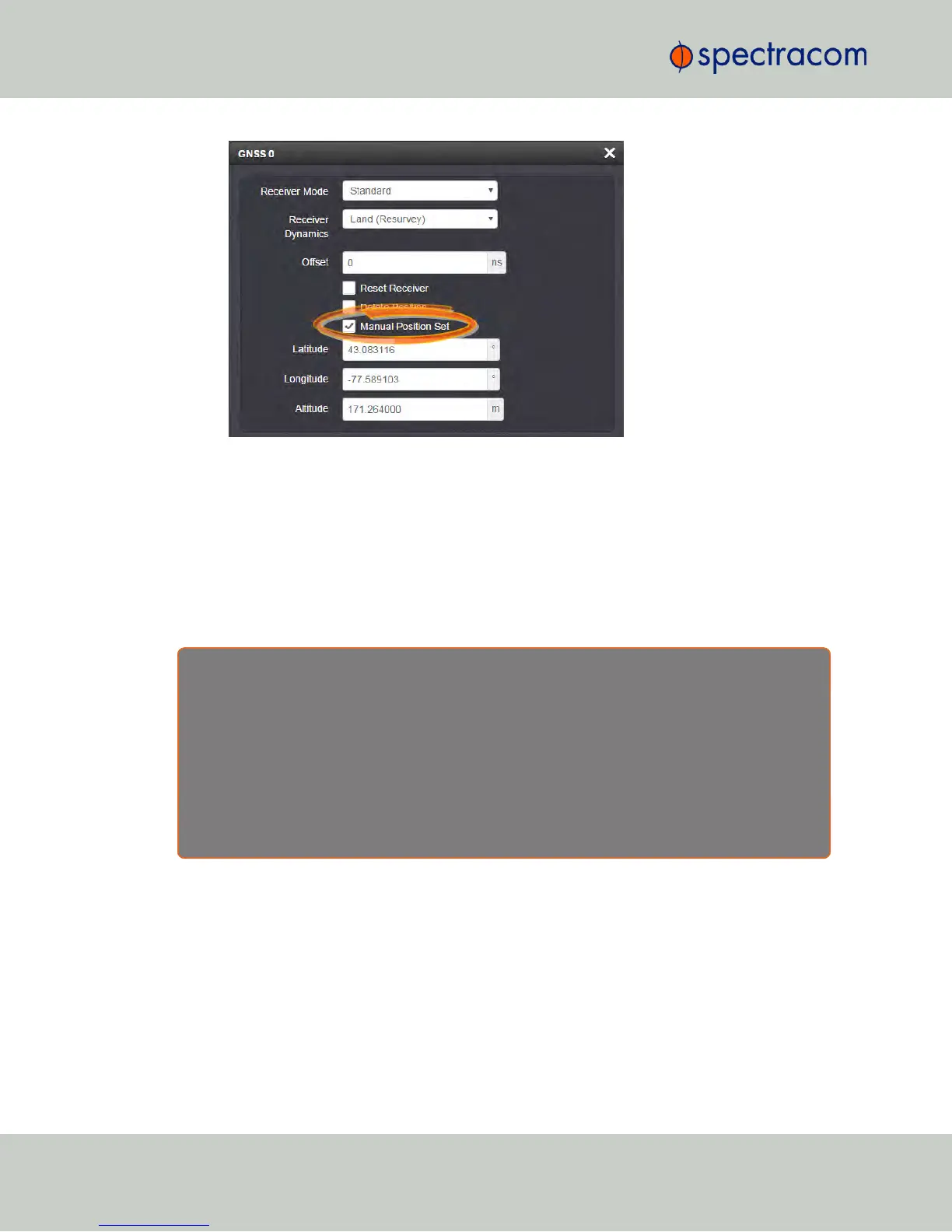
3.
Under Manual Position Set accurately enter latitude, longitude (both in decimal
degrees), and altitude (in meters [WGS84]) of your GNSS antenna, NetClock can use
this data during the satellite tracking/adjustment process, which typically leads to a
quicker "fix". It is recommended to enter the position as accurately as possible.
Determining Your Position
In case your geographic antenna position is not already known, there are several ways to
determine it e.g., using a GPS-enabled device, such as a smart phone. Google Maps™ is
another option, described below.
R e a s o n s f o r m a n u a l l y e n t e r i n g y o u r p o s i t i o n
Manually entering your position may not only reduce the time to “first fix” during initial installation, it
may also enable the unit to synchronize to satellite timing signals if your GNSS reception is poor.
After manually entering the position data, NetClock will automatically check the status of the GNSS
receiver:
If no GNSS-based position data is available (yet), NetClock will provide the GNSS receiver with the
manually entered position.
Determining your GNSS position, using Google Maps™:
1.
Locate the building and the relative location of your GNSS antenna.
2.
Obtain the coordinates by left-clicking on the location: A popup window will display
your coordinates.
200
CHAPTER 3 • NetClock User Reference Guide Rev. 16
3.3 Managing Input References



 To Next Page