Vista 1 Digital Mixing System
4-54 GC Operation
Document generated: 18.04.17
SW V5.3
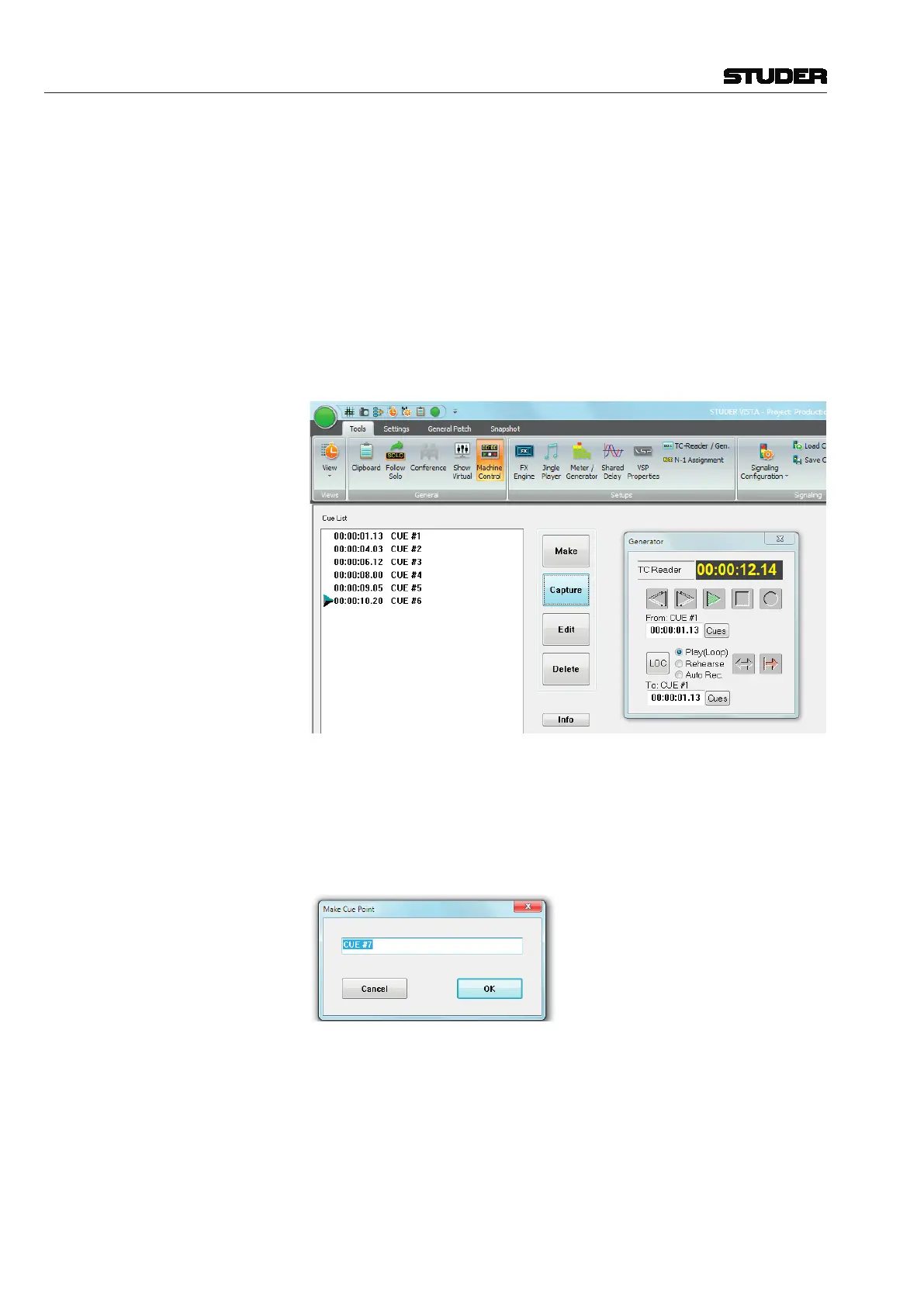
at any time along with the TC stamp. The cues in the cue list are automatically
sorted by increasing TC. If you make a new cue, it will be inserted into the
list according to its TC stamp.
When the running TC passes a cue point existing in the list, a small triangle
will appear next to the cue to indicate that this particular cue has been reached.
The triangle will remain there until the next cue in the list is reached, and so
on.
Capture To quickly make a cue (and edit the name and/or timecode stamp later, if
necessary), click on Capture in the GC’s cue list window when you hear the
audio event to be marked:
In both cases, a cue point will be generated, automatically numbered, and
stamped with the current timecode address at the moment the key was pressed.
Make Making a cue means:
• Firstenteranamewithintheeditwindowthatappearswhenyouclickthe
Make button
• Waitfortherightaudioeventtooccur,andclicktheon-screenOK button,
or press the ENTER key on the desk keyboard
A cue point with the entered name will be generated and stamped with the
current timecode as soon as you click OK or press ENTER. You can edit both
name and TC stamp later, if necessary.



 To Next Page