8-18 Sysmex XP-300
Display and Output of Analysis Results
Revised May 2012
(3) Enter a sample ID or date using the keypad and press the
[Search] button.
• Press the [Cancel] button to cancel the search and close the
dialog.
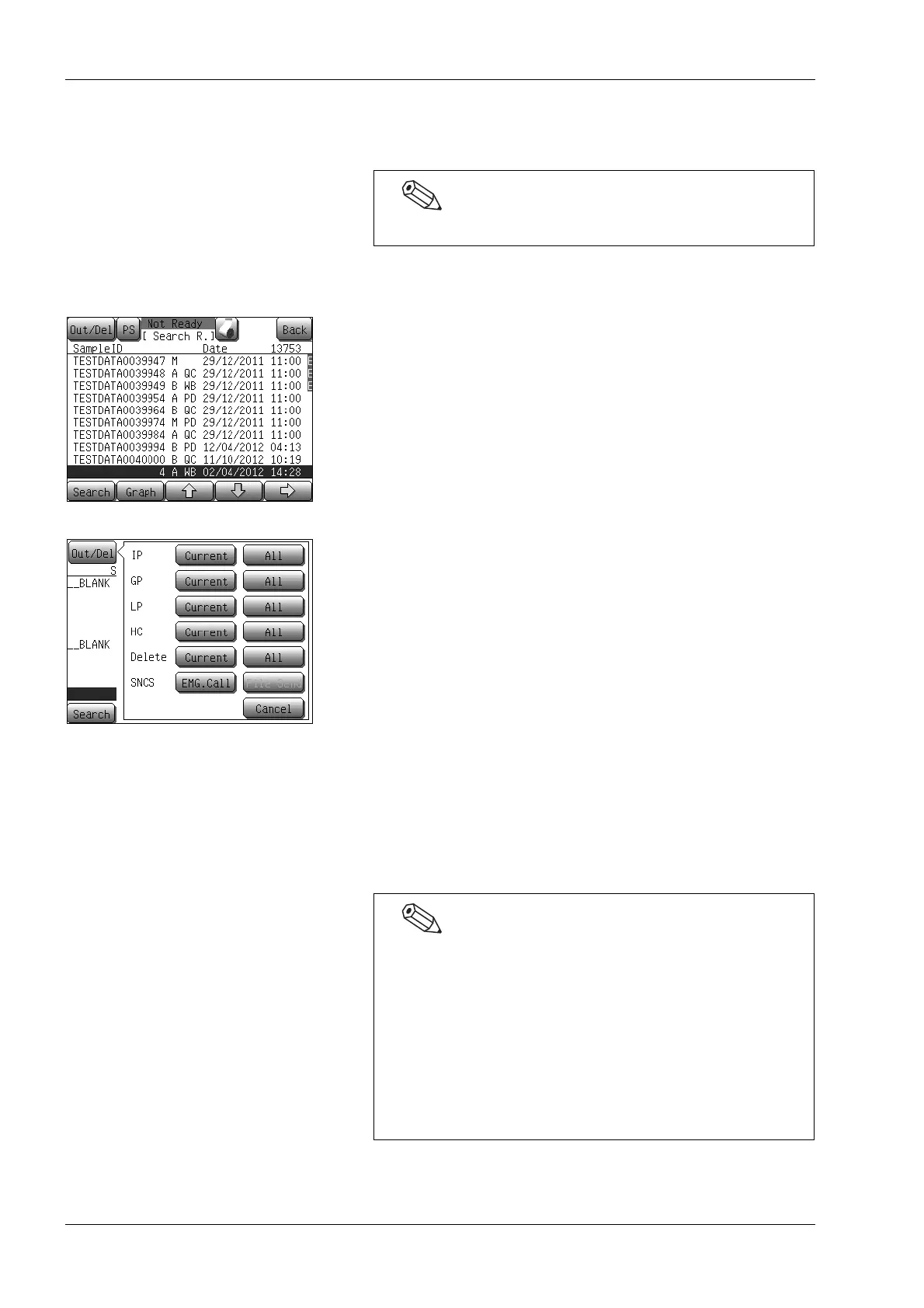
All analysis results are displayed on the search result screen and
the cursor moves to the latest analysis data among those that
fulfill the search condition.
Press the [Graph], [↑], [↓] or [→] buttons to select data and
switch the screens. (For details, see “Stored data screen” in
“8.2 Stored data”.)
To conduct an additional search, press the [Search] button.
Press the [Back] button to close the search result screen and
return to the stored data screen.
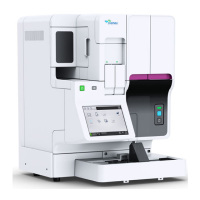
Press the [Out/Del] button on the search result screen to display
the output/delete menu dialog. Search results can be printed or
deleted using the dialog.
Select the output destination from the internal printer (IP),
graphic printer (GP), list printer (LP) or host computer (HC).
• [Current]: Prints/outputs/deletes the analysis result at the
cursor position.
• [All]: Prints/outputs/deletes all search results.
However, the number of search results printed or
output at a time is limited as follows.
IP:Max. 200
GP:Max. 2,000
LP:Max. 2,000
HC:Max. 2,000
• [Cancel]: Closes the output/delete menu dialog.
Searching cannot be carried out when only space is entered.
• The output/delete menu dialog buttons are valid only for
output destination buttons set in [Host Output] and
[Printer] options in the Settings menu.
• When outputting to the host computer, it is possible to
output to either the serial port (RS-232C) or LAN
(Ethernet), depending on the user setting.
• User settings can also be made for automatic output.
(See “Host Output” and “Printer” in “11.2 Possible
settings”.)



 To Next Page