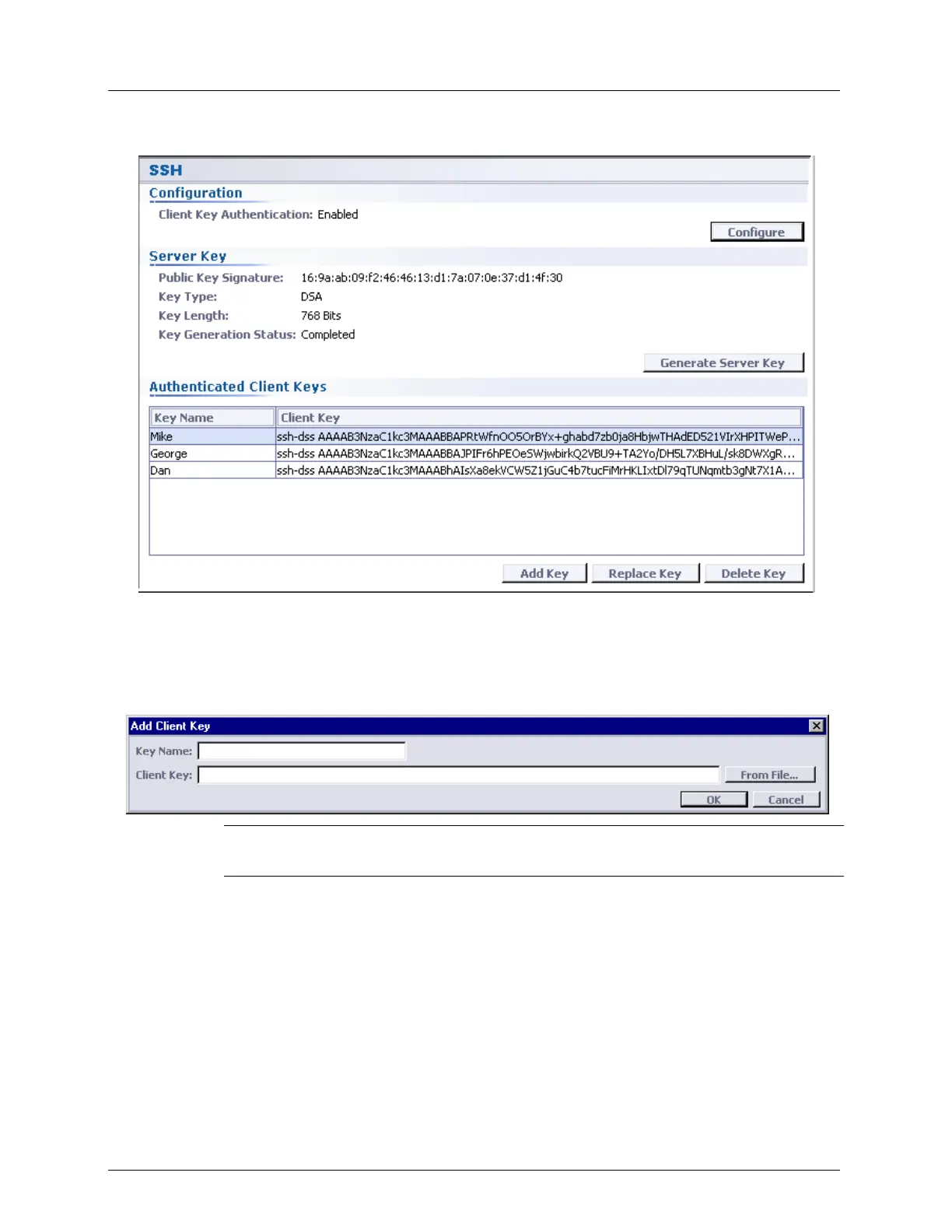
SSH - Secure Shell Security Management
2. Open SSH. The SSH pane opens in the work area.
Add Key Procedure
To add a Client Public Key:
1. On the bottom of the SSH review pane, click Add Key. The Add Client Key dialog
appears.
NOTE: For group operations, open the Add Client Key dialog box via the menu bar:
Group Operations, SSH, Add.
2. In the Key Name box, type the key name.
3. In the Client Key box, type the full public client key or click the From File button to
locate a file containing the client public key.
4. Click OK. The Add Client Key dialog box closes and the Client Key is added to the list
and will be written into the server pubic key database.
To replace an authenticated Client Key:
1. In the Authenticated Client Keys pane area a list of all authenticated client keys is
displayed. From the list, select a Client Key to replace.


 To Next Page