Management Configuration Opening a MetaASSIST View Session
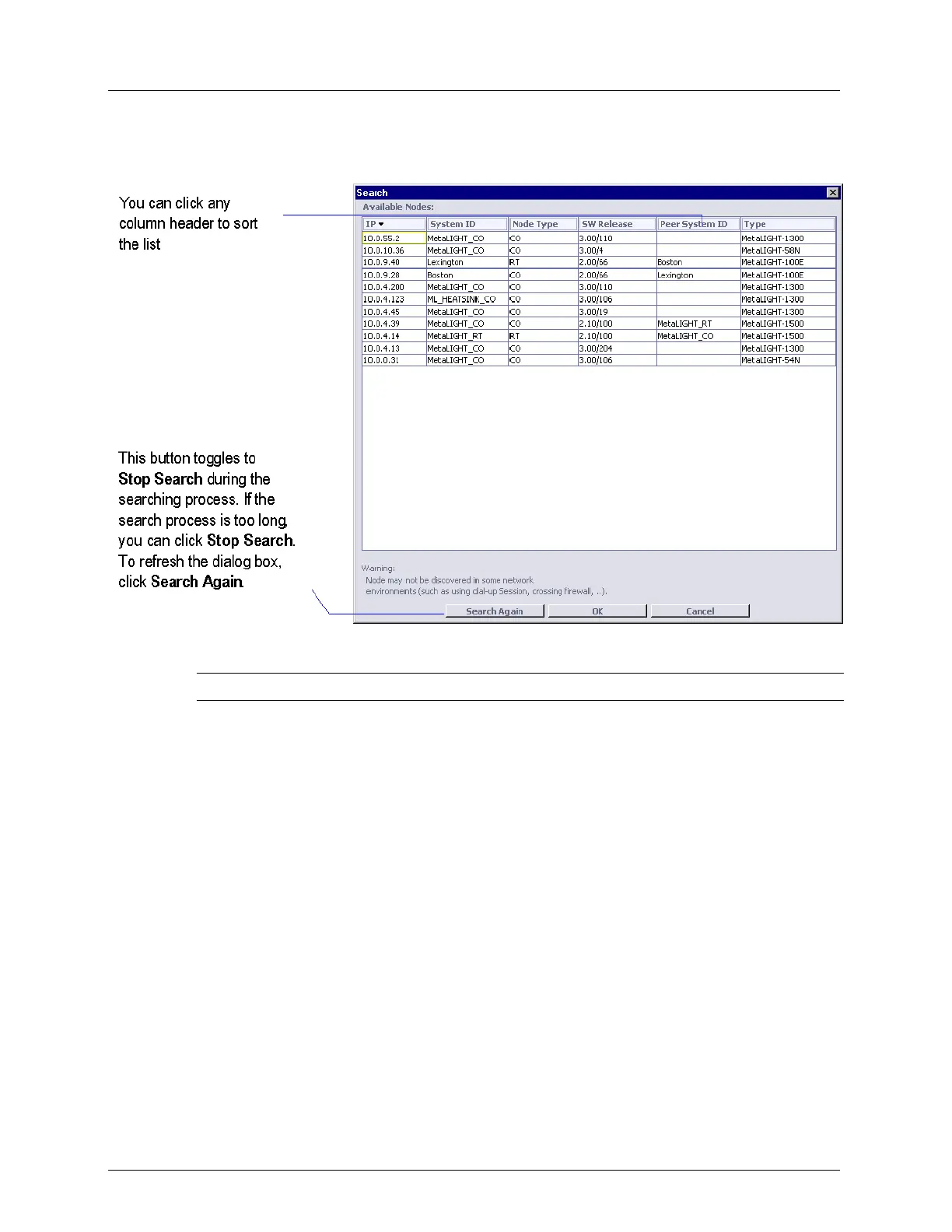
The Search dialog appears.
2. In the Search dialog box, double-click on an IP address or select it and click OK.
NOTE: ML device that cannot be managed by this version of MetaASSIST View are grayed out.
Units that Failed to Connect
Any NE that failed to connect will appear in the Network Navigation tree as a slanted blue
icon and will be listed in the ML Failed to Connect or Login pane. The units are listed in a
table according to their corresponding HSLs where for a selected NE CO, the hosted CPE
(that failed to connect) is displayed; for a selected NE CPE (if it failed to connect to the CO),
then the CO will be displayed.
Options are available for performing common operations such as Restart, SW download,
Configuration, etc. that may have caused or resolved the connection problems. An NE may
fail to auto-connect due to a wrong IP or VLAN configuration, therefore it is recommended
to first check these configurations and change them if needed. After verifying that the IP and
VLAN configurations are correct, try to reconnect the NE by clicking the Login button.
To view the device that failed to auto-connect or login and troubleshoot the connection
1. In the Network Element Tree:
Click Network Elements Linked via HSL and then ML failed to auto-connect
and/or login or
Click on the corresponding link on the Network Elements Linked via HSL pane


 To Next Page