Administration CLI Usage Guidelines
User-defined string parameter can use any alpha-numeric values supported by
VT100/ANSI terminal (UTF-7 127 codes).
String which includes <Space> and <pound #> symbols should appear between double
quote marks.
Password characters are not echoed, although each character typed is prompted with an
asterisk.
Password can only use alphanumeric characters keys, <Backspace> and <Enter>.
CLI Function Keys
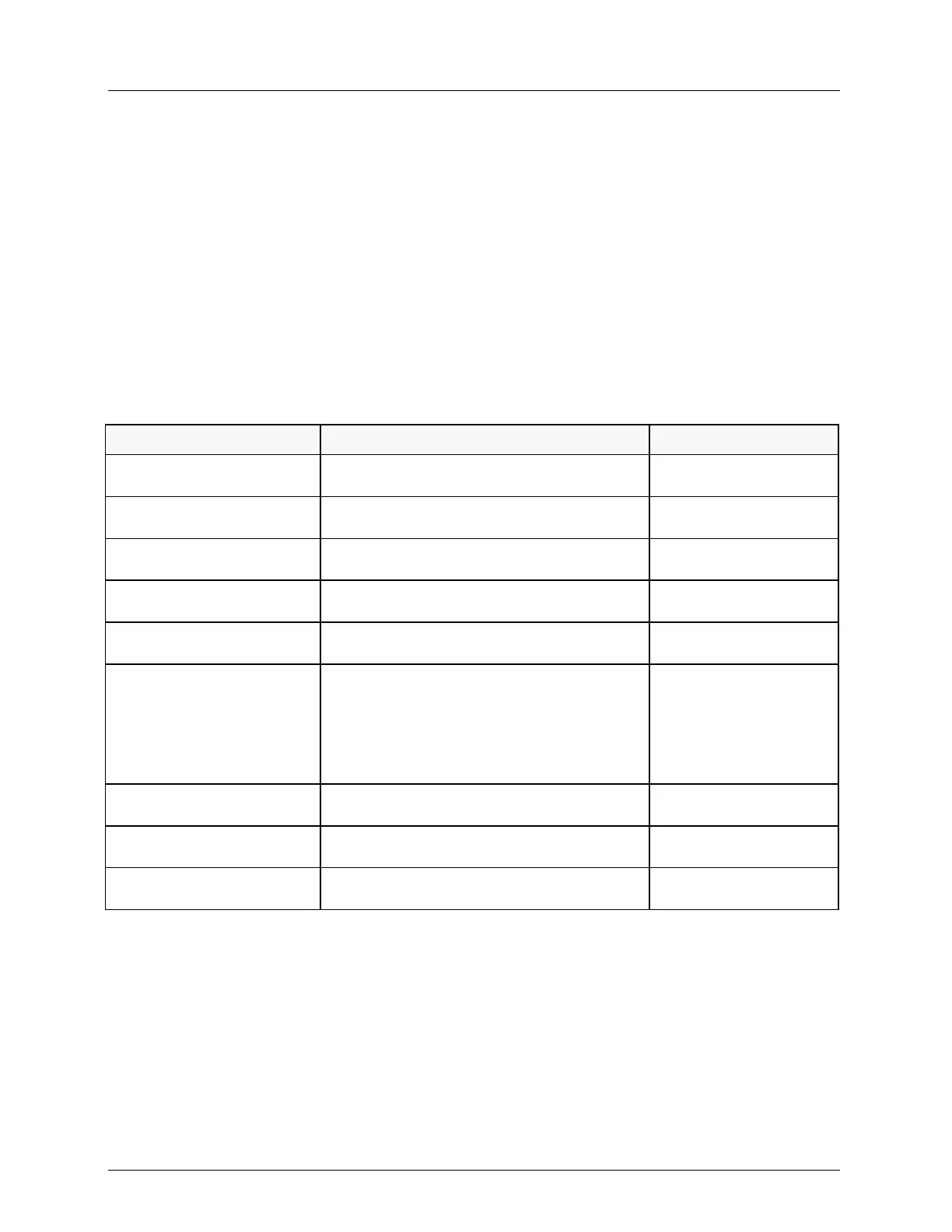
The following table describes the function keys that are available when using CLI.
Table 87: CLI Function Keys
Pressing '?' on an
incompletely typed word
Shows all valid competitions of that prefix
Pressing <space> and '?'
after a typed word
Shows a list of the words that can follow it
Pressing <TAB> on an
incompletely typed word
Completes the word if it is unique.
Auto-complete (without
TAB) is also available.
Pressing the Up and Down
arrow cursor keys
Moves back and forward through the
command history.
Pressing the Left and Right
arrow cursor keys
Can be used for in-line command editing.
Typing 'help' on each level
shows the relevant
information
• For incomplete command - all valid
operands on current level
• for a sub-level - additional available
operands
• for complete commands - all input
parameters format
Shows all auxiliary commands that are
executable on any hierarchical level.
Shows all keystrokes supported for CLI
editing.
Typing <space> and 'help'
after a word
Shows a list of the words that can follow it.


 To Next Page