Opening a MetaASSIST View Session Management Configuration
6. Under Login Details:
Enter the User Name: admin (to perform configuration)
Enter the corresponding Password: admin
NOTE: User Name and Password are case sensitive. Change passwords according to
Password Control (on page 12-8).
7. To save the configured parameters (Auto-login to CPE, LLDP, etc.) for the next login,
checkmark Save Parameters.
8. Click OK. The MetaASSIST View Main window appears showing the ML CO and ML
CPE units elements.
Auto-discovery of ML Systems
MetaASSIST View supports auto-discovery of the ML systems that meet the following
criteria:
ML systems that have been assigned an IP address.
ML devices that are on the same routing segment with a Management host where MAV is
installed, i.e. will discover ML devices attached directly, via HUB or BRIDGE devices
and will not discover ML devices attached via ROUTER.
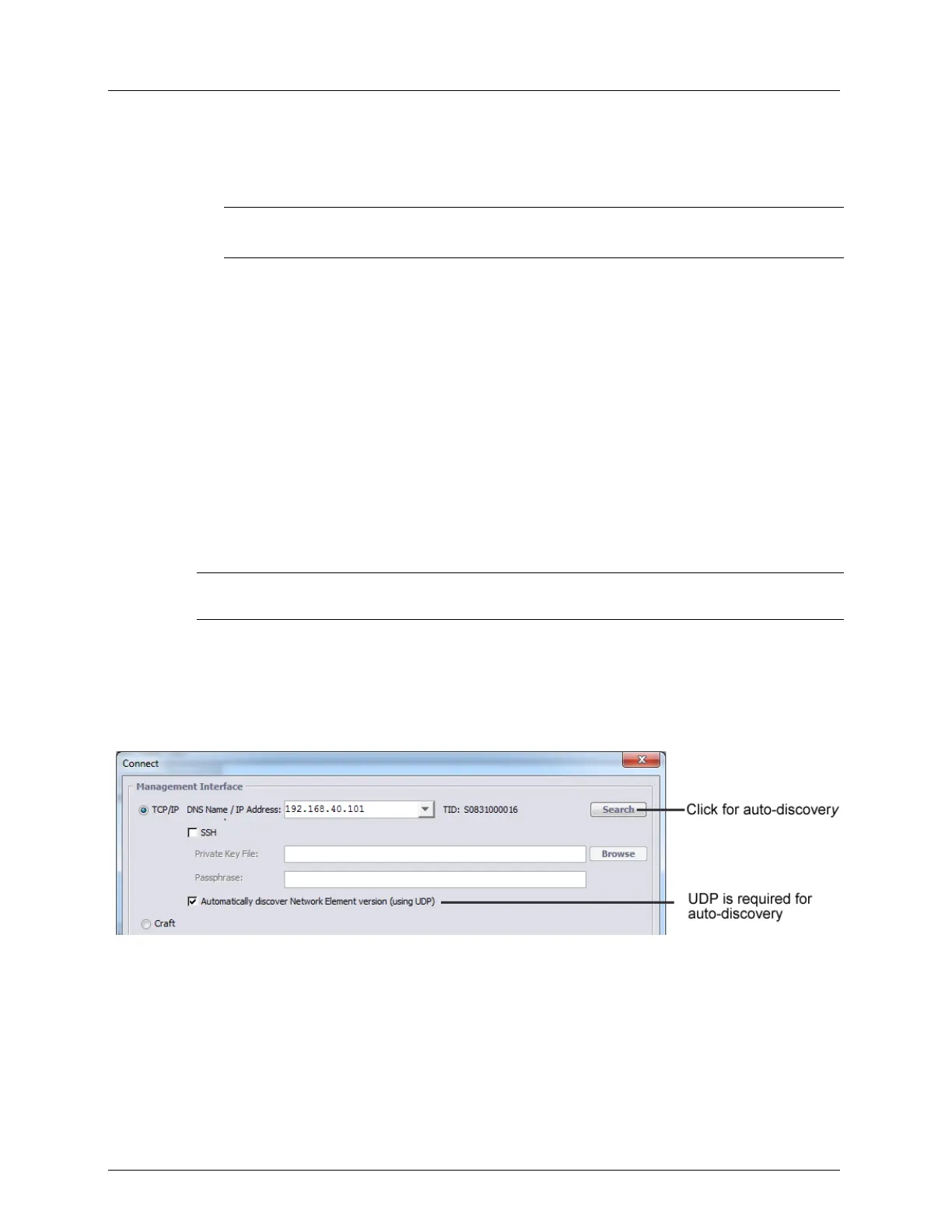
NOTE: For auto-discovery to work, the UDP option must be enabled and UDP traffic cannot be
blocked by a firewall in the network.
To discover currently active ML device in the LAN
Each time the MetaASSIST application is invoked, the Connect dialog appears. In addition to
the standard Craft and TCP/IP connectivity options, the dialog provides access to Auto-
discovery options.
1. In the Connect dialog box, click the Search button.


 To Next Page