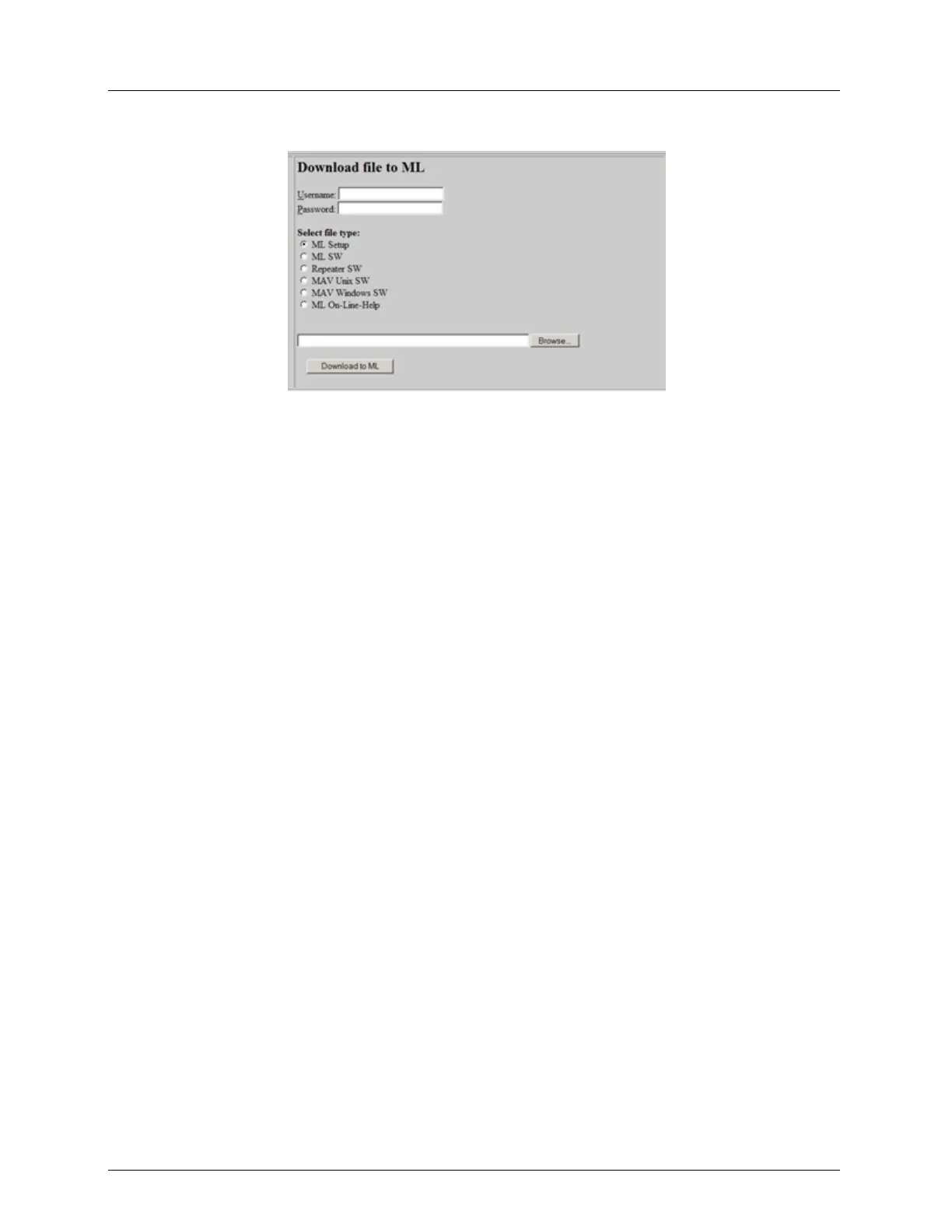
Using Web Browser Administration
2. Select ML Setup.
3. Type in the path or use the Browse button to specify the Configuration file that was
previously saved at a backup location in your PC.
4. Click the Download to ML button.
5. After the file was successfully downloaded to the ML device it can be restored as
explained in Restore ML Device Backup File (on page 14-25).
The Configuration setup file is checked for validity and then downloaded to the system.
If the Configuration file is invalid or does not have the same version as the currently
running software, an error message is displayed.
Restore ML Device Backup File
Prior to performing the following operations, verify that the ML device backup file is
successfully downloaded as explained in Download ML Device Backup File.
To apply full Configuration setup data
This procedure requires opening a Telnet session. Log in to the system and enter the
following TL1 command:
init-sys:::::restore;
The ML device restarts and then operates with the new configuration.
To apply provisioning data only (without TID, IP address, Craft port rate and Calibration
data):
Log in to the system and enter the following TL1 command:
init-sys:::::duplicate;
The ML device restarts and then operates with the new configuration. Continue with
configuration of the TID, IP address and HSL calibration, if required.
Retrieving Logs
To access the logs (Command and System Info):
1. In the Actelis System Support page, under View / Upload file from ML, type the
Username and Password.


 To Next Page