Administration Using MetaASSIST View
Saving the log file
The log files can be saved to a computer through HTTP or to a Host computer through FTP
or TFTP (for the later options, host IP address must be configured). The files can be viewed
using any text editor. Saving the log file must be performed via the Ethernet/COLAN
(MGMT) ports, not via the Craft port.
To save a log file
1. From the Logs Control pane, in the log files area, select the required log type and click
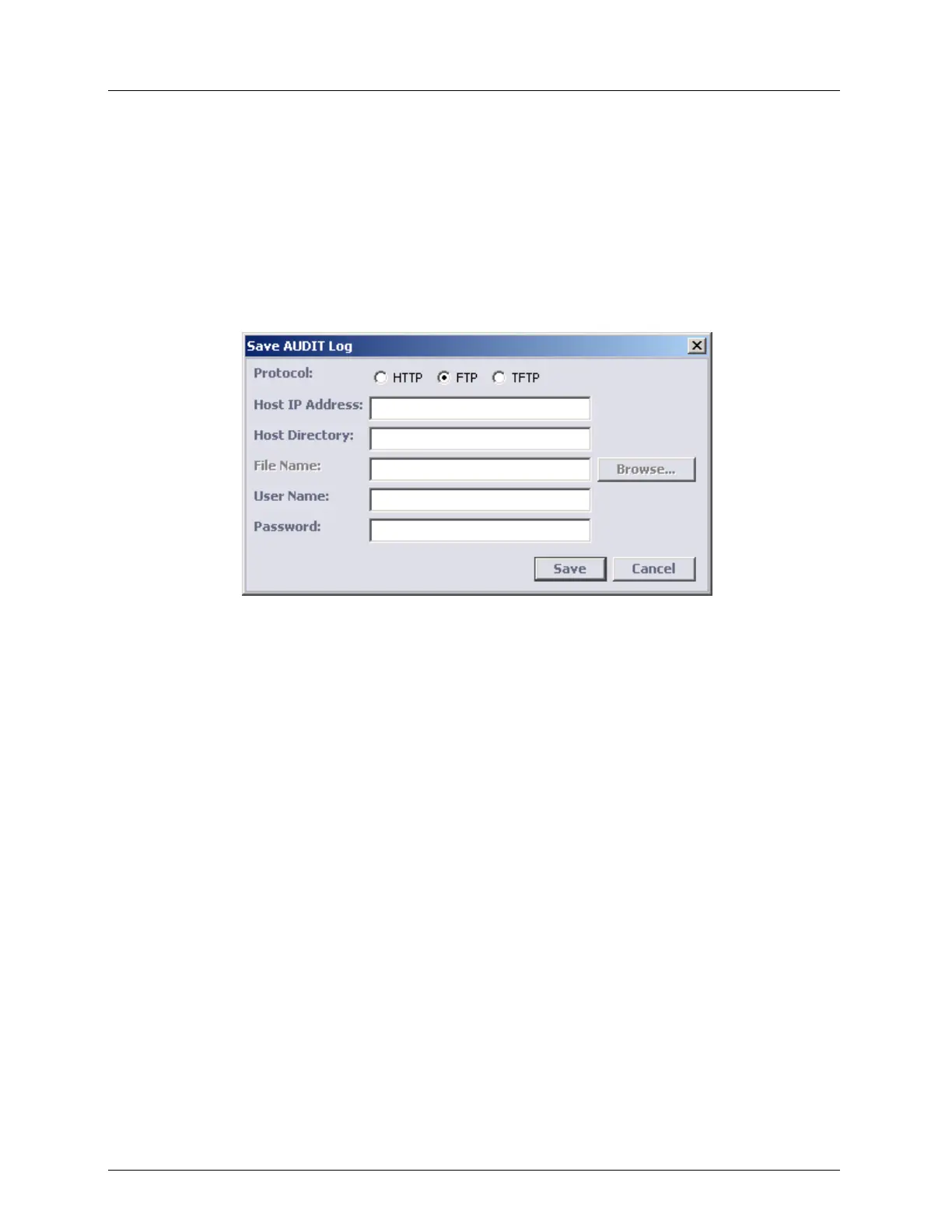
Save Log. The Save Log dialog appears.
2. From the Protocol options, select one of the following:
HTTP - copy the file to your computer. File Name and Host Directory are required.
TFTP, FTP - copy the file to a Host computer. Host IP Address, Host Directory are
required. For FTP - User Name and Password of user account on the FTP server are
also required.
3. Click Save. The selected log file is downloaded from the NE to the defined computer.
Clearing a Log File
Each log file can be cleared.
To clear a log file
1. In the Element Tree expand System administration, click Log Control, in the pane
select the requested log type and click Init Log. A warning message opens.
2. Click Yes. The selected log is cleared (initialized).
Support Log Files
The following Support Log Files are available:
INFO log - registers selected internal software operations, which assist engineers in the
Customer Support department in locating system software problems.
BLACKBOX log - registers critical system events. Important for system troubleshooting.
INSTALL log - registers calibration conditions. Assists in troubleshooting when
installing the system.


 To Next Page