Using MetaASSIST View Administration
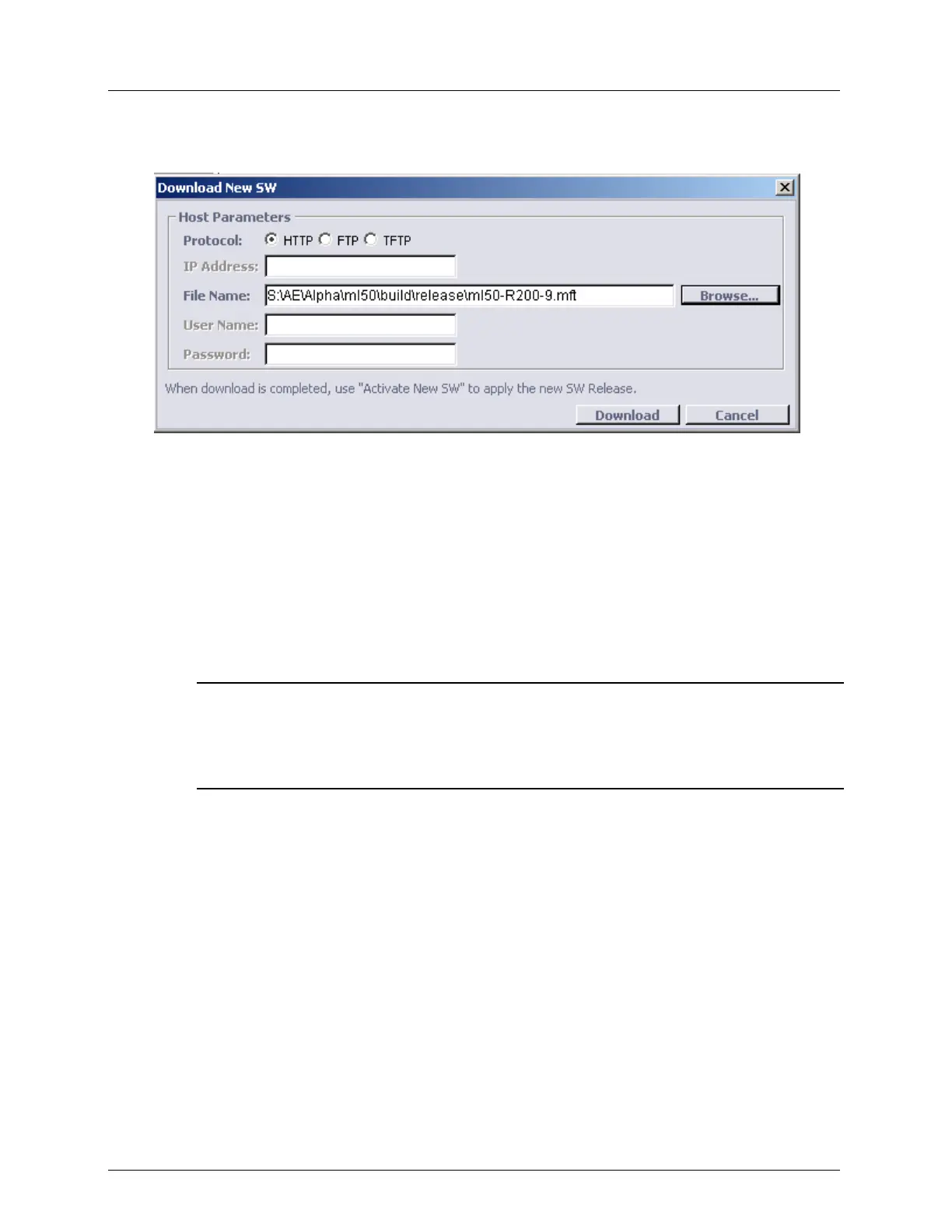
4. In the work area pane, click Download New SW. The Download New SW dialog
appears.
5. Select a protocol option for download (HTTP, FTP or TFTP).
6. In the IP Address box, type the IP Address of the FTP/TFTP server (enabled only for
FTP/TFTP).
7. In the File Name box, type the file name (this is a file with an .mft extension). If
required, click Browse to search for the file.
8. In the User Name box, type the user name (enabled only for FTP).
9. In the Password box, type the password (enabled only for FTP).
10. Click Download. A progress bar is displayed in the SW Release pane. Please wait until
download is completed (the download time depends on the link speed and may take a few
minutes (for an Ethernet MGMT link).
NOTE: If the Download New SW button is disabled it is possible that a previous SW Upgrade is still
in progress. Check the SW Upgrade procedure status. Complete the process by either clicking the
Commit SW (recommended) button or the Revert to Backup button. If the Commit SW button is
disabled you can click either the Delete New SW (recommended) button or the Activate New SW
button.
Activating the New Software
While downloading the software, the ML device (via System Administration, SW Release
pane) displays the SW loading status.
To activate the new software
1. In the Network Element tree, open System Administration.
2. Open SW Release and select ML SW Release. The ML SW Release pane opens in the
work area.
3. In the work area, click Activate New SW. The Activate New SW confirmation dialog
appears with the following message: "This action can cause traffic hit. Do you want to
continue?"
4. To confirm the restart operation, click Yes. The ML device will automatically reconnect
after the restart operation.
5. After ML device restart is completed, service is restored within a few minutes.


 To Next Page