Assessing AFH Adaptive Frequency Hopping (Option 15)
15-6 PN: 13000-00205 Rev. N MT8852B Operation Manual
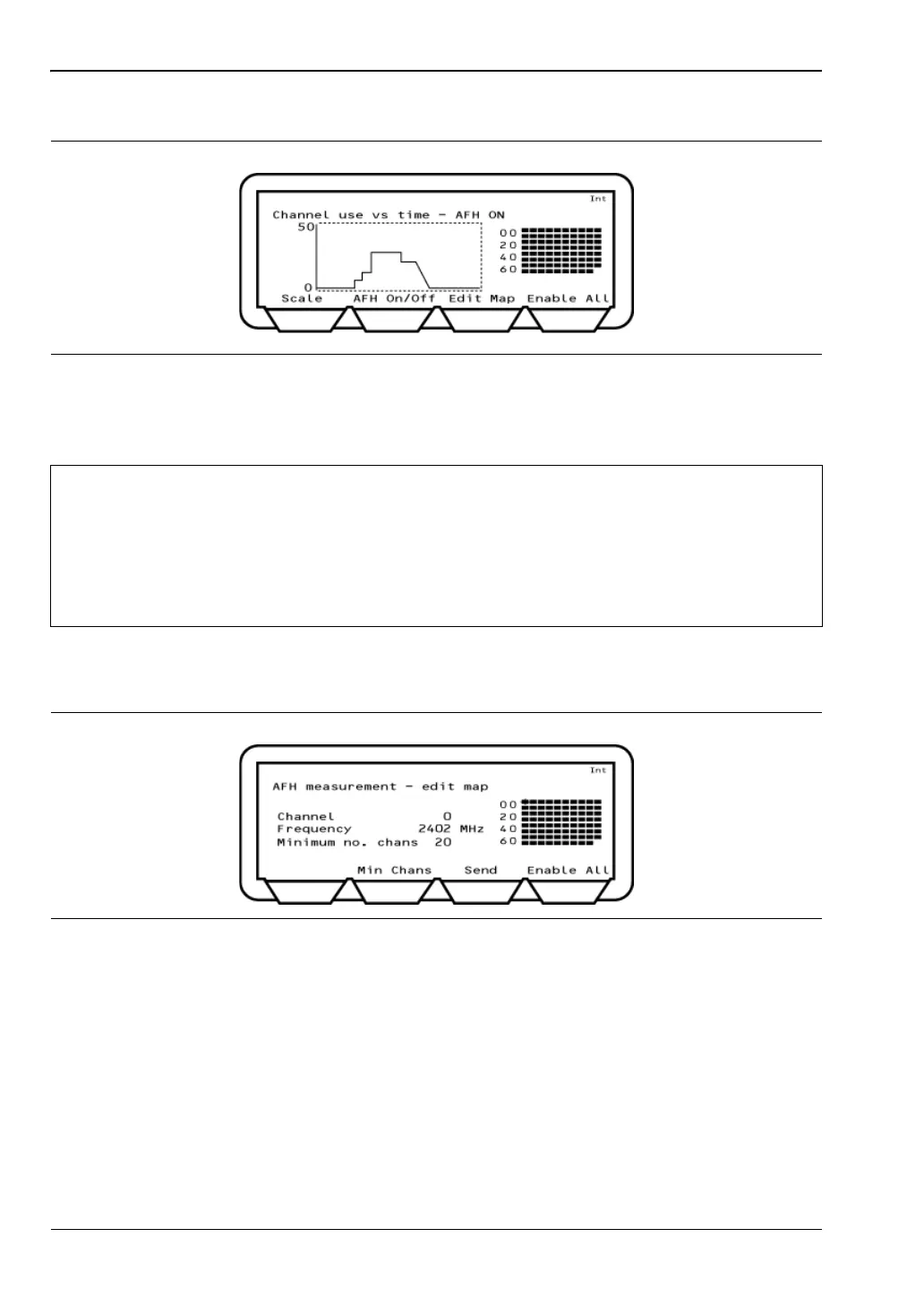
2. Press the [Chan vs T] soft key to display the page shown below.
3. Press the [AFH On/Off] soft key to enable AFH. The current AFH status is shown in the
display above the graph area.
4. Turn on the interfering source, or, if simulating interference, press the [Edit Map] soft
key to display the page shown below.
5. Use the arrow keys on the keypad to position the cross-hairs (shown in the figure above
on the upper left channel) on the required channel(s), and press the key to turn the
channels on or off.
6. When all the required channels have been 'blocked', press the [Send] soft key to update
the active channel map.
7. The results can be verified by using the EUT's support software and by returning to the
previous page and viewing the graph of channel use over time.
Figure 15-6. Channel Use vs Time
Note
If option 15 (AFH) is enabled, the time taken to establish a connection displays on
the top line of the page shown above. An example of the display is shown below.
Connection made (1: 1054 ms)
The digit prior to the colon ("1" in the case of the example above) represents the
number of attempts required to establish the connection. The figure following the
colon represents the time in milliseconds taken to establish the connection.
Figure 15-7. AFH Measurement Edit Map














 To Next Page