Basic Rate and EDR Testing Preparing the EUT for Testing
6-6 PN: 13000-00205 Rev. N MT8852B Operation Manual
Acquiring the Bluetooth Address over a USB->RS232 HCI Interface
Select “USB->RS232” if using a USB cable connection between the MT8852B and an EUT
containing a USB>RS232 FTDI chip. Use of an HCI cable connection, such as USB>RS232,
automatically configures the EUT for testing: test mode is enabled and page scanning is
turned on.
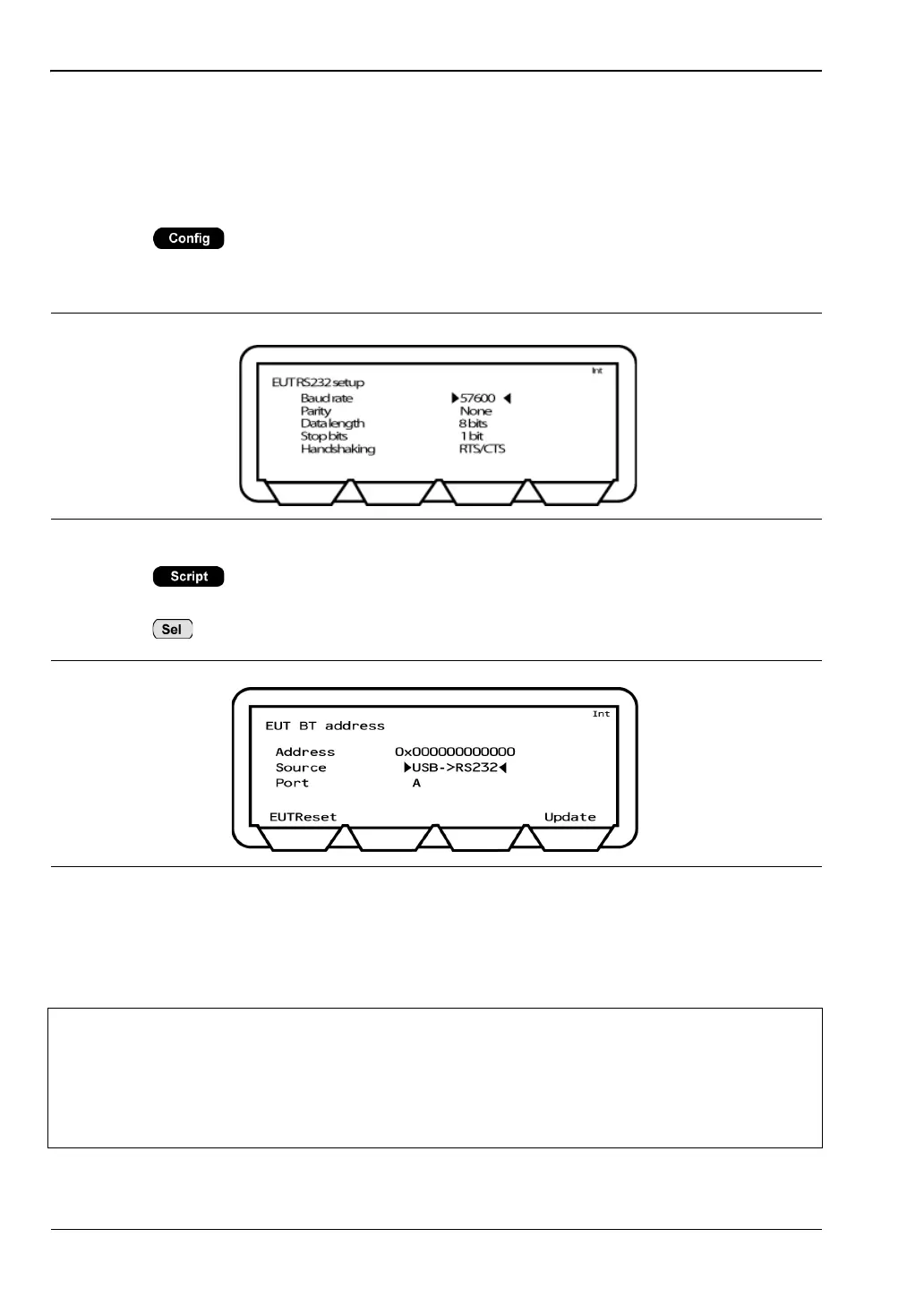
1. Press > “Equipment Under Test (EUT)” > “EUT RS232 setup”. Enter the
Baud rate used during RS232 communication. The specified baud rate must match the
EUT HCI interface setting.
2. Press > [EUT addr] to display the page at which the Bluetooth connection
settings are made.
3. Press to toggle the “Source” setting to “USB->RS232”.
4. Move the cursor to “Port” and, if multiple ports are available, select the port in use.
5. Press the [Update] soft key. The Bluetooth address is acquired over the RS232 cable
and the EUT is configured for testing.
Figure 6-7. EUT RS232 Setup
Figure 6-8. Acquiring the Bluetooth Address over RS232
Note
The “USB->RS232” setting can be used with FTDI chips only. Other USB->RS232
chips are not supported.
The “USB->RS232” setting can be used with FTDI > Hub configurations only if the
FTDI chip is connected to port 1 on the hub.
The [EUTReset] softkey sends an HCI reset to the EUT via the “EUT Control” port.














 To Next Page