2
2
2-72
2-72
Technology > MEAP > Setting the method to login to SMS > Outline
Technology > MEAP > Setting the method to login to SMS > Outline
●
Setting for login by Password Authentication
The procedures for changing the password authentication Start/ stop settings are as follows.
1) Access SMS login screen by RLS Authentication from the PC browser on the same
networkas the MEAP device.
URL: https://<IP address of MEAP device>:8443/sms/rls/
Ex.) https://172.16.188.240:8443/sms/rls
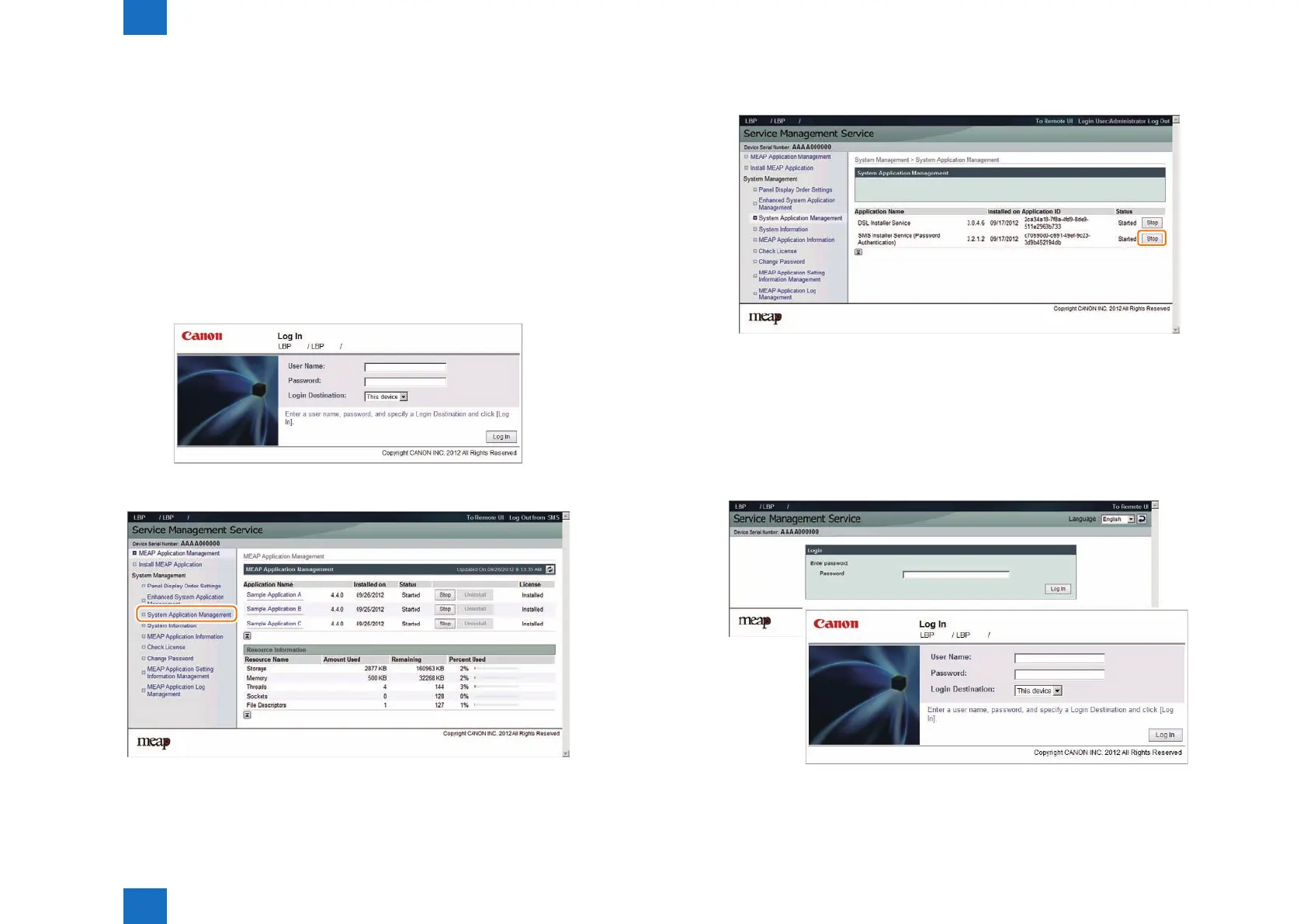
2) Enter the user name and the password of the user registered as an administrator, select
the login destination, and then click the [Log In] button.
Login screen (In case authentication method is SSO-H)
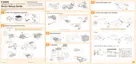
3) Select [System Application Management]
F-2-153
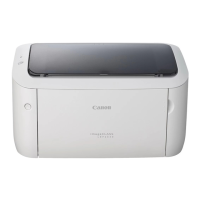
F-2-154
4) Click [Start] or [Stop] button shown in Status eld of SMS Installer Service (Password
Authentication) to check if the status is changed.
5) Logout once and login again to check to see that the setting is applied properly.
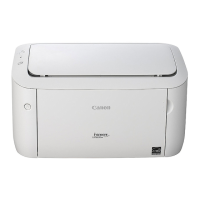
When clicking [Stop] to change the status to [Start], another password authentication login
screen is rstly shown. When trying to access the password authentication screen after
clicking [Start] to change the status to [Stop], the user is automatically redirected to RLS
authentication screen.
Password authentication started screen and Password authentication stopped screen
F-2-155
F-2-156









 To Next Page