2
2
2-20
2-20
Technology > Embedded RDS > E-RDS Setup > Steps to E-RDS settings
Technology > Embedded RDS > E-RDS Setup > Steps to E-RDS settings
■
Steps to E-RDS settings
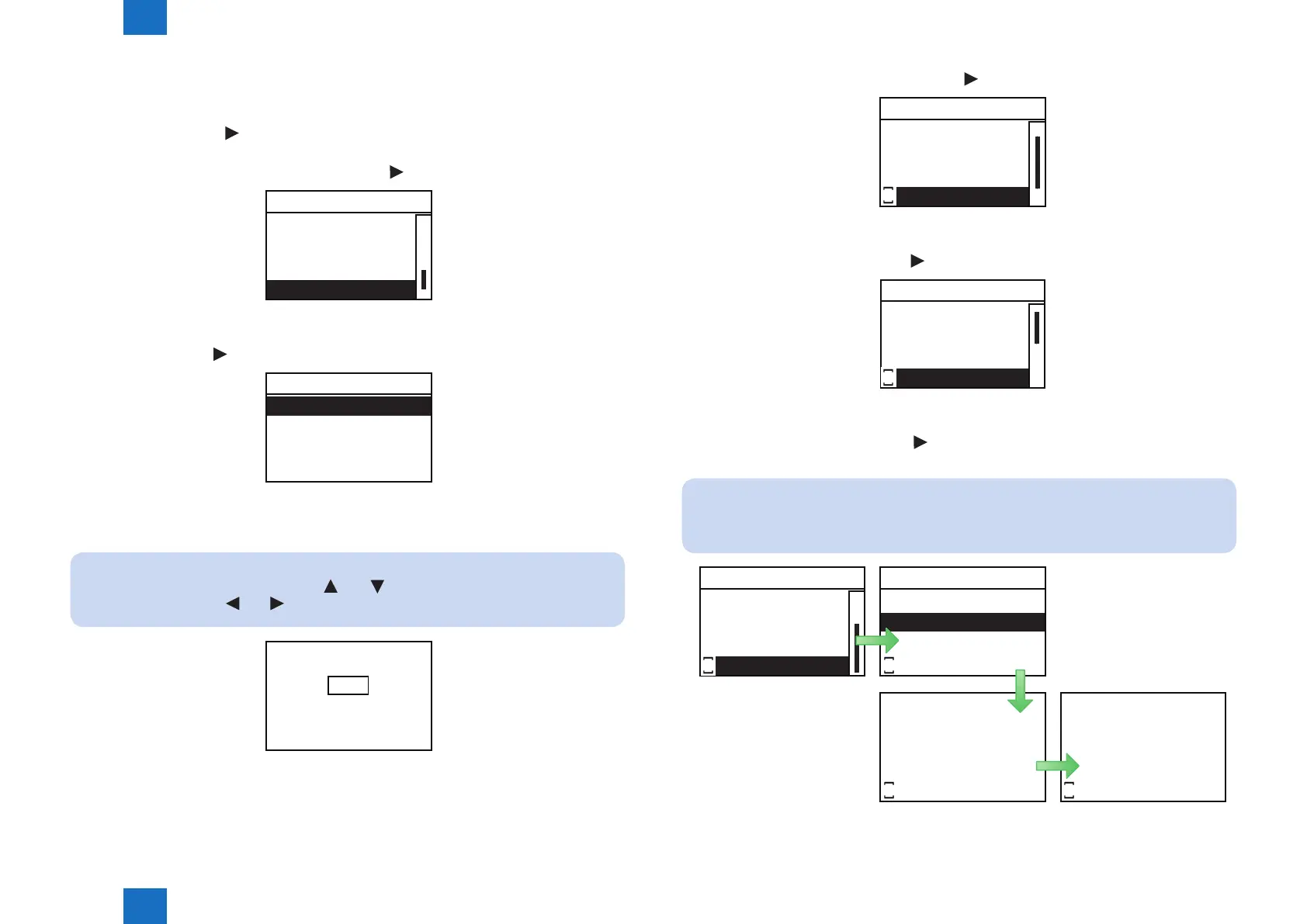
1. Start [Service Mode].
1) Press [OK] and [
] buttons at a time on the control panel.
2) Select [SERVICE MODE] and press [OK] or [
] button.
Setup
SERVICE MODE
Imaging
PS
Counter Check
3) Press [OK] or [ ] button.
SERVICE MODE
PASSWORD
4) Enter [*], [2], [8] and [*] and press [OK] button.
NOTE:
When entering your password, press [
] or [ ] button to increment or decrement
the value, and press [
] or [ ] button to move forward/backward by digit.
PASSWORD
U/D Keys: Adjust Value
Keys: Move Cursor
R/L
*28*
_
F-2-24
F-2-25
F-2-26
2. Select [NETWORK GR.] and press [OK] or [ ] button to go to the network setting menu.
SERVICE MODE
NETWORK GR.
FUNCTION GR.
LOG GR.
F/W UPDATE GR.
S
3. Select [E-RDS] and press [OK] or [ ] button to go to E-RDS setting menu.
NETWORK GR.
E-RDS
FTP SYSLOG
JOB SERIALIZE
BUFFER LIMIT
S
4. Select [CLEAR] and press [OK] or [ ] button to display Conrm Initialization screen.
Select [Yes] and press [OK] button.
NOTE:
This operation initializes the E-RDS settings to factory setting values.
For the setting values to be initialized, see the section of “Initializing E-RDS settings”.
E-RDS
CLEAR
RGW-PORT
COM-TEST
COM-LOG
S
Excute?
No
Yes
S
Initializing...
S
Done.
S
F-2-27
F-2-28
F-2-29











 To Next Page