5
5
5-49
5-49
Troubleshooting > Updater > Error Messages
Troubleshooting > Updater > Error Messages
Error Messages
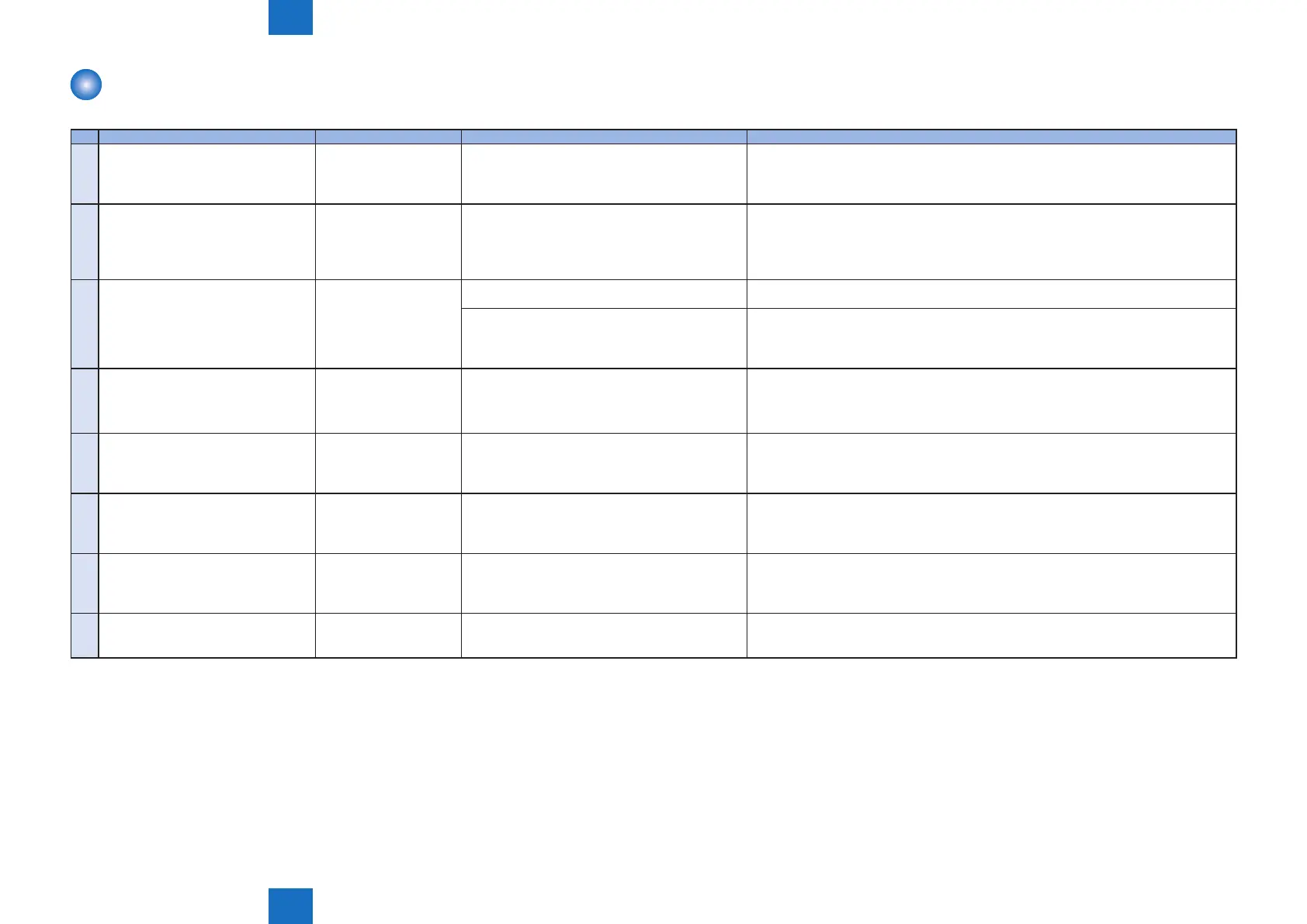
Error messages displayed in Remote UI are shown below. As to error codes, see the next list.
No. Messages Timing of display Cause Remedy
1 An error occurred with the delivery
server.
Contact your sales representative.
Error Code: [xxx]
In communicating with the
delivery server.
System error occurred in server. Obtain the log etc. (Refer to "System Management Operations" under “Version
Upgrade”of "Updater" in Chapter 6 “Troubleshooting” of this manual.) and contact
Support Div. of the sales company.
2 Delivery server is stopped.
Wait a while and then try to perform the
operation again.
Check the following URL for details.
<Stopped Delivery Server URL>
In communicating with the
delivery server.
Delivery server stopped. Check the delivery server stop information. After the delivery server starts, perform the
operation from this application.
When the delivery server stop information is not available, contact the sales company's
Support Department.
3 Failed to connect to delivery server.
Check the delivery server and network.
In communicating with the
delivery server.
Communication error due to incorrect settings of
CDS URL.
Set correct CDS URL in the Updater settings.
Excluding delivery server stop, communication error
to the delivery server occurred.
Check if the network environment is correct to solve the cause of the error occurrence.
If the network environment of the device is correct, obtain the log etc. (Refer to
"System Management Operations" under “Version Upgrade”of "Updater" in Chapter 6
“Troubleshooting” of this manual.) and contact Support Div. of the sales company.
4 Download was stopped because an
error occurred with the le server.
Check the network.
At the time of le
download
Communication error to the delivery server
occurred.
Check if the network environment is correct to solve the cause of the error occurrence.
If the network environment of the device is correct, obtain the log etc. (Refer to
"System Management Operations" under “Version Upgrade”of "Updater" in Chapter 6
“Troubleshooting” of this manual.) and contact Support Div. of the sales company.
5 Downloaded les are invalid. Check
the network.
At the time of le
download
The received le is broken. After checking the network environment of the device, re-execute the job.
If it recurs, obtain the log etc. (Refer to "System Management Operations" under “Version
Upgrade”of "Updater" in Chapter 6 “Troubleshooting” of this manual.) and contact
Support Div. of the sales company.
6 Failed to retrieve information of special
rmware.
Check the retrieval ID and password.
Acquisition of applicable
rmware information
No information exists about rmware for special
rmware retrieval ID or Password is invalid.
Enter the correct rmware ID or Password applicable to the rmware information.
If it recurs, obtain the log etc. (Refer to "System Management Operations" under “Version
Upgrade”of "Updater" in Chapter 6 “Troubleshooting” of this manual.) and contact
Support Div. of the sales company.
7 Scheduled delivery information of
rmware does not exist.
Check it because it may already have
been deleted.
Acquisition of applicable
rmware information
Delivery information with specied delivery ID does
not exist.
Register the delivery schedule again. If this occurs at the time of canceling le download,
deleting downloaded rmware or deleting scheduled delivery, no remedy is required.
8 Failed to apply rmware. Firmware application errorError due to the application (NLM) Obtain the log etc. (Refer to "System Management Operations" under “Version
Upgrade”of "Updater" in Chapter 6 “Troubleshooting” of this manual.) and contact
Support Div. of the sales company.











 To Next Page