TC Service
Doc. 065031-04 1/08 329
To install a column ID chip card:
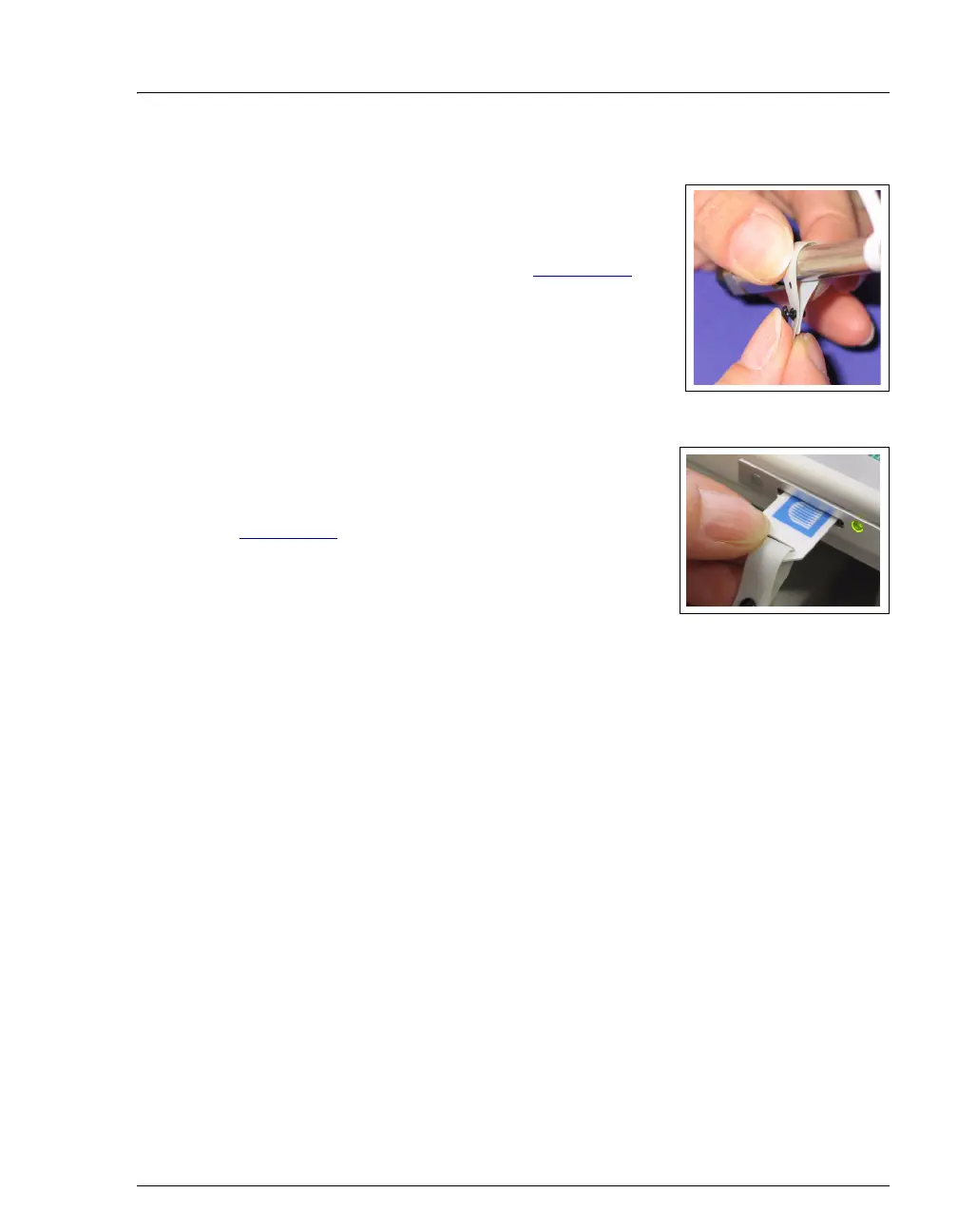
1. To attach a column ID chip card to the column,
wrap the strap around the column, insert the rivet
into one of the holes on the strap, and press to
secure the strap to the column (see Figure 9-43
).
Figure 9-43. Attaching the Column ID System to the Column
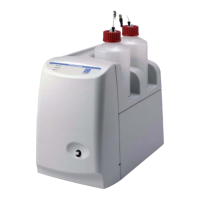
2. Insert the chip card (with the Dionex logo facing
up) into the appropriate card reader (A, B, C, or D)
along the top of the compartment (see
Figure 9-44
).
When the chip card is installed correctly, the LED
next to the slot is green.
Figure 9-44. Inserting a Column ID Chip Card
3. Install a chip card for any other columns to be monitored.
To select the column properties to be monitored:
1. Close the TC door, if it is open. (You cannot select column properties unless
the door is closed.)
2. On the TC Control panel, click the Column Details... button.
This opens the Column Details screen.
3. For each column, specify the properties the column ID system will monitor.
When you finish, click Close.


 To Next Page