2. RADAR, CHART RADAR OPERATION
2-36
2.25 How to Adjust Brilliance of Screen Data
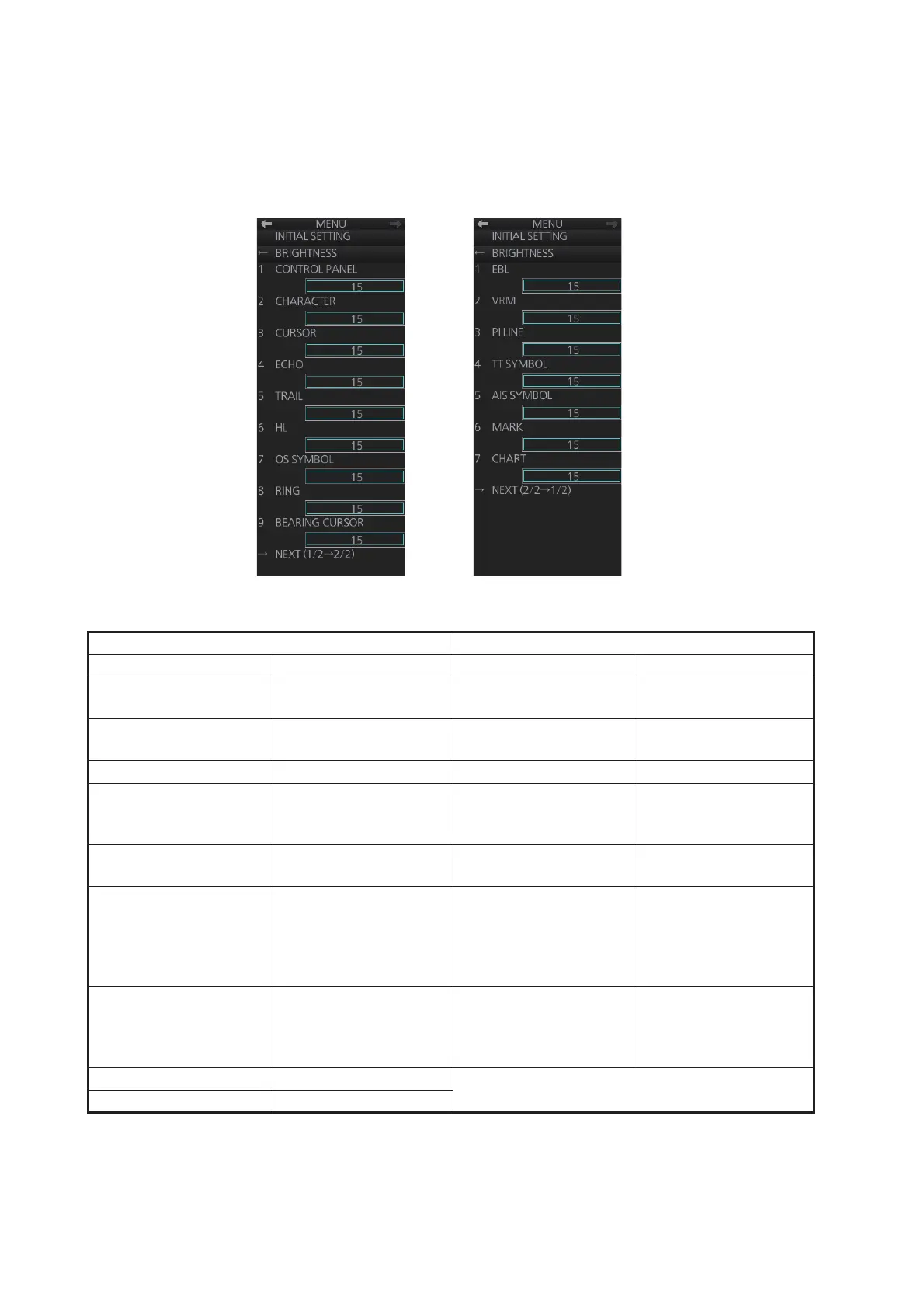
You can adjust the relative brilliance levels of various markers and alphanumeric read-
outs displayed on the screen.
1. Right-click the [BRILL] button on the InstantAccess bar™ then select [Brill Menu].
2. Click the brilliance adjustment bar of the item to adjust.
3. Spin the scrollwheel to set brilliance level.
4. Close the menu.
Page 1 Page 2
Item Adjust brightness of Item Adjust brightness of
[1 CONTROL PANEL] backlighting of keys on
Control Unit
[1 EBL] EBLs, blind sector
[2 CHARACTER] Alphanumeric charac-
ters
[2 VRM] VRMs
[3 CURSOR] Cursor [3 PI LINE] PI lines
[4 ECHO] Radar echoes [4 TT SYMBOL] TT symbols, AZ area,
TT vector, TT past
posn
[5 TRAIL] Target trails [5 AIS SYMBOL] AIS symbols, AIS vec-
tor, AIS past posn
[6 HL] Heading line, stern line [6 MARK] Radar map marks,
route, waypoint/MOB
mark, anchor watch,
drop1/2, zoom, north
mark, user chart
[7 OS SYMBOL] Own ship symbol,
barge mark, antenna
mark, own ship track,
own ship vector
[7 CHART] Chart-related objects
[8 RING] Fixed range rings
[9 BEARING CURSOR] Bearing cursor
[BRIGHTNESS] menu, page 1 [BRIGHTNESS] menu, page 2



 To Next Page