13. USER CHARTS
13-16
13.12 How to Select the User Chart(s) to Use in Route
Monitoring
Do the procedure below to monitor a user chart without linking it to a route. Click the
[NAVI] button on the Status bar then do as shown below.
1. Click the [Voyage], [User Chart] and [Select/Unselect] buttons on the
InstantAccess bar™ to open the [Select Monitor User Chart] dialog box. The [Se-
lect Monitor User Chart] can also be selected by right clicking anywhere inside the
[Route] information box (right side of screen) and then clicking [Monitor User
Chart].
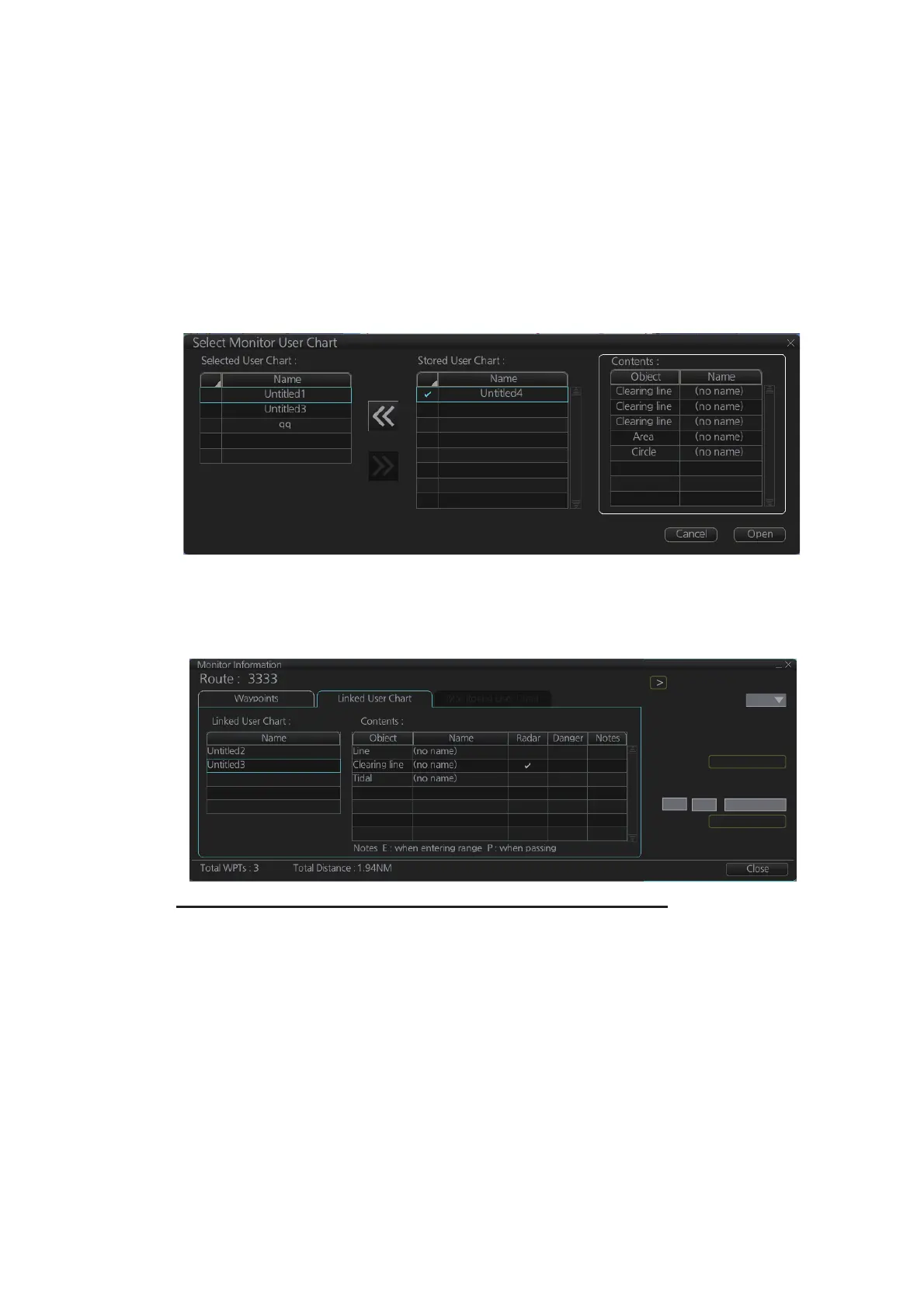
2. Check the chart(s) to use in the [Stored User Chart] window, then click the [<<]
and [Open] buttons. The [Monitor Information] dialog box automatically appears,
and shows the user charts selected for use in route monitoring. Click a user chart
name to see details, in the [Contents] window.
How to cancel use of a user chart during route monitoring
To cancel only a user chart during route monitoring, get into the Voyage navigation
mode, then click the [Voyage], [User Chart], [Select/Unselect] buttons on the Instant-
Access bar™ to show the [Select Monitor User Chart] dialog box. From the [Selected
User Chart] list, select the user chart(s) to cancel, then click the [>>], and [Open] but-
tons.
To cancel both route and user chart in route monitoring, get into the Voyage navigation
mode, then click the [Voyage] and [Stop Monitor] buttons on the InstantAccess bar™.
Check ETA
WPT:
Distance: 0.00NM
10:42 05 Jun 2016
10:25 05 Jun 2016
3
0.0kn
Plan:
Actual:
To Localtime
Start Calculate
Off Plan:
SPD Calculation:
Suggested SPD:
10
25 05 Jun 2016



 To Next Page