18. TT AND AIS DISPLAYS
18-3
18.1.4 Past position point attributes
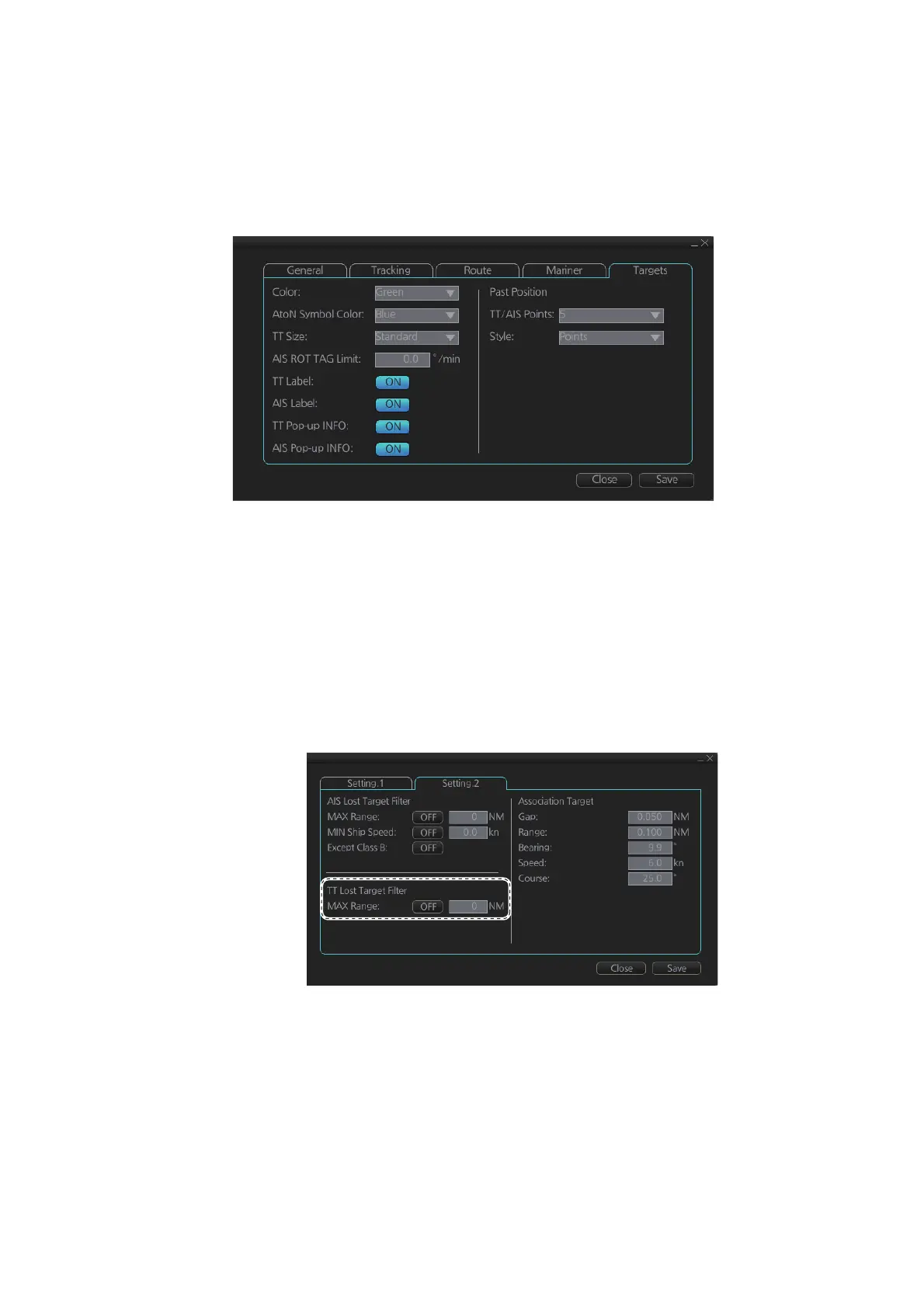
You can define past position point attributes for tracked targets by points and style.
1. Click the [DISP], [SET] and [Symbol DISP] buttons on the InstantAccess bar™ to
show the [Symbol Display] menu.
2. Click the [Targets] tab.
3. At [TT Points], select the number of points to show.
4. At [Style], select the style for the past position points. The choices are [Points] and
[Points and Dots].
18.1.5 How to set the TT lost target filter
If you are in a congested area the lost target alert may sound against many AIS tar-
gets. In this case, you can prevent the alarm from sounding against TT that are be-
yond a certain range and/or smaller than a specific length.
1. Open the MENU and select [TT/AIS] and [Setting] then click the [Setting.2] tab.
2. In the [TT Lost Target Filter] window, set the maximum range to track a target.
[MAX Range]: The maximum range at which to track a lost target. A tracked target
not within this range is not tracked.
3. Click the [ON/OFF] button to show ON or OFF as appropriate.
18.1.6 TT recording functions
Tracked target information is saved to the [Danger Targets] log. See section 19.5.



 To Next Page