6. CHART OVERVIEW
6-20
6.9 How to Control Route and User Charts in Voyage
Navigation and Voyage Planning Modes
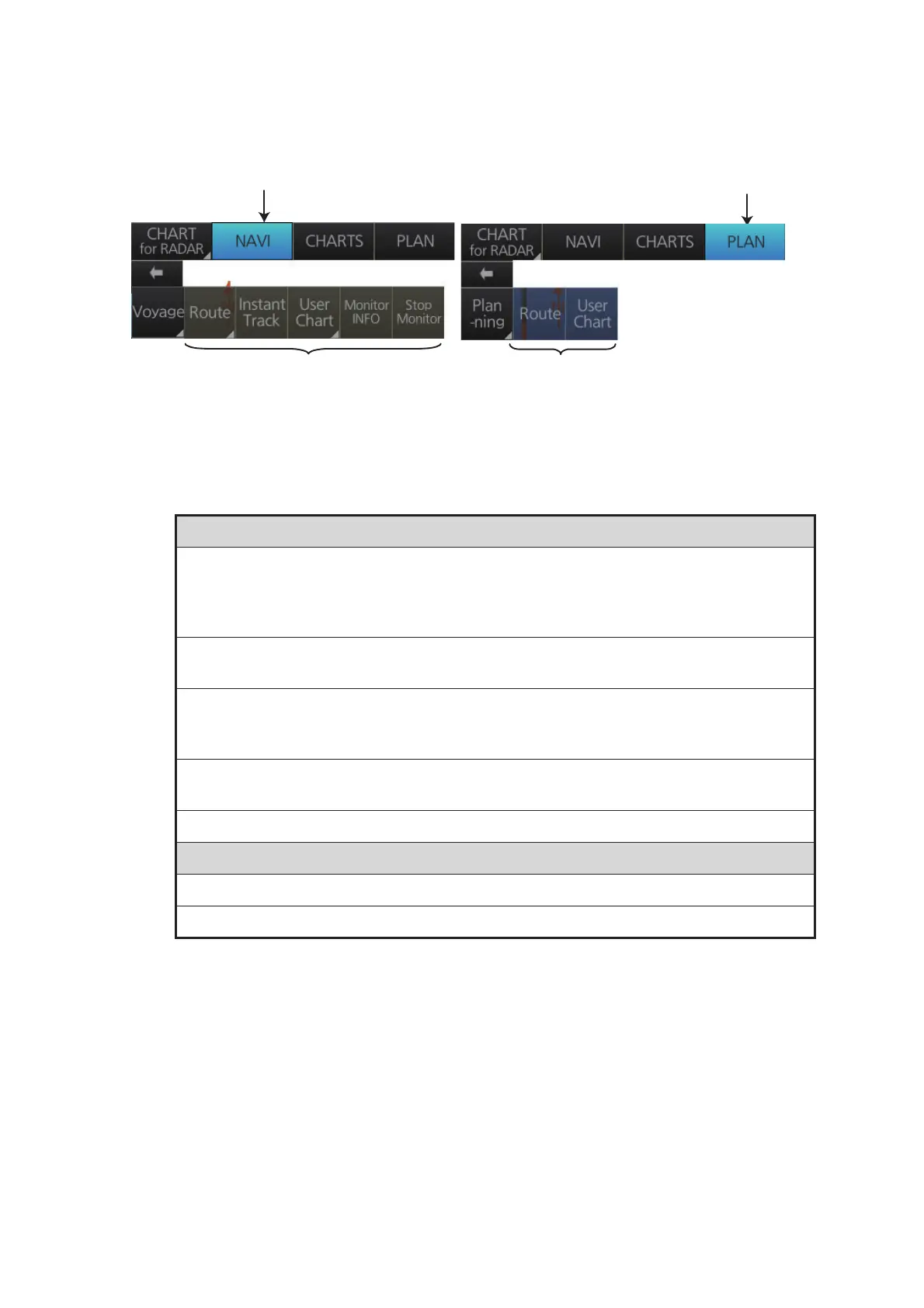
Click the appropriate chart mode button [NAVI] or [PLAN] at the top of the display to
go to respective mode. For the Voyage navigation mode, click the [Voyage] button
then click the button corresponding to the action to take. For the Voyage planning
mode, click the [Planning] button followed by the [Voyage] button to select a route, or
[User Chart] button to select a user chart.
Voyage navigation mode functions
[Route]: This button has three functions:
• [Select]: Selects the route to monitor.
• [Unselect]: Deselects monitored route.
• [Move to Plan]: Moves monitored route to Voyage planning mode (for editing).
[Instant Track]: Creates a temporary track to return to or make a temporary detour from
the monitored course.
[User Chart]: This button has one function.
• [Select/Unselect]: Selects and unselects user charts from monitoring regardless of
route being monitored.
[Monitor INFO]: Opens the Monitor Information dialog box, to view monitored route,
linked user chart and monitoring user chart information.
[Stop Monitor]: Stops monitoring a route and user charts.
Voyage planning mode functions
[Route]: Shows the [Route Plan] dialog box to create or edit a route.
[User Chart]: Shows the [User Chart] dialog box to create or edit a user chart.
Click for Voyage navigation mode
Click for Voyage planning mode
Functions in Voyage navigation mode
Functions in Voyage planning mode



 To Next Page