13. USER CHARTS
13-11
13.8.3 How to import RTZ format user charts
1. Set the USB flash memory to the USB port on the Control Unit.
2. Click the [PLAN] button on the Status bar to go to the Voyage planning mode.
3. Click the [Manage Data] button on the InstantAccess bar™ followed by the [User
Chart] button. The [User Chart Data Management] dialog box appears.
4. Click [Import]. The [SELECT DIRECTORY] pop up window appears.
5. Select the folder that contains the user chart(s) to be imported then click the [OK]
button.
6. Check the user chart(s) to import then click the [Import] button.
7. Click [Close].
13.9 How to Export User Chart Data
You can save user chart data to a USB flash memory and share the data with other
units (FMD-3x00, FCR-2xx9 or FAR-3xx0).
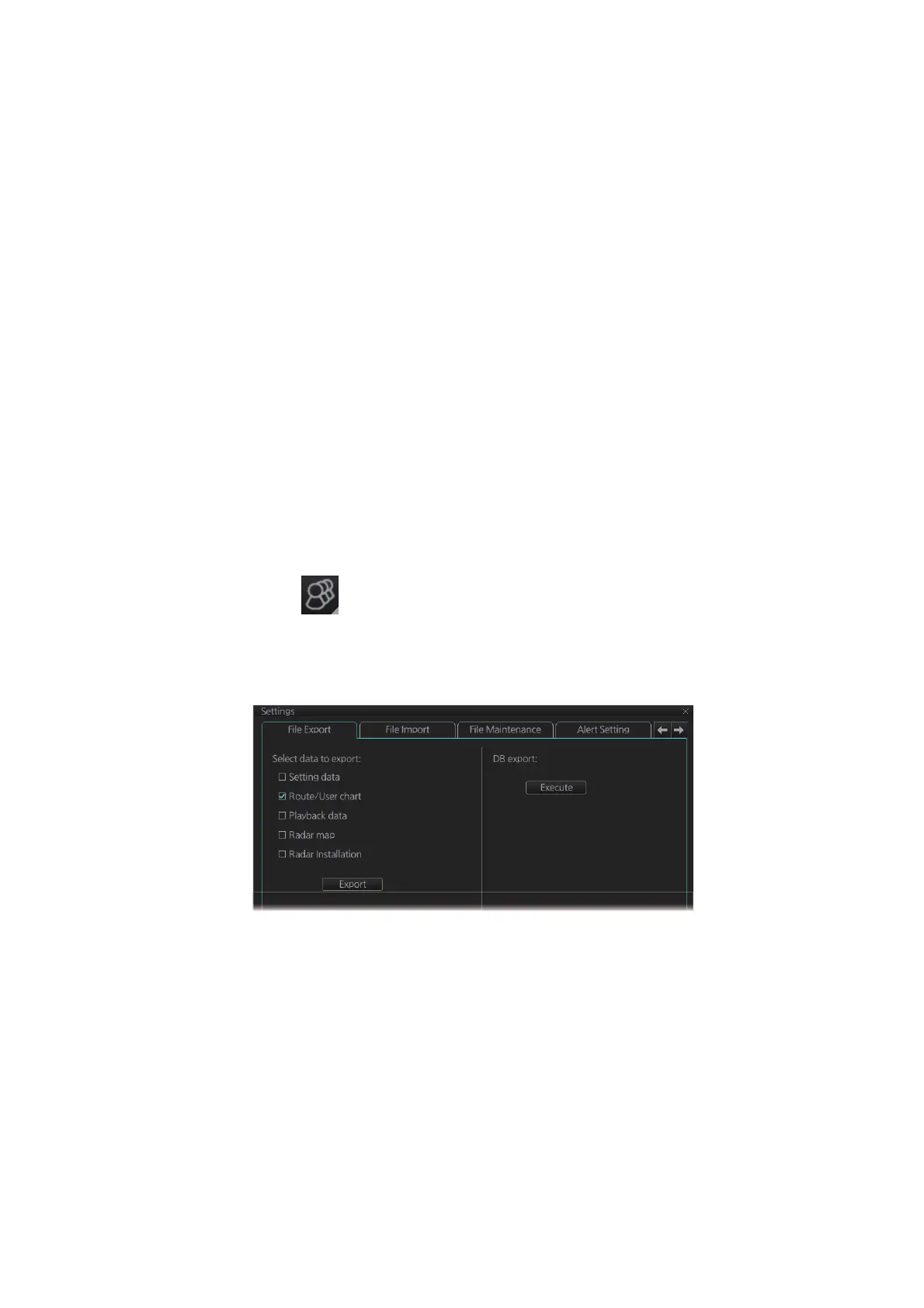
13.9.1 How to export user chart data created on the FMD-3x00
1. Set the USB flash memory to the USB port on the Control Unit.
2. Click the button on the InstantAccess bar
™
, then select [Settings]. A confir-
mation pop up window appears.
3. Click OK to show the [Settings] menu.
4. Click the [File Export] tab.
5. Check [Route/User chart], then click the [Export] button.
13.9.2 How to export RTZ format user chart data
1. Set the USB flash memory to the USB port on the Control Unit.
2. Click the [PLAN] button on the Status bar to go to the Voyage planning mode.
3. Click the [Manage Data] button on the InstantAccess bar™ followed by the [User
Chart] button. The [User Chart Data Management] dialog box appears.
4. Check the user charts to export.
5. Click the [Export] button. The [SELECT DIRECTORY] pop up window appears.
6. Select the destination folder then click the [OK] button.
7. Click [Close].



 To Next Page