7. HOW TO MANAGE CHARTS
7-6
7.4 How to Read ENC Chart Manufacturer Info
You can find out if your installed ENC charts are official or unofficial, with the [Producer
Code] button in the [Licenses] dialog box. The following functions use this feature.
• [Filter] window (see section 7.14) can show or hide
official or unofficial charts.
• Chart judgment is shown for unofficial charts on the
[Check Results] of the [Route Plan] dialog box (see paragraph 12.4.5) if the corre-
sponding alert check is active.
1. In the Chart maintenance mode, click the [License] button to show the [Licenses]
dialog box.
2. Click the [ENC] tab.
3. Click the [Producer Code] button.
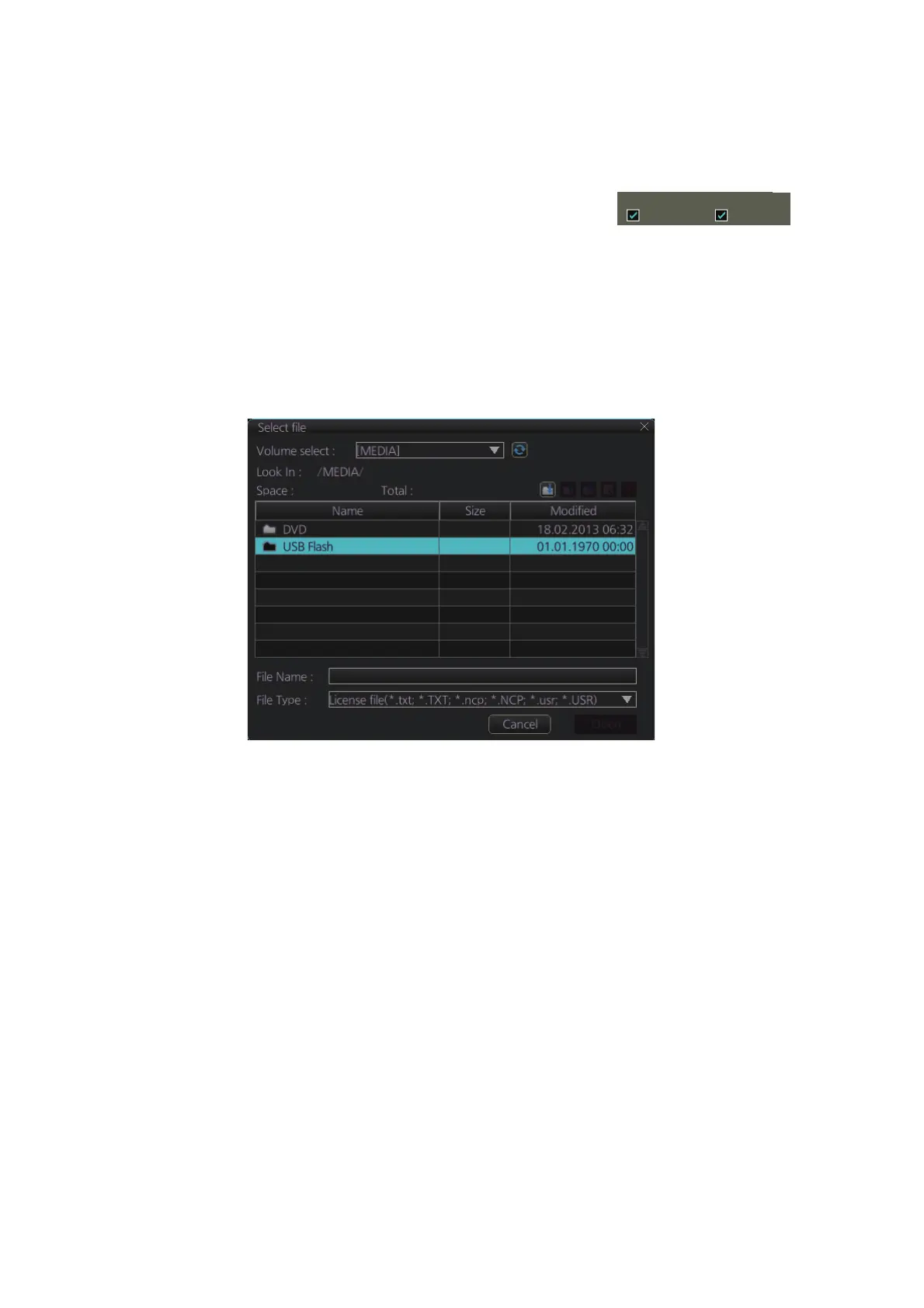
4. Select the judgment information file then click the [Open] button.
7.5 How to Install C-MAP Charts
Synchronize chart data before you install C-MAP charts, grouping the chart radar units
to synchronize, otherwise the chart data cannot be shared. See the procedure in
paragraph 7.21.1 for how to synchronize chart data. If C-MAP charts are not synchro-
nized after installation, delete all C-MAP charts, and do the above procedure again.
7.5.1 How to register the eToken
The eToken is a hardware mechanism (installed inside the processor unit) used for
password authentication. Registration of the eToken is required only once, before you
install the C-MAP database.
1. Get into the Chart maintenance mode then click the [License] button on the
InstantAccess bar™ to show the [License] dialog box.
Official:
Official Unofficial



 To Next Page