13. USER CHARTS
13-10
6. Click the box to the left of [Route/User chart] in the "Select data to import:" section
of the [File Import] tab.
7. Click [Import].
13.8.2 How to import a user chart created with ECDIS FEA-2x07
User charts created at the ECDIS FEA-2x07 can easily be imported to this ECDIS.
Copy the user charts to a folder (see chapter 17 in the operator’s manual of the FEA-
2x07) in a USB flash memory then do as follows. Note that FEA-2x05 created user
charts cannot be imported.
1. Set the USB flash memory to the USB port on the Control Unit.
2. Activate the Voyage planning mode.
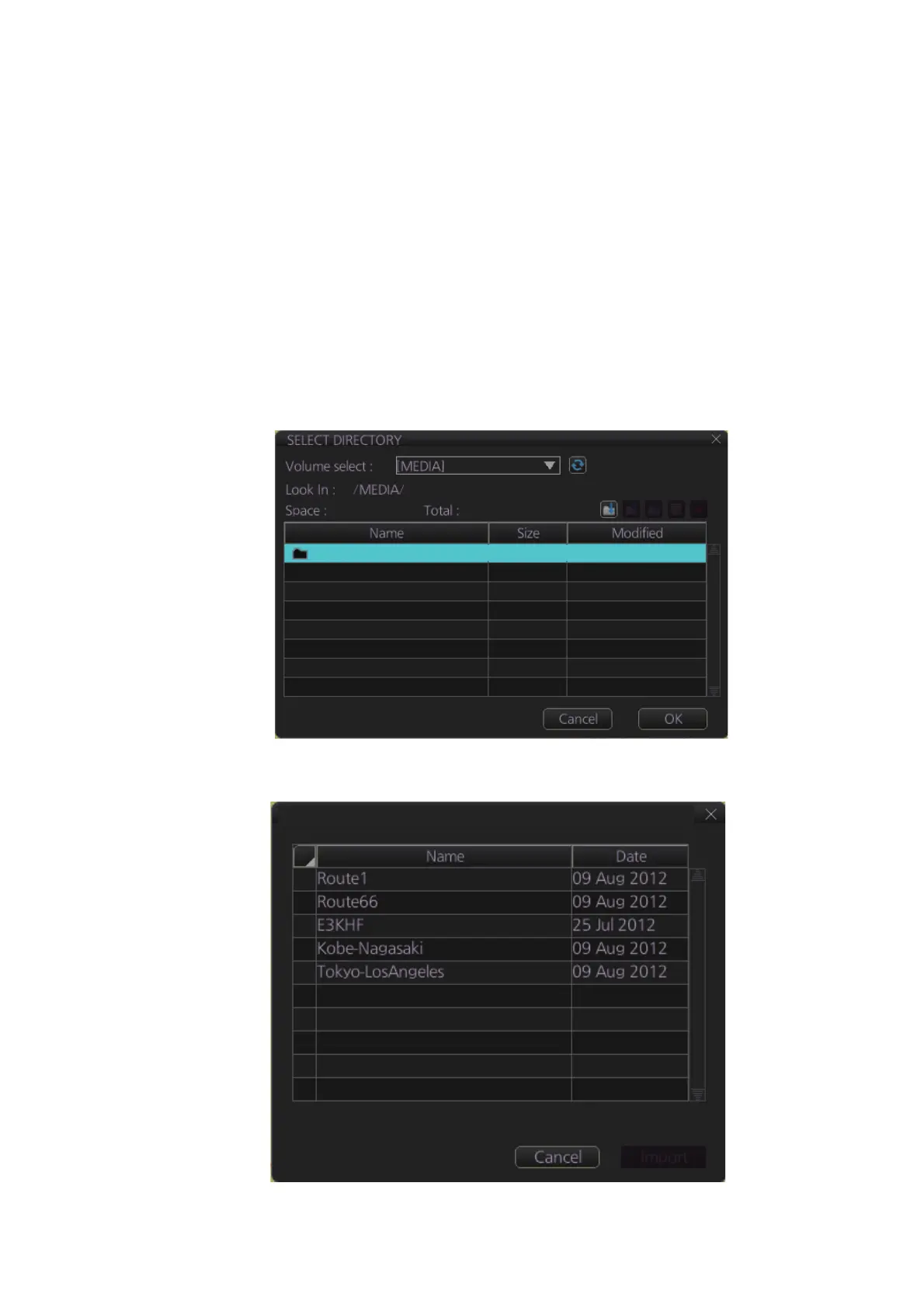
3. Click the [Manage Data], [Data Import] and [User Chart] buttons to show the [SE-
LECT DIRECTORY] dialog box.
4. Select the folder that contains the user chart(s) to be imported then click the [OK]
button.
5. Check the user chart(s) to import then click the [Import] button.
USB Flash 04.04.2013 19:23
User Chart Data Import from legacy ECDIS



 To Next Page