22. SETTINGS MENU
22-3
22.3 File Import
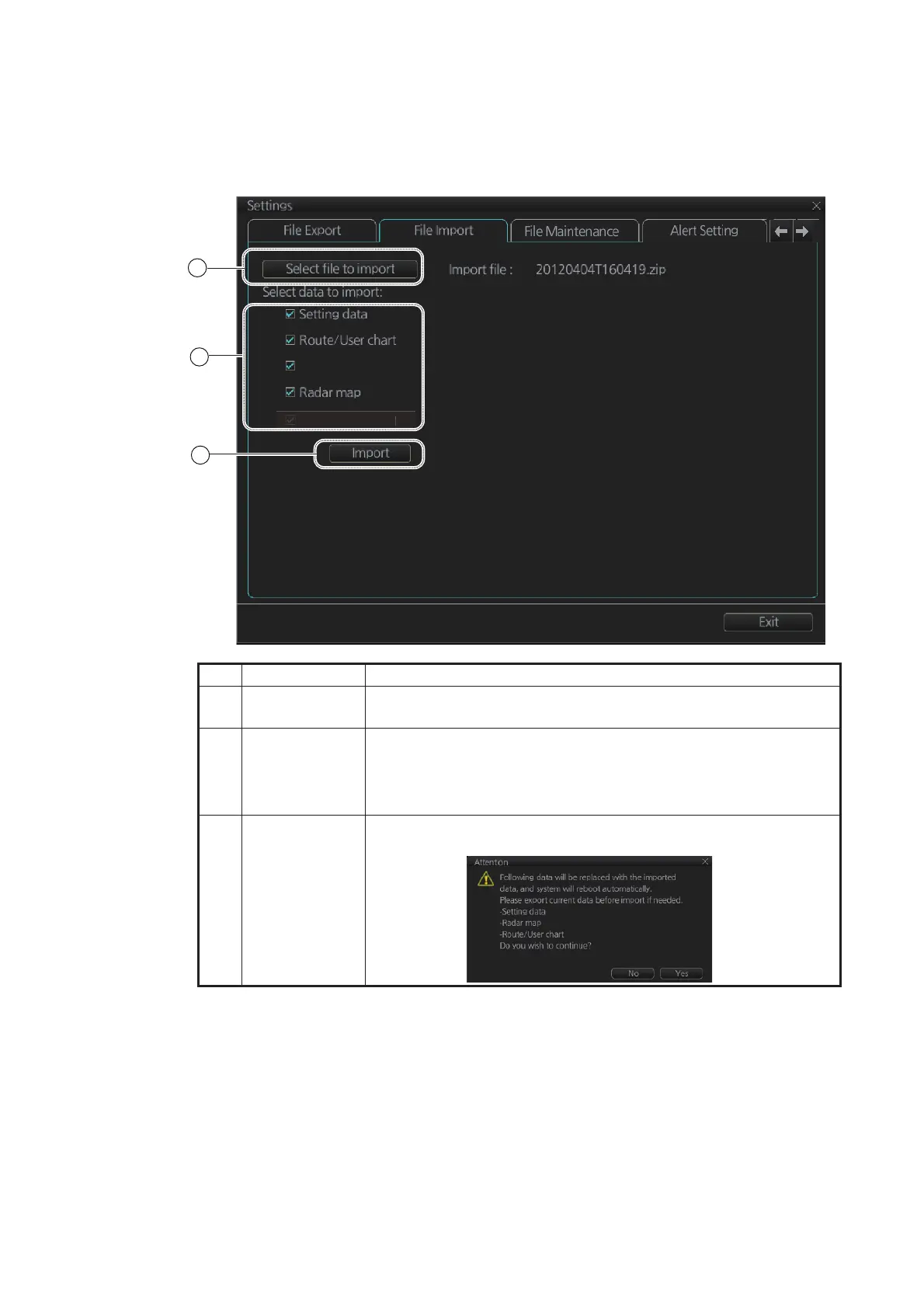
The [File Import] page lets you import setting data, routes, user charts, radar maps
and radar installation from an external media (USB flash memory, etc.).
Note 1: The system automatically restarts after setting data is imported.
Note 2: If importing could not be completed, first check if the USB flash memory is
properly inserted. If inserted properly, try importing again.
Note 3: The [Select data to import] menu does not appear until after a file is selected.
The [Import] button appears after the data to import is selected.
Note 4: The message "Now processing" appears during the importing. The message
"File import finished." appears upon completion of the importing. Click the [OK] button.
No. Name Description
1 [Select file to
import] button
Click to show the [OPEN FILE] dialog box, where you can select
the file to import.
2 [Select data to
import]
Check the data to import, among [Setting data], [Route/User
chart], and [Radar map].
Note 1: [Playback data] is no use.
Note 2: [Radar Installation] available in Service mode only.
3 [Import] button Click to import the objects selected. The following message ap-
pears on the display.
Playback data
Radar Installation
R
r In
t
ll
ti
n



 To Next Page