12. ROUTES
12-3
12.4 How to Create a New Route
To make a complete route for a voyage, do the following:
1. Click the [PLAN] button on the Status bar to activate the Voyage planning mode.
2. On the InstantAccess bar™, click the [Planning] button followed by the [Route]
button to open the [Route Plan] dialog box.
3. Click the [New] button.
Note: When accessing the database is failed after pressing the [New] button, the
message "Database access failure occurred. You can make a route but cannot
save it." appears. Contact your dealer in this case.
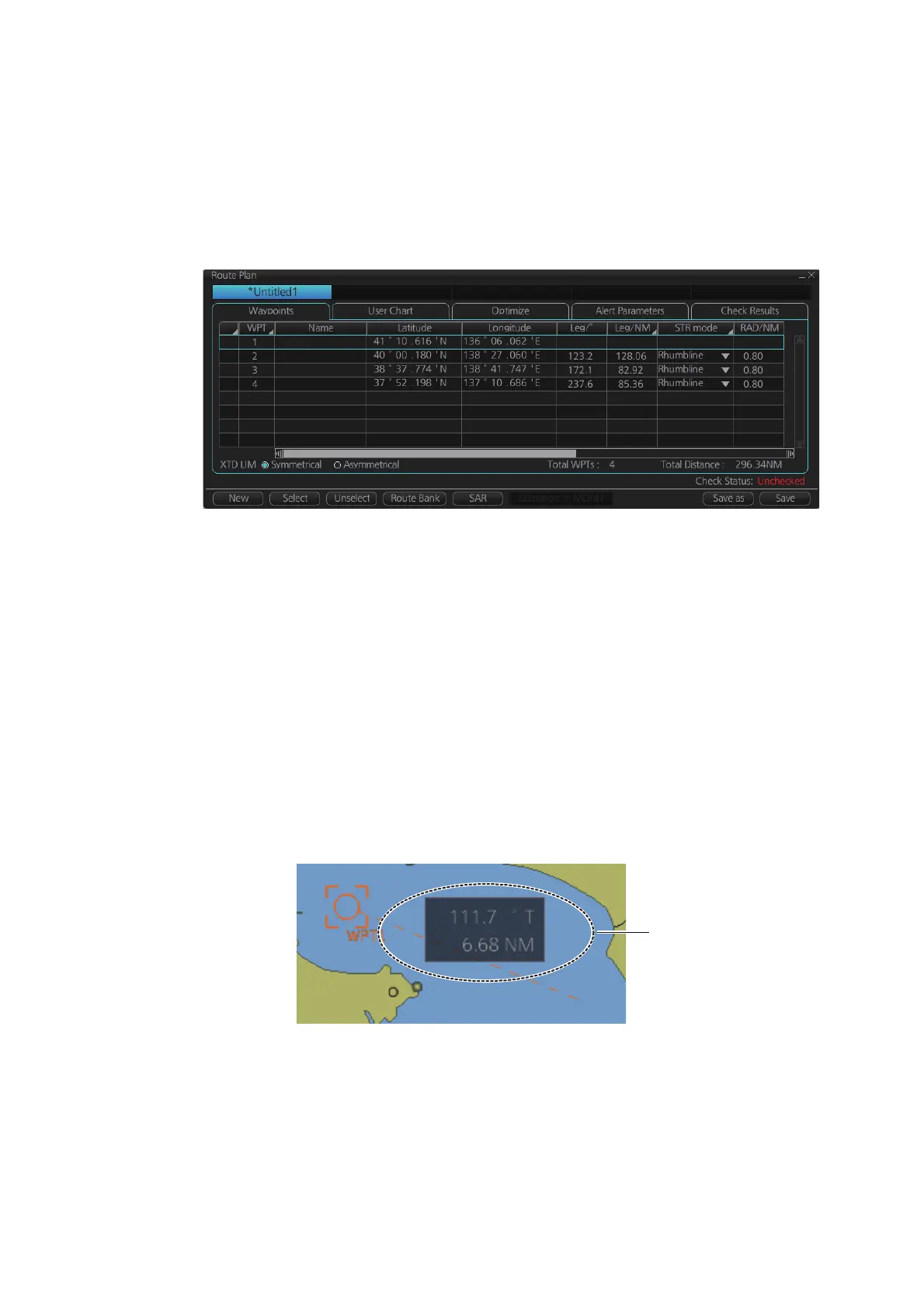
4. Use the cursor to select a position for the first waypoint then push the left mouse
button. A waypoint mark appears on the position selected, and the latitude and
longitude of the position, etc. are entered into the [Route Plan] dialog box. After
entering a waypoint, edit Name, Steering mode* ([Rhumbline] or [Greatcircle]),
Radius*, XTD limit*, Plan SPD*, SPD Max*, Margin* and Local Time* as appropri-
ate in the [Route Plan] dialog box, using the keyboard on the Control Unit or the
software keyboard. (*: Editable for waypoint 2 and thereafter only.)
For how edit the details, see section 1.23.3 and section 1.23.4.
Note 1: A guide box that shows the range and bearing between waypoints as you
drag the cursor is available. You can show or hide the box with the [Guide Box]
button on the InstantAccess bar™. Click the button to show its background color
in light-blue and display the guide box.



 To Next Page