12. ROUTES
12-19
12.9.3 How to import RTZ, CSV, ASCII format route data
1. Set the USB flash memory to the USB port on the Control Unit.
2. Activate the Voyage planning mode.
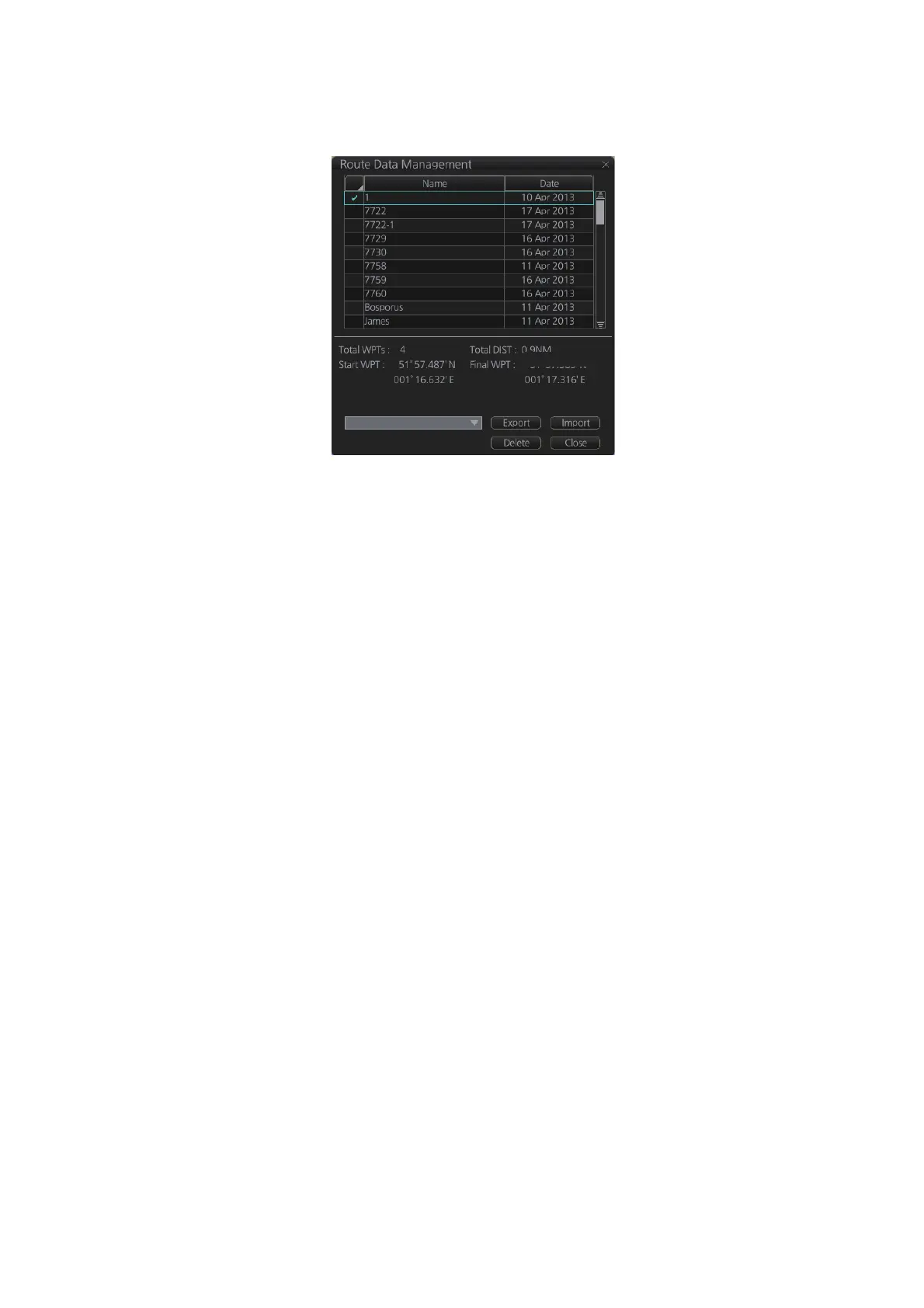
3. On the InstantAccess bar™, click the [Manage Data], [Route] and [Route Data
Management] buttons to show the [Route Data Management] dialog box.
4. At the drop-down list, select the import format. The choices are
[RTZ]: route data, XML format
[FEA-2x07]: route data, ECDIS FEA-2x07 format
[CSV Position]: waypoint position data, CSV format
[ASCII WPT Name Position]: waypoint name, position order, ASCII format
[ASCII Full]: all route data, ASCII format
[ASCII Full (Support Asymmetrical XTD Limit]: asymmetrical channel limit sup-
port, ASCII format
[CSV Route Sheet]: route data, CSV format
[RTE Format]: route data, RTE format
5. Click the [Import] button.
6. Select the file to import then click the [Open] button.
7. Click the [Close] button to close the dialog box.
0.92NM
RTZ



 To Next Page