22. SETTINGS MENU
22-14
22.11.1 How to export screenshots
You can export screenshots to a USB flash memory as follows:
1. Insert a USB flash memory in the USB port on the Control Unit.
2. Open the [Screenshot] page.
3. Put a checkmark in the checkbox of the screenshot(s) to export.
4. Click the [Export] button.
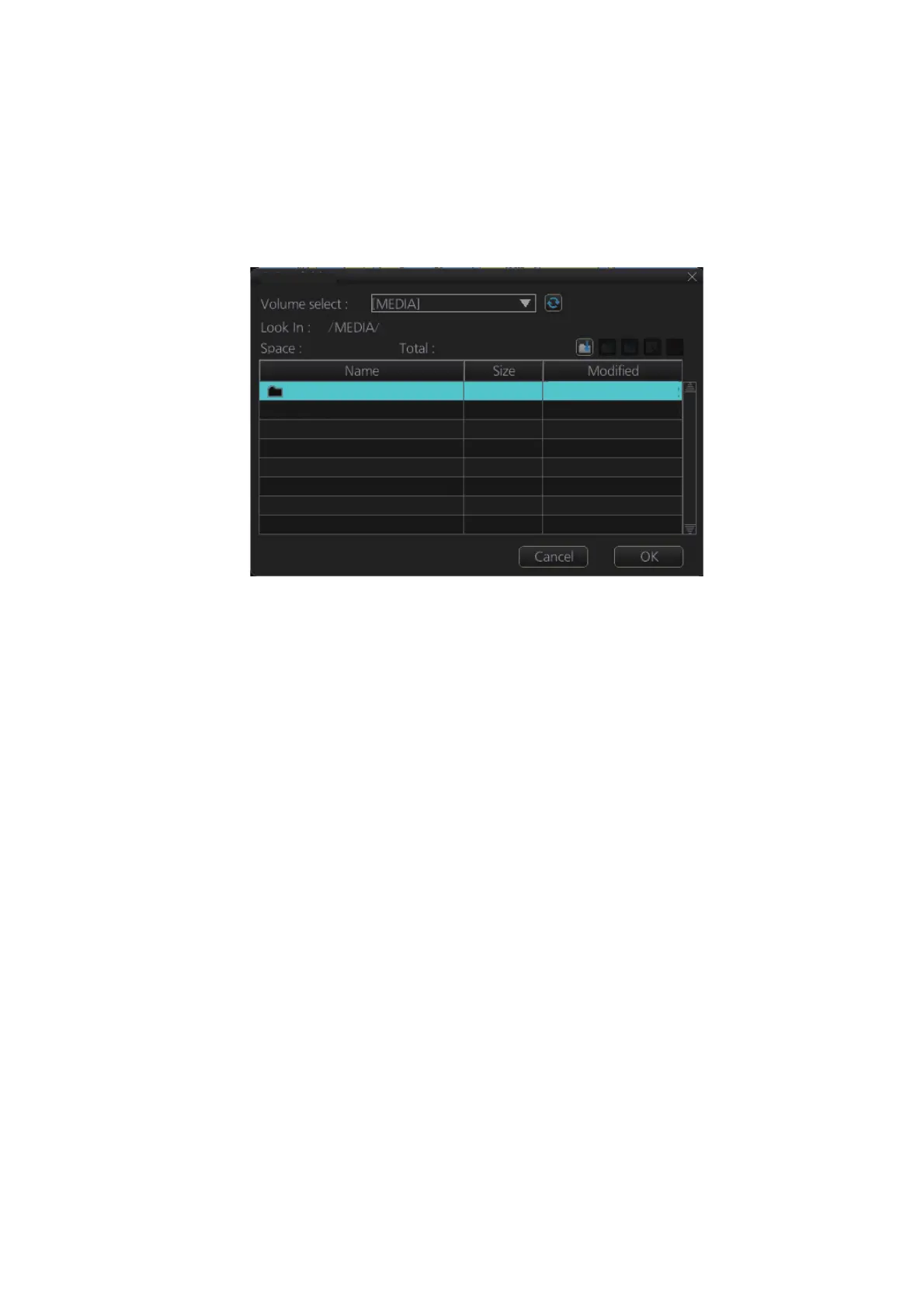
5. Select the USB flash memory.
6. Click the [OK] button to export the screenshots selected.
7. If the exporting was successful, a window showing the number of files exported
appears. Click the [OK] button to finish.
22.11.2 How to delete screenshots
You can delete the screenshots saved in the SSD inside the EC-3000.
1. Select the [Screenshot] page.
2. Put a checkmark in the checkbox of the screenshot(s) to delete. To select all
screenshots, right-click the box to the left of the [Date] column then select [Select
all]. To clear all check marks, select [Clear all].
3. Click the [Delete] button. The confirmation message "Attention: Selected files will
be deleted. Do you wish to continue?" appears.
4. Click the [Yes] button to delete the screenshots selected. The message "File de-
letion succeeded" appears.
5. Click the [OK] button.
22.11.3 How to print screenshots
With connection of a printer you can print the screenshots stored in the SSD of the
processor unit.
1. Select the [Screenshot] page.
2. Put a checkmark in the checkbox of the screenshot(s) to print.
3. Click the [Print] button.
USB Flash 04.04.2012 19:23
SAVE FILE



 To Next Page