7. HOW TO MANAGE CHARTS
7-5
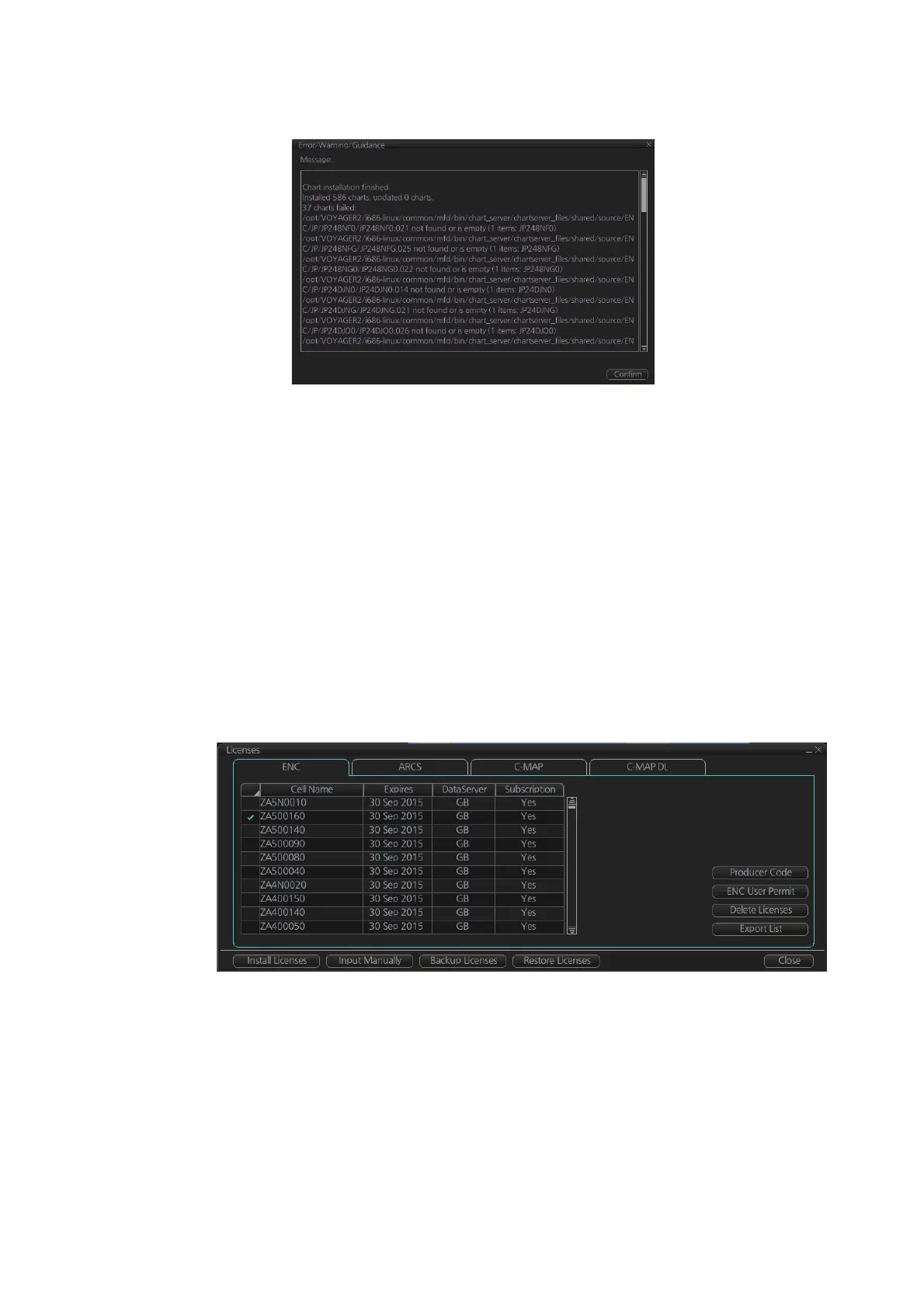
4. When the installation is completed, information about the installation appears in
the [Result] window. Click the [Confirm] button to finish.
5. If applicable, set the next sequential medium then repeat steps 2-4 to install the
next database.
6. After all necessary charts are installed, reset the power.
Note 1: When many charts are installed, the chart system checks for error in the in-
stalled chart data at the next power up. This is not an indication of malfunction.
Note 2: Previous versions of charts cannot be displayed if installed after installing the
latest versions.
7.3 How to Delete ENC Licenses
1. Get into the Chart maintenance mode.
2. Click the [License] button on the InstantAccess bar™.
3. Click the [ENC] tab as appropriate to show a list of licenses.
4. Put a checkmark next to the license(s) to delete.
5. Click the [Delete Licenses] button to delete the license(s) selected.



 To Next Page