13. USER CHARTS
13-9
13.7 How to Select the User Chart Objects to Display
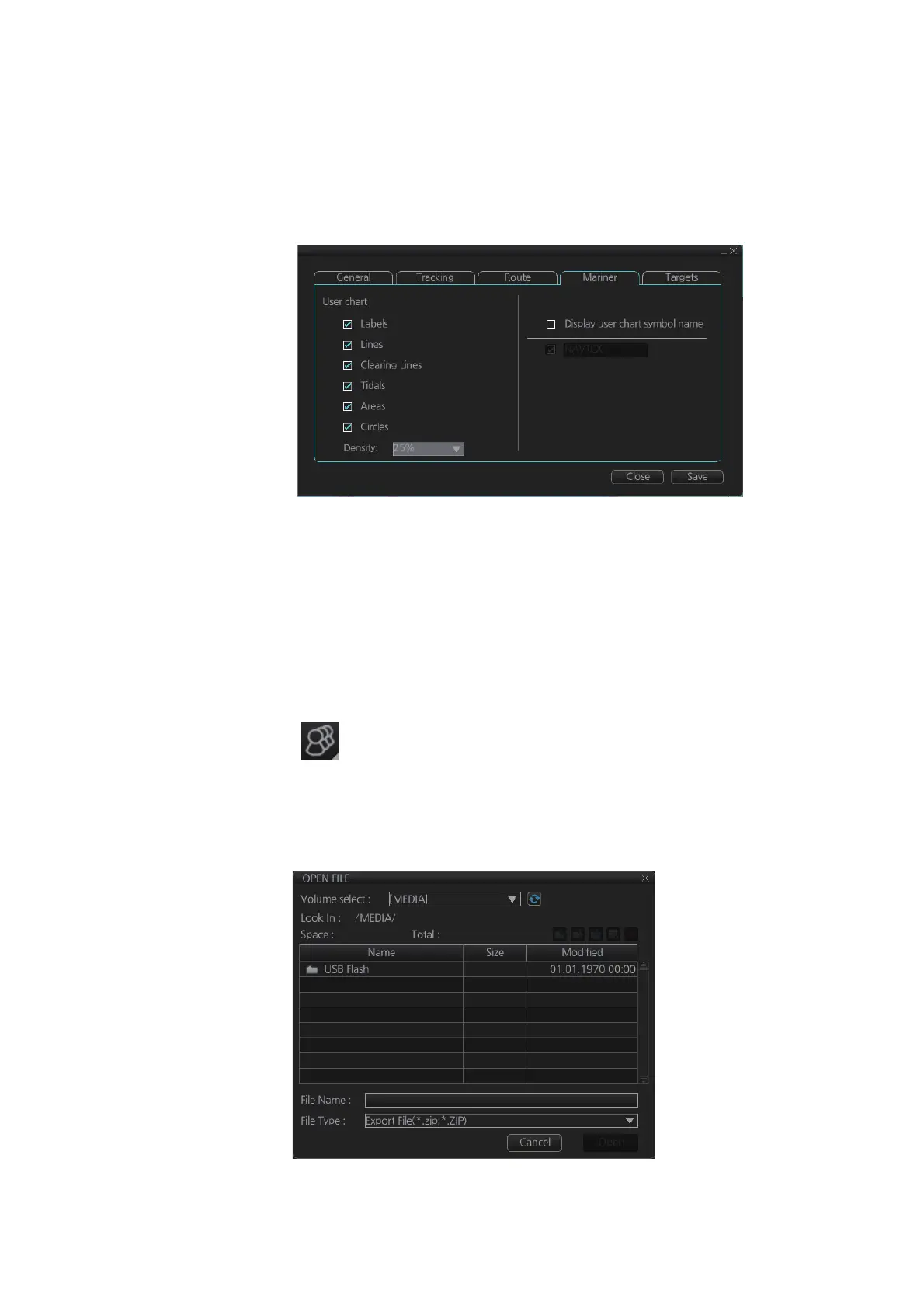
User charts can be displayed on the electronic chart. Open the [Mariner] page in the
[Symbol Display] menu and check the user chart items to display. Select the degree
of transparency for the objects with [Density].
Note: Alpha blending technology is used for transparency effects.
13.8 How to Import User Chart Data
13.8.1 How to import user chart data from other units
You can import user chart data from other units (FMD-3x00, FCR-2xx9 or FAR-3xx0)
with the following procedure. For FEA-2x07 user charts, see section 13.8.2.
1. Set the USB flash memory to the USB port on the Control Unit.
2. Click the button on the InstantAccess bar
™
, then select [Settings]. A confir-
mation pop up window appears.
3. Click OK to show the [Settings] menu.
4. Click the [File Import] tab, then click the [Select file to import] button. The open file
dialog box appears.
5. Select the file to import, then click the [Open] button. The open file dialog closes.



 To Next Page