6. CHART OVERVIEW
6-9
How to operate the buttons on the InstantAccess bar™
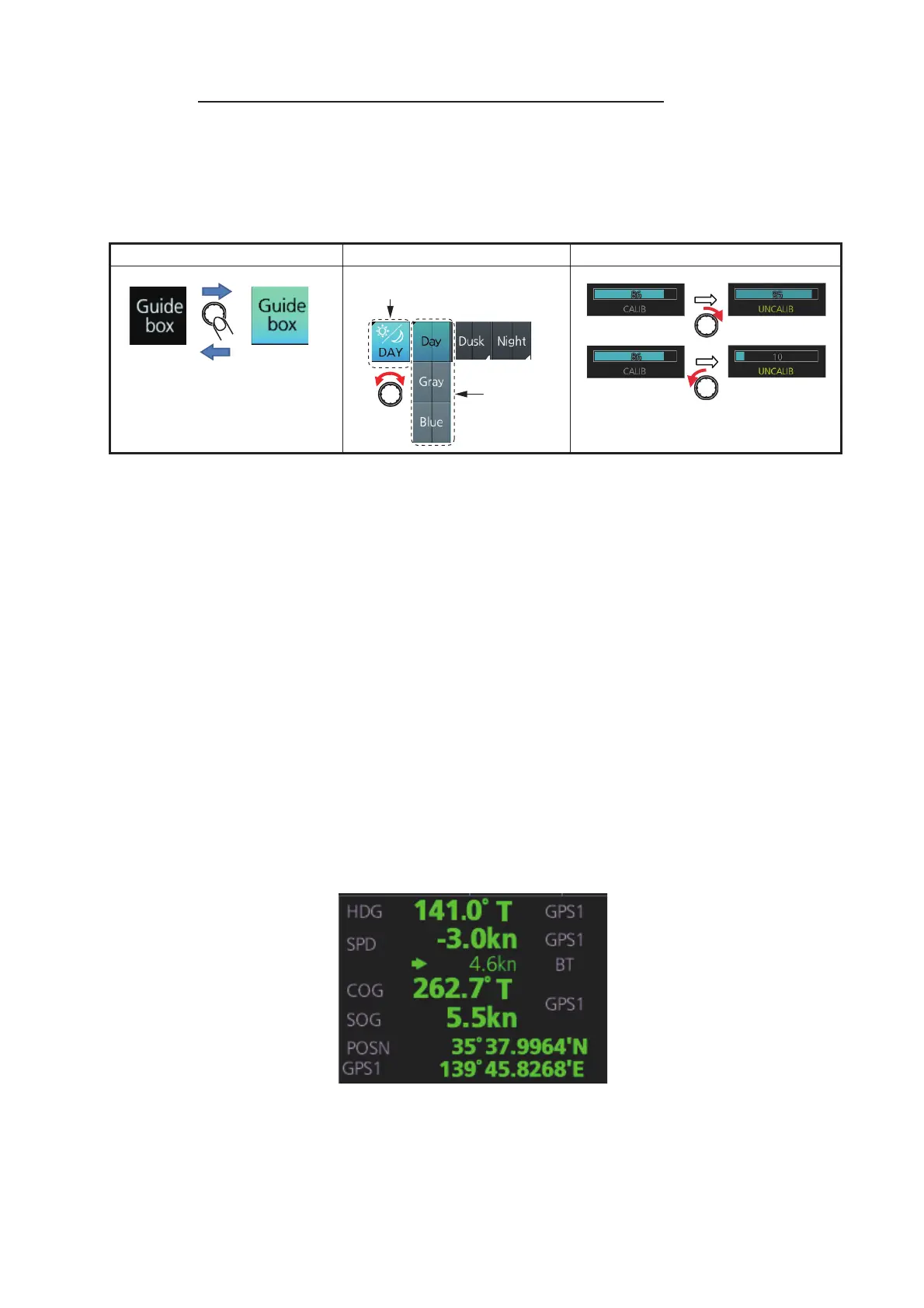
The InstantAccess bar™ has four types of buttons: toggle button, drop-down list but-
ton, slider bar button, and specialty button. (The [MOB], [Capture] and [UNDO] buttons
are specialty buttons that provide a single-action function.) The buttons can be oper-
ated with the trackball module or the InstantAccess knob. This section shows you
how to operate the buttons with the InstantAccess knob.
1. Push the InstantAccess knob to enable its use with the InstantAccess bar™.
2. Rotate the InstantAccess knob to select a button. The background color of the
button selected is light blue.
3. Do one of the following depending on button type.
• Toggle button: Push the knob to select setting.
• Drop-down list button or slider bar: Rotate the knob to select an item or ad-
just the slider bar. Push the knob to confirm your selection or setting.
Note 1: You can use the ESC key to go back one step in the current operating
sequence.
Note 2: The InstantAccess knob can only adjust the slider bar on the
InstantAccess bar™.
6.1.4 Sensor information box
Sensor information box displays the sensor data. When the user-selected sensor fails,
the system automatically selects another sensor. When this occurs, the color of the
sensor name changes according to the sensor status. For details, see section 1.11.
Toggle button Drop-down list button Slider bar button
[Palette] button
Palette
choices



 To Next Page