6. CHART OVERVIEW
6-32
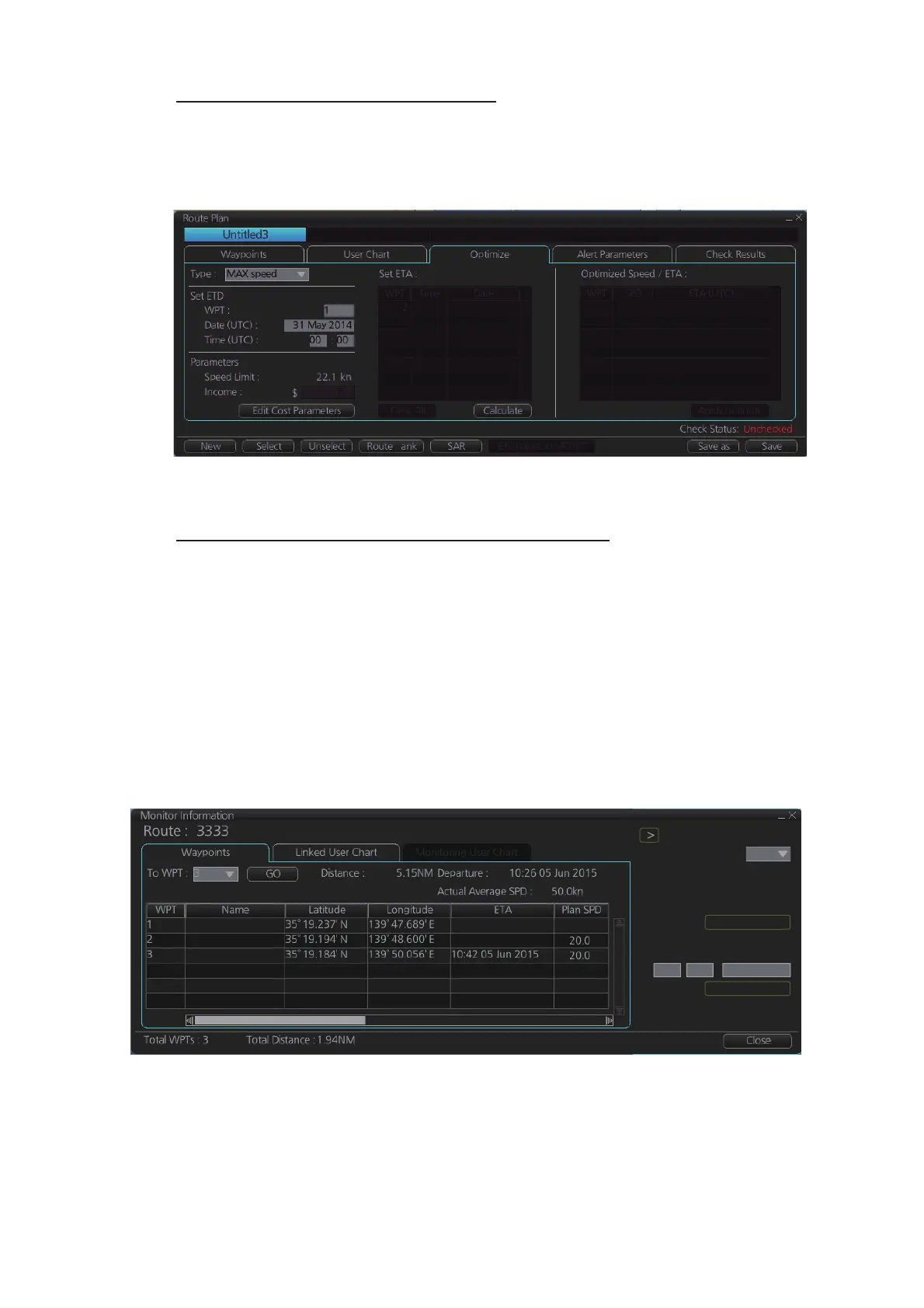
Recalculate timetable and ETA values
Timetable and ETA values can be recalculated from the [Optimize] page in the [Route
Plan] dialog box. Minimally set ETD to equal departure time, and set optimization val-
ues.
6.16.3 How to check and prepare the route, user chart to monitor
Select the route to monitor, view linked user charts
Select a route for the voyage: In the Voyage navigation mode, click the [Voyage],
[Route] and [Select] buttons, or right-click the route indication in the [Route Informa-
tion] box (right edge of screen) then select [Select Route]. See chapter 14.
The [Monitor Information] dialog box appears, showing the [Waypoints] tab.
Note: A route cannot be opened if its planned settings are different from its navigation
settings. The reason is given on the [Select Route] dialog box. In this case, open the
route in the Voyage planning mode and click the [Check Route] button, on the [Alert
Parameters] page. Adjust the route as necessary.
The To WPT can be selected, however WPT 01 cannot be selected.
To see all the user charts linked to the route, click the [Linked User Chart] tab to show
the names of all the user charts linked to the route. Click a user chart to view its con-
tents.
B
Check ETA
WPT:
Distance: 0.00NM
10:42 05 Jun 2016
10:25 05 Jun 2016
3
0.0kn
Plan:
Actual:
To Localtime
Start Calculate
Off Plan:
SPD Calculation:
Suggested SPD:
10 25 05 Jun 2016



 To Next Page