7. HOW TO MANAGE CHARTS
7-22
4. Click the [Print List] button to print. (If you have selected more than 30 charts, the
message "The number of page is 1. Do you want to continue?." appears. Click the
[OK] button to continue, or the [Cancel] button to escape.)
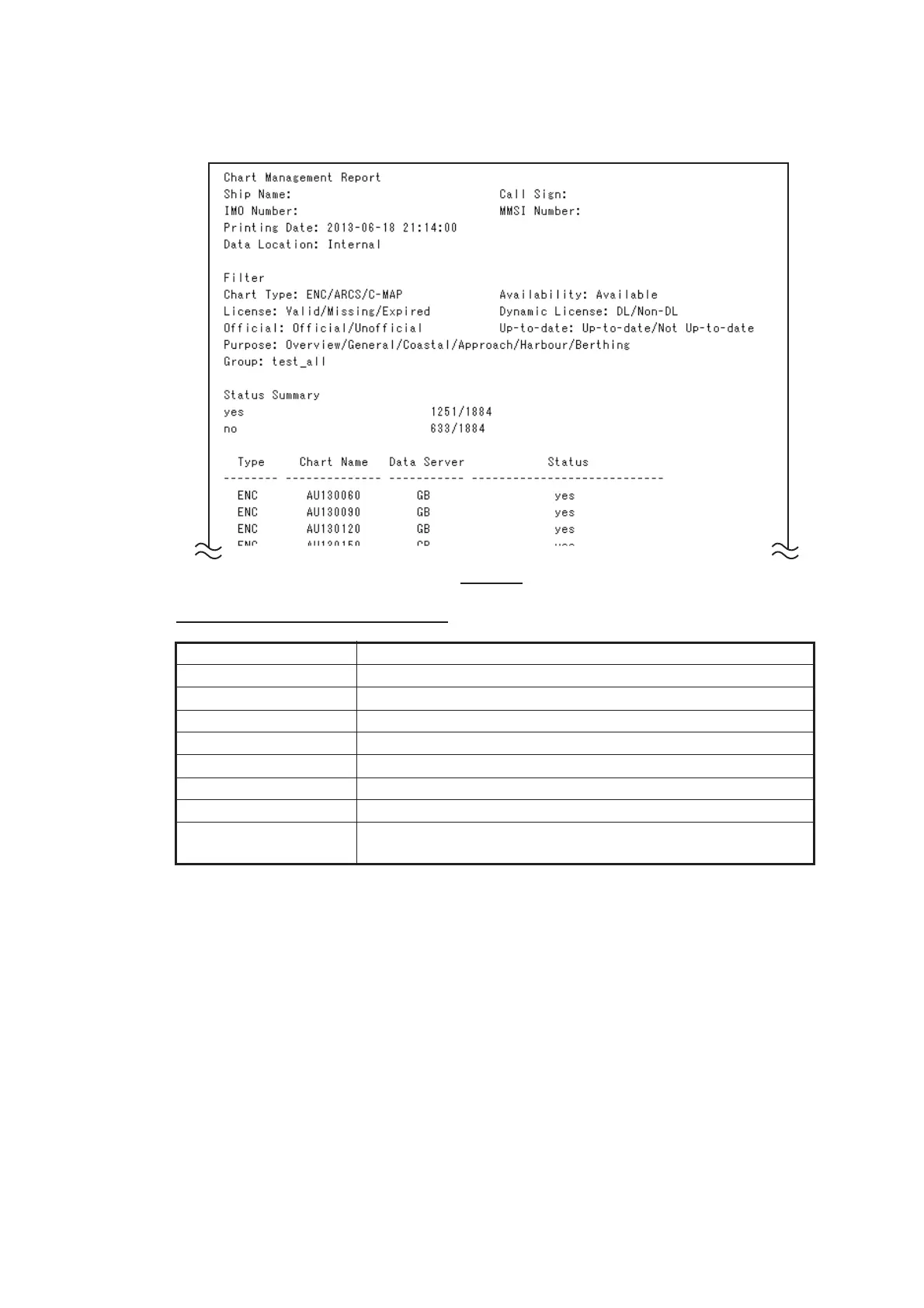
Description of chart list printout
7.16.2 How to show the cell status list
1. In the Chart maintenance mode, click the [Cell Status] button on the
InstantAccess bar™ to show the [Cell Status] dialog box.
2. On the [Filter] window, check the information to show.
3. Click the [Create Report] button to generate the report. A report for all cells shown
in the [Cell Status] dialog appears.
Note: If there are no cells shown in the [Cell Status] dialog box, the [Create Re-
port] button is not available.
Item Description
[Ship Name] Name of ship
[IMO Number] Ship’s IMO number
[Call Sign] Ship’s call sign
[MMSI Number] Ship’s MMSI number
[Printing Date] Date list printed
[Data Location] Location of charts; normally [Internal].
[Filter] Settings of the items in the [Filter] window.
[Status Summary] [yes]: charts with yes status/total number of charts
[no]: charts with no status/total number of charts



 To Next Page