7. HOW TO MANAGE CHARTS
7-30
unit’s name is moved to the [Grouped with This Unit] window.
To deselect a unit from synchronization: Put a checkmark next to the unit’s
name in the [Grouped with This Unit] window then click the [>>] button. That unit’s
name is moved to the [Not Synchronize with This Unit] window.
To deselect all units, click the [Reset All] button.
3. Click the [Save] button to finish.
4. Restart the power on applicable units to apply synchronization configuration
changes.
7.21.2 How to check synchronization status
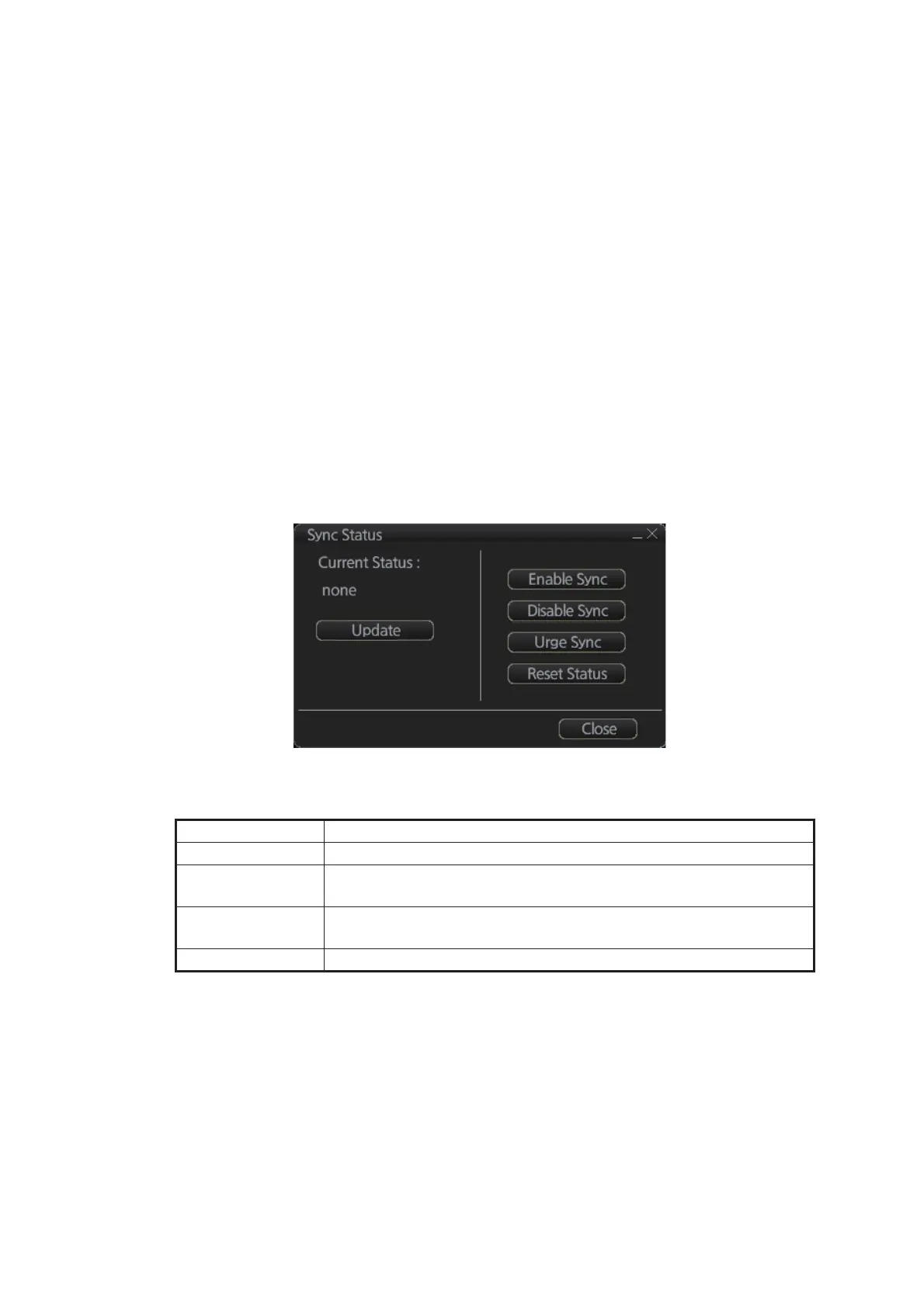
You can check chart synchronization status on the [Sync Status] dialog box. Chart
synchronization operations also are available from this dialog box. Normally, chart
synchronization is done automatically, according to the sync settings on the [Sync
Config] dialog box. Use the [Sync Status] dialog box to manually synchronize chart
data when there is network failure, for example.
Get into the Chart maintenance mode. On the InstantAccess bar™, click [System] fol-
lowed by [Sync Status] to show the [Sync Status] dialog box.
[Current Status]: Displays current synchronization status. The table below shows all
the synchronization status messages.
[Update] button: Click this button to update [Current Status].
[Enable Sync] button: Enables synchronization. The confirmation message "Attention:
Do you want to enable sync?" appears. Click the [OK] button to enable synchroniza-
tion. Synchronization is always enabled when chart radar starts. A progress bar indi-
cates progress in synchronization. The bar is erased within five minutes after
completion of synchronization.
[Disable Sync] button: Disables synchronization function temporarily. Use this feature
to enable chart administration in case of network failure, for example. The confirmation
message "Attention: Do you want to disable sync?" appears. Click the [OK] button to
temporarily disable synchronization.
Sync status Meaning
[disabled] Synchronization is disabled.
[must receive] This chart radar will receive chart data from another FMD-3xx0,
FCR-2xx9 or FAR-3xx0 series.
[must send] This chart radar will send chart data to another FMD-3xx0, FCR-
2xx9 or FAR-3xx0 series.
[none] No synchronization task ready.



 To Next Page