7. HOW TO MANAGE CHARTS
7-28
7.20.4 How to delete (hide) a chart object
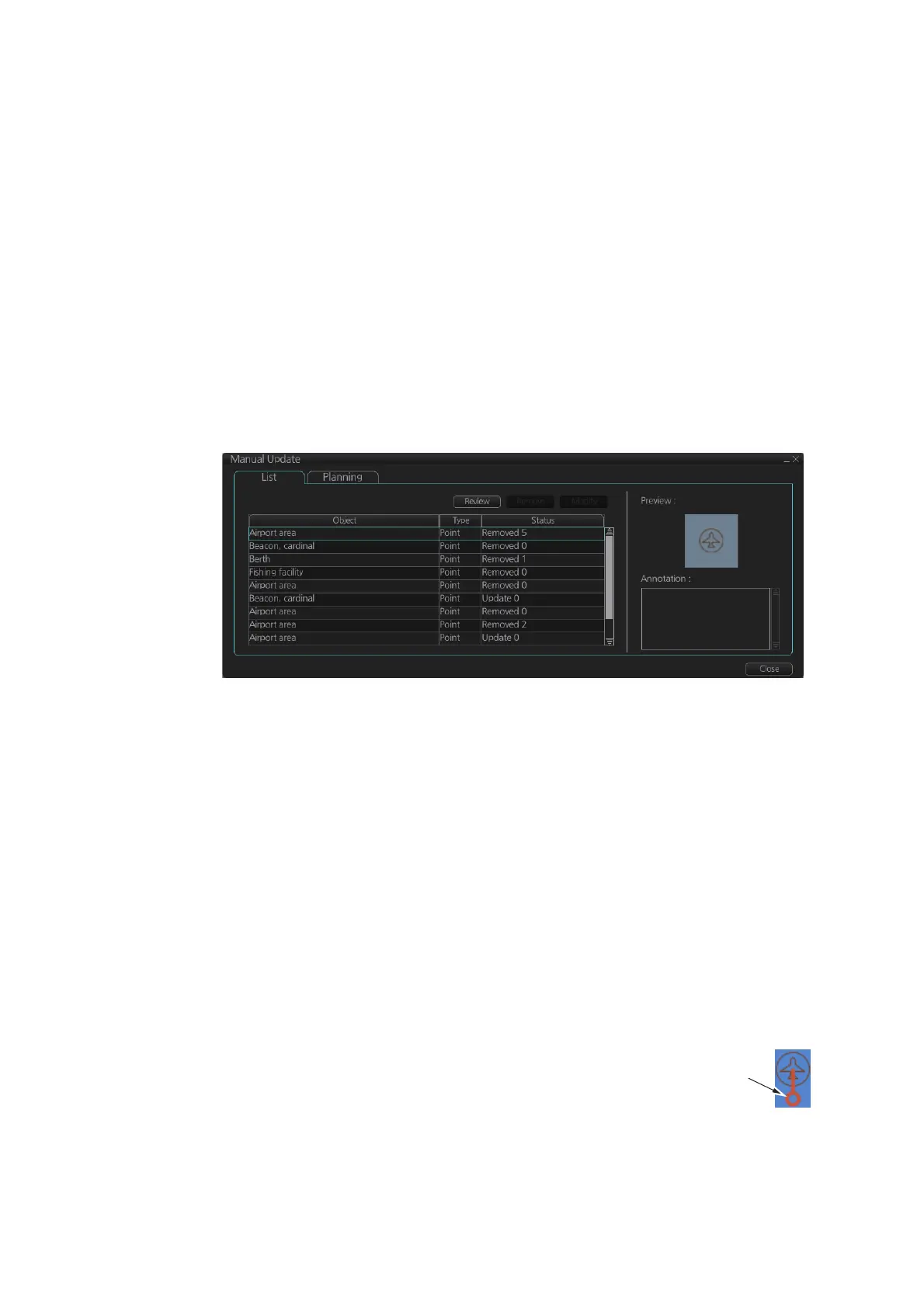
You can hide a manually inserted chart object by doing the following:
1. Referring to step 1 and step 2 of section 7.20.1, show the [Manual Update] dialog
box.
2. Click the [List] tab.
3. Click the object to hide, then click the [Remove] button. The selected item is hid-
den from the chart display.
7.20.5 How to modify existing update symbols
The position, display until date and description of an update symbol can be modified.
A symbol that is marked as “deleted” cannot be modified.
1. Follow steps 1-2 in paragraph 7.20.1 to display the [Manual Update] dialog box.
2. Click the [List] tab.
3. Select the object to modify then click the [Modify] button. The [Planning] dialog
box appears.
4. Modify the object referring to steps 8-9 in paragraph 7.20.1.
Note: The annotation for all modified objects is reset to blank when the Modify but-
ton is clicked. Check and re-input the annotations as necessary.
5. Click the [Commit] button. A confirmation dialog appears. Click [Yes] or [No] as
appropriate.
7.20.6 How to review a chart object
You can review a chart object in order to see the object before any changes were
made. To review an object, do the following:
1. Follow steps 1-2 in paragraph 7.20.1 to display the [Manual Update] dialog box.
2. Click the [List] tab.
3. Select the object to review then click the [Review] button.
Manually updated objects appear with a thick line,
as shown in the figure to the right.
Objects under review appear in the [Manual Update]
dialog box with the status "Review x" (x indicates the
state at which you are viewing the reviewed object). The object appears in a pre-
modified state, and with each press of the [Review] button, one modification is “re-
verted”.
Objects under review
appear with a thick
line attached.



 To Next Page