7. HOW TO MANAGE CHARTS
7-20
How to delete a group of chart cells
You can delete group of chart cells as follows:
1. In the Chart maintenance mode, click the [Manage Charts] button on the
InstantAccess bar™ to show the [Filter] window.
2. Click the [Edit] button.
3. Select the name of the group with the pull-down list at the item [Group Name].
4. Click the [Remove] button.
5. Click the [OK] button.
6. Click the [Close] button to finish.
How to select the group to view
1. In the Chart maintenance mode, click the [Manage Charts] button on the
InstantAccess bar™ to show the [Filter] window.
2. Select the group to view from the pull-down list at [Group].
3. Click the [Close] button to finish.
7.14.2 How to view status of chart cells
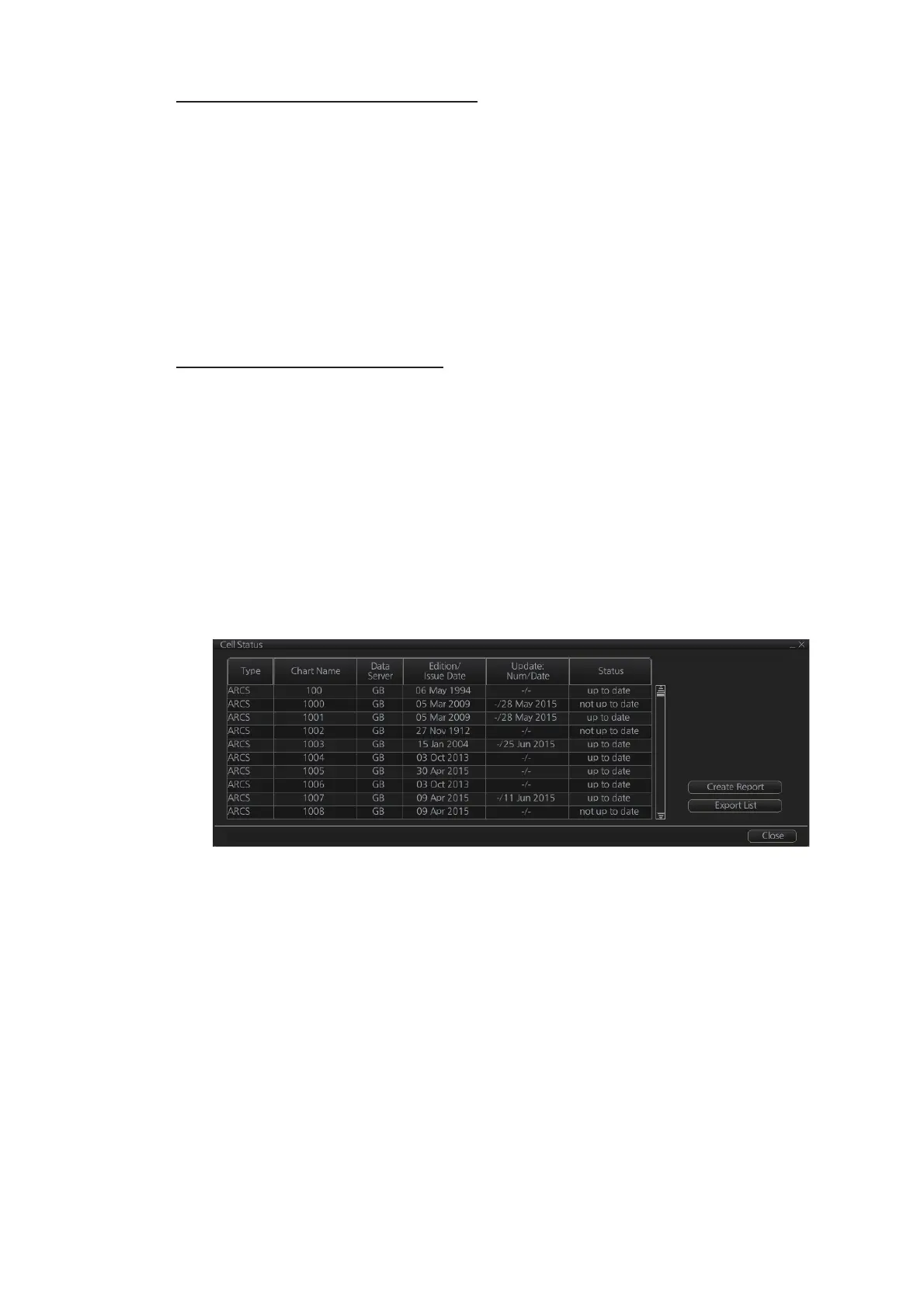
The [Cell Status] dialog box shows the status of the chart cells stored in the system.
To show this dialog box, get into the Chart maintenance mode then click the [Cell Sta-
tus] button on the InstantAccess bar™.
• [Type]: Type of chart cell, ENC or C-MAP.
• [Chart Name]: Chart name
• [Data Server]: The name of the data server where the chart was downloaded from.
• [Edition/Issue Date]: Edition no. and issued date of the chart cell.
• [Update: Num/Date]: No. and date of the update of the chart cell.
• [Updated]: The update status for the selected cell. "up to date" is shown for cells that
are up-to-date, "not up to date" is shown for cells that are not up-to-date, "with-
drawn" is shown if a cell is canceled, "unknown" is shown if the cell is not delivered
as part of a data service and "broken" is shown if the cell is corrupted.
• [Status]:
• [up to date]: Cell is up-to-date.
• [not up to date]: Cell is not up-to-date.
• [not installed]: Cell is not installed.



 To Next Page