7. HOW TO MANAGE CHARTS
7-9
6. Click the [Close] button to finish.
7. Reset the power.
Manual installation
1. Click the [CHARTS] button on the Status bar to go the Chart maintenance mode,
then click the [License] button on the InstantAccess bar™.
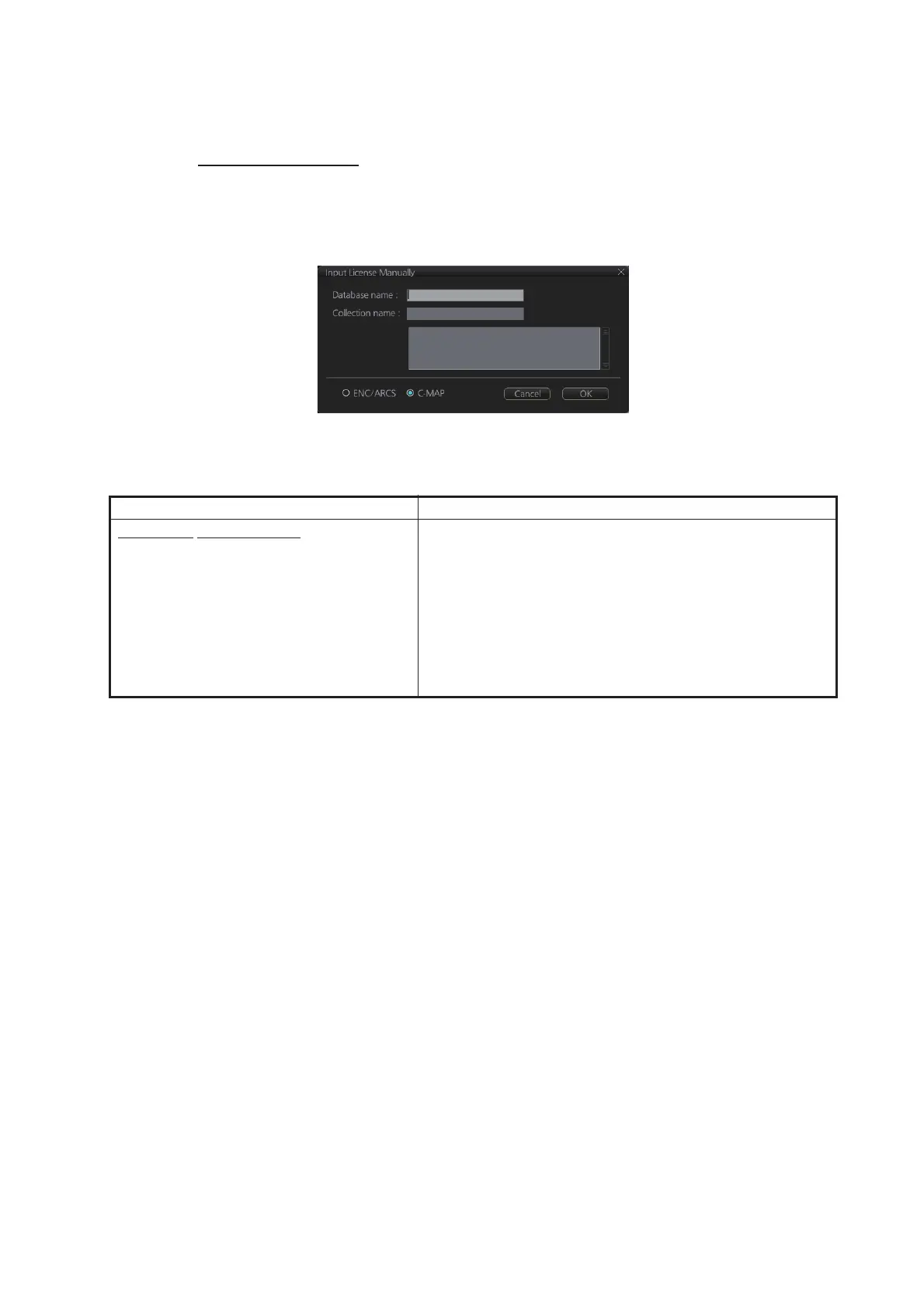
2. Click the [Input Manually] button to show the [Input License Manually] box.
3. Select the type [C-MAP] at the bottom of the window.
4. Enter the [Database name] and [Collection name] information as shown in the ta-
ble below. Enter the names exactly as shown to ensure correct installation.
5. Enter the license (max. 16 characters) in the bottommost window.
6. Click the [OK] button to install the license.
7. Reset the power.
Database name Collection name
Chart type
Name to enter
PROFESSIONAL+: Professional+
ENC SERVICE: ENC
ENC+ SERVICE: ENC+
Enter the contracted zone number according to chart
type as follows:
Professional/Professional+: Enter "Zone *"
(without quotations)
Ex. Zone 1
ENC/ENC+: Enter "Zone * ENC"
(without quotations)
Ex. Zone 1 ENC
* = Zone no.



 To Next Page