12. ROUTES
12-13
7. Click the [OK] button. The [Route Plan] dialog box appears and the system draws
the search and rescue route on the screen according to the search and rescue
settings.
8. To follow the route, click the [Exchange to MONIT] button.
Note: To monitor the route the following conditions must be met:
• The route must have at least two waypoints.
• The route must have no impossible turns.
• The route must have been checked.
9. To save the route, click the [Save] button and enter a name for the route, using
the keyboard on the Control Unit or the software keyboard.
If necessary you can drag waypoints to new position, like with an ordinary route.
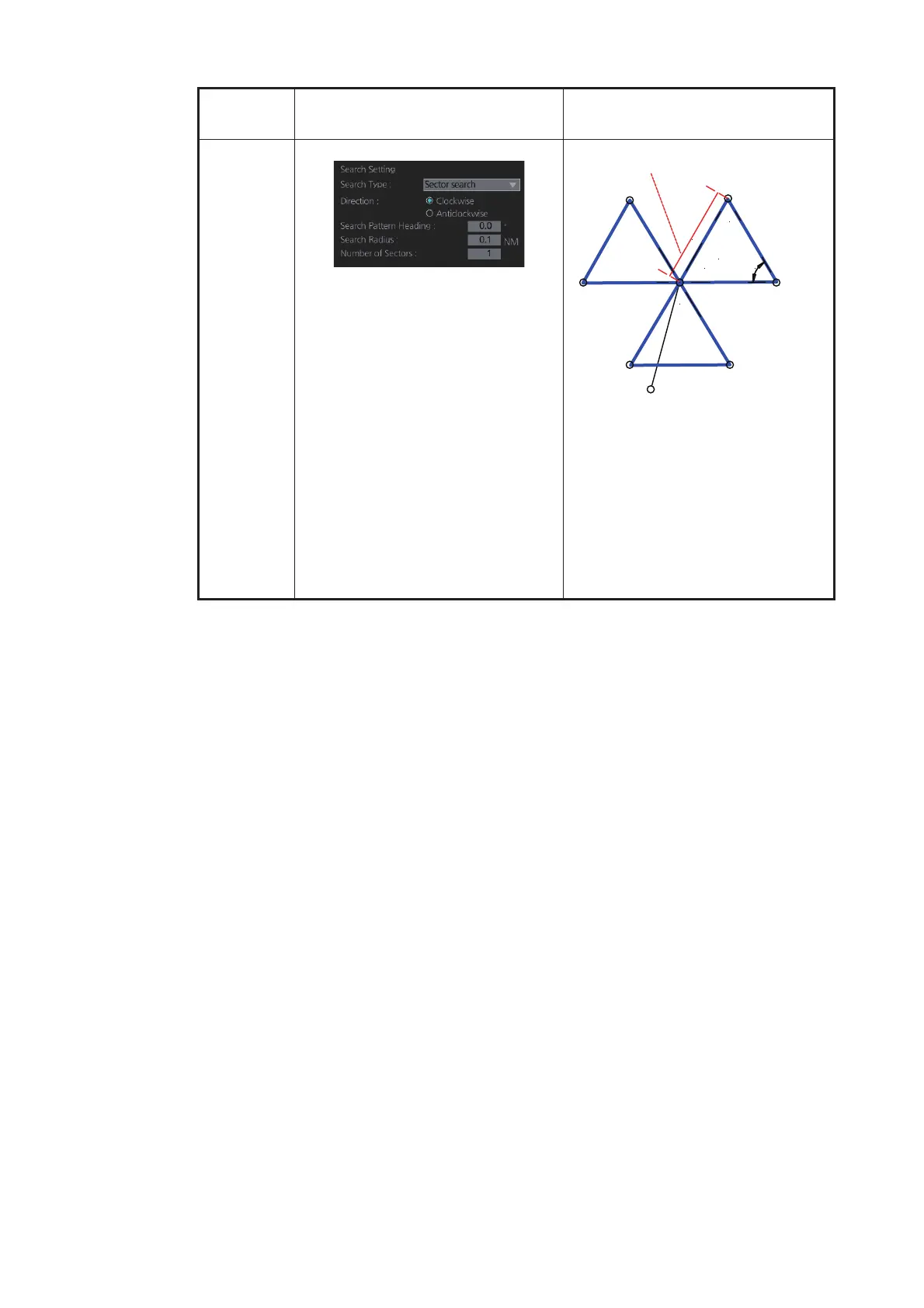
[Sector
search]
[Direction]: Select the direction to
start the search, [Clockwise] or [An-
ticlockwise].
[Search Pattern Heading]: See the
right figure.
[Search Radius]: Enter the search
radius (in NM).
[Number of Sectors]: Enter the
number of sectors to use.
The sector search is used when the
position of the body is known accu-
rately and the search has to be
done over a small area. It is normal-
ly carried out in the area, where the
casualty or the object has been
sighted.
Search
type
Options Sample pattern
Start Point
Search Pattern Heading
Search
radius
Sector #2
Sector #1
Sector #3
WPT7
WPT1
WPT8
WPT5
WPT2
WPT9
WPT4
WPT3
WPT6
60°



 To Next Page