17-19 Operators’ Manual
990400 Rev C 2010 May 1
9-6
To Use the 3D Model View
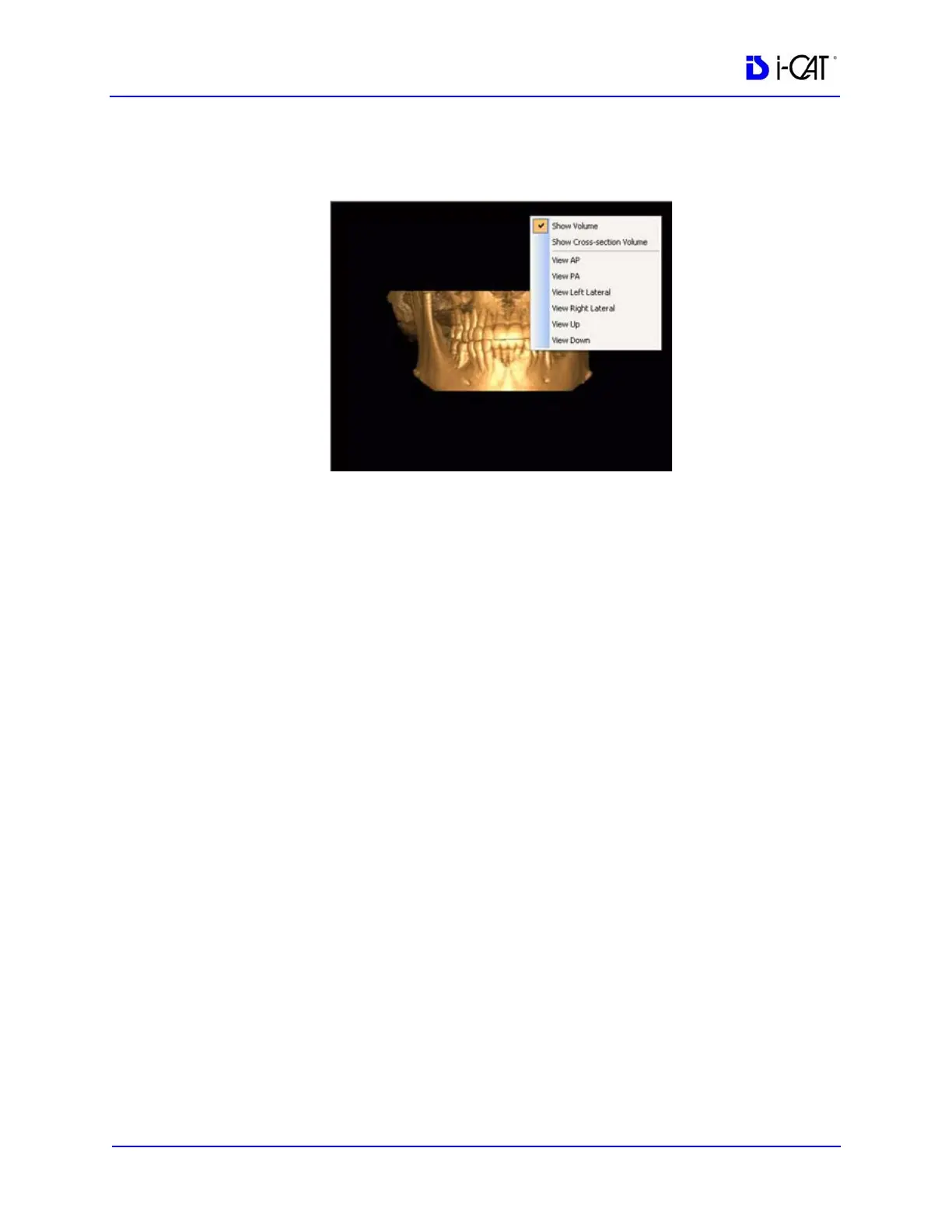
1. Right-click in the 3D Model view to display a popup menu.
2. Select desired option to change the view.
• Show Volume - Displays a full 3D volume model of the
image area displayed between the red and green lines on the
Panoramic Map View. To change the view, adjust the lines
and select Show Volume option.
• Show Cross-section Volume - Displays a cross-section of
the 3D volume model for the cross section that is selected
on the Panoramic Map View. To change the view, adjust the
cross section and select Show Cross-section Volume option.
The remaining options change the view as follows for either the
full volume or cross-section model.
• View AP - Displays view from anterior to posterior.
• View PA - Displays view from posterior to anterior.
• View Left Lateral - Displays lateral view of model from
left.
• View Right Lateral - Displays lateral view of model from
right.
• View Up - Displays model from the bottom looking up.
• View Down - Displays model from the top looking down.
3. To rotate any of the views, click on the view and drag in any
direction.


 To Next Page