990400 Rev C 2010 May 1
Detail Screens
9-15
b. Add additional points as needed on the axial slice position
and/or panoramic map views. If the estimate is slightly off,
you may be able to recalculate it by adding additional points
without having to remove points.
c. To remove points, click Remove Last Point button. Points
are removed in last-created to first-created order.
d. When points are selected for the Right, Left or Both canals,
click desired button to redisplay the overlay for the selected
nerve canal(s).
e. Repeat steps 6 and 7 until you are satisfied with the nerve
canal markings
8. To confirm the nerve canal estimate, click Confirm. The
marked canals can be viewed on the axial slice position,
panoramic map and cross section views.
9. To save the workup:
a. Click Screen and select Preview Screen.
b. On Preview screen, right-click to select Save this Workup.
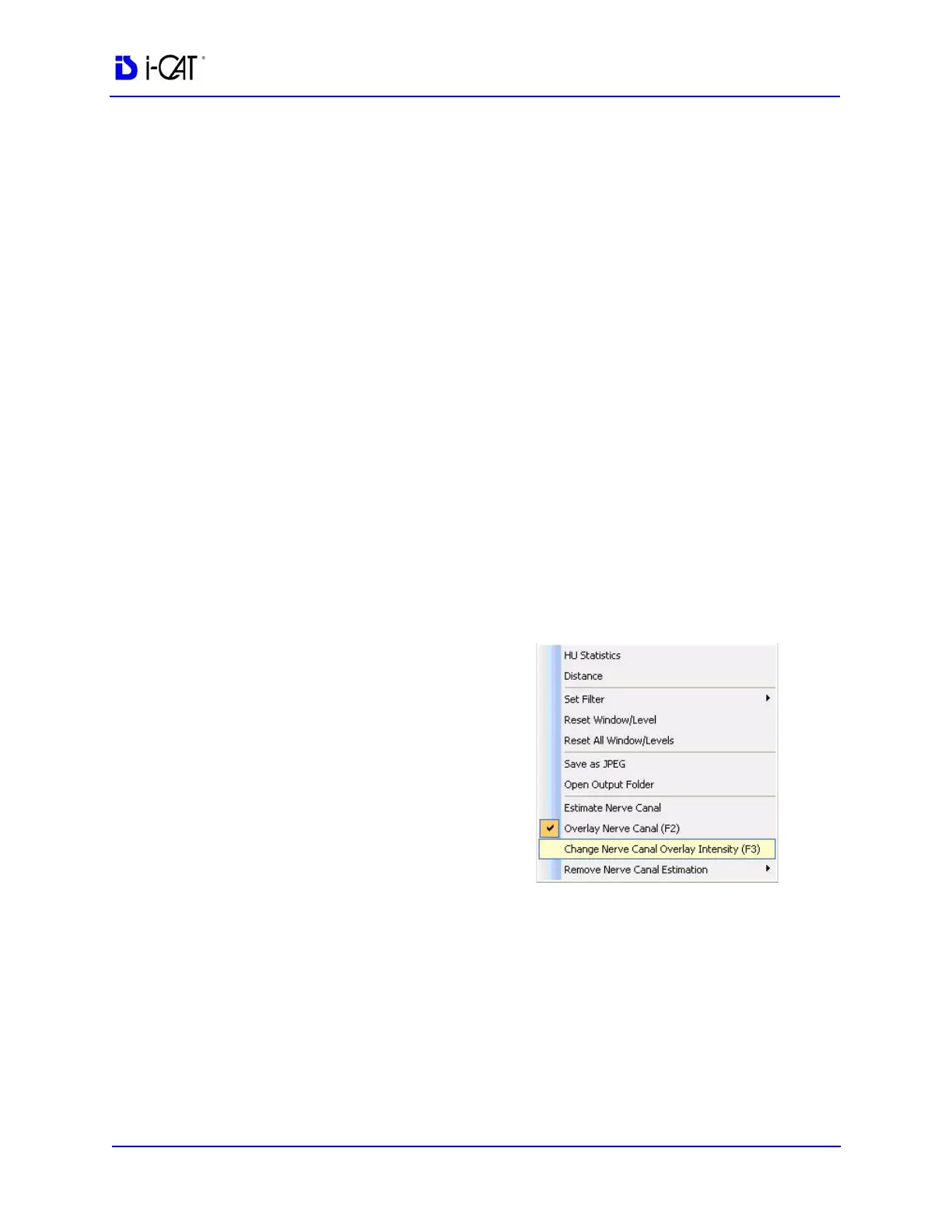
Overlay the Nerve Canal
1. Right-click and select
Overlay Nerve Canal, or
press F2 key. Nerve canal is
overlaid in pink. Selecting
this option in succession
toggles the overlay on and
off.
2. To change the intensity of
the overlay, right-click and
select Change Nerve Canal
Overlay Intensity, or press
F3 key. Selecting this option
in succession toggles the
overlay intensity brighter or
dimmer.


 To Next Page