990400 Rev C 2010 May 1
Remote System Import and Export
16-7
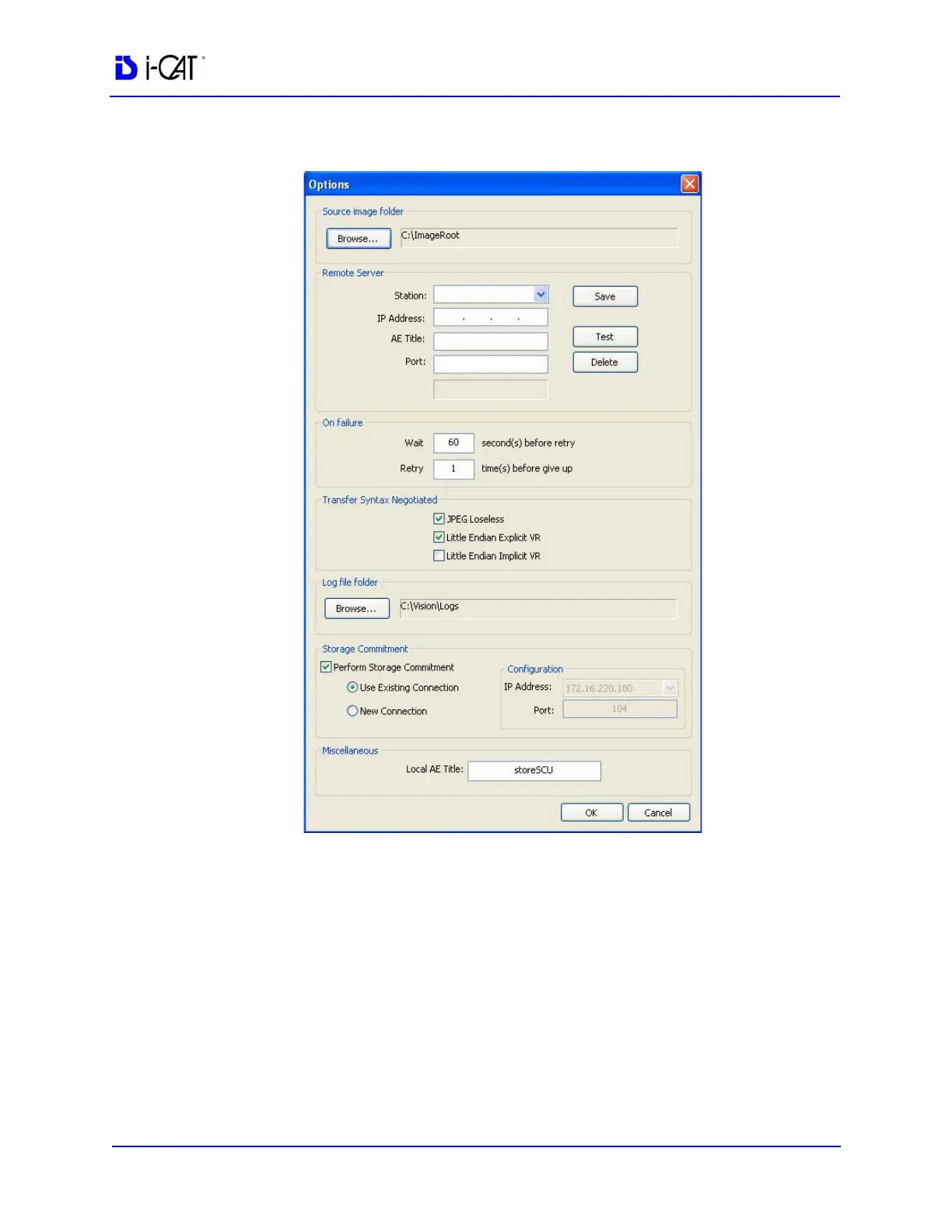
3. Click Options.
4. Click Browse in Source image folder section and browse to the
folder where the DICOM files are to be placed for export. Create
a new folder if desired. Do NOT use the current image root or
local root folder.
5. In Remote Server section:
a. Enter Station name, IP Address, AE Title, and Port number
for remote DICOM server (C-STORE SCP).
b. Click Save.
c. Click Test to perform DICOM validation (C-ECHO) to
check whether the remote server is accessible.


 To Next Page