www.izcorp.com • 1.800.776.1356
The display shows the drive that the file(s) are being copied from and to. For example, if
copying from D:ARCHIVE to a DVD-RAM, the display would show COPY FILES D -> B.
This process does not remove the file(s) and/or folder(s) from their original location. The
file(s) and/or folder(s) can still be pasted to another location if needed. The file(s) and/or
folder(s) will remain on the copy clipboard until either a different file(s) and/or folder(s) to
copy is selected or the RADAR
is shutdown.
After you have finished using a USB drive, make sure you unmount it before unplugging it
from RADAR. You can access the MOUNT/UNMOUNT dialog via the DISK MENU or by
pressing + UNMNT on the Session Controller.
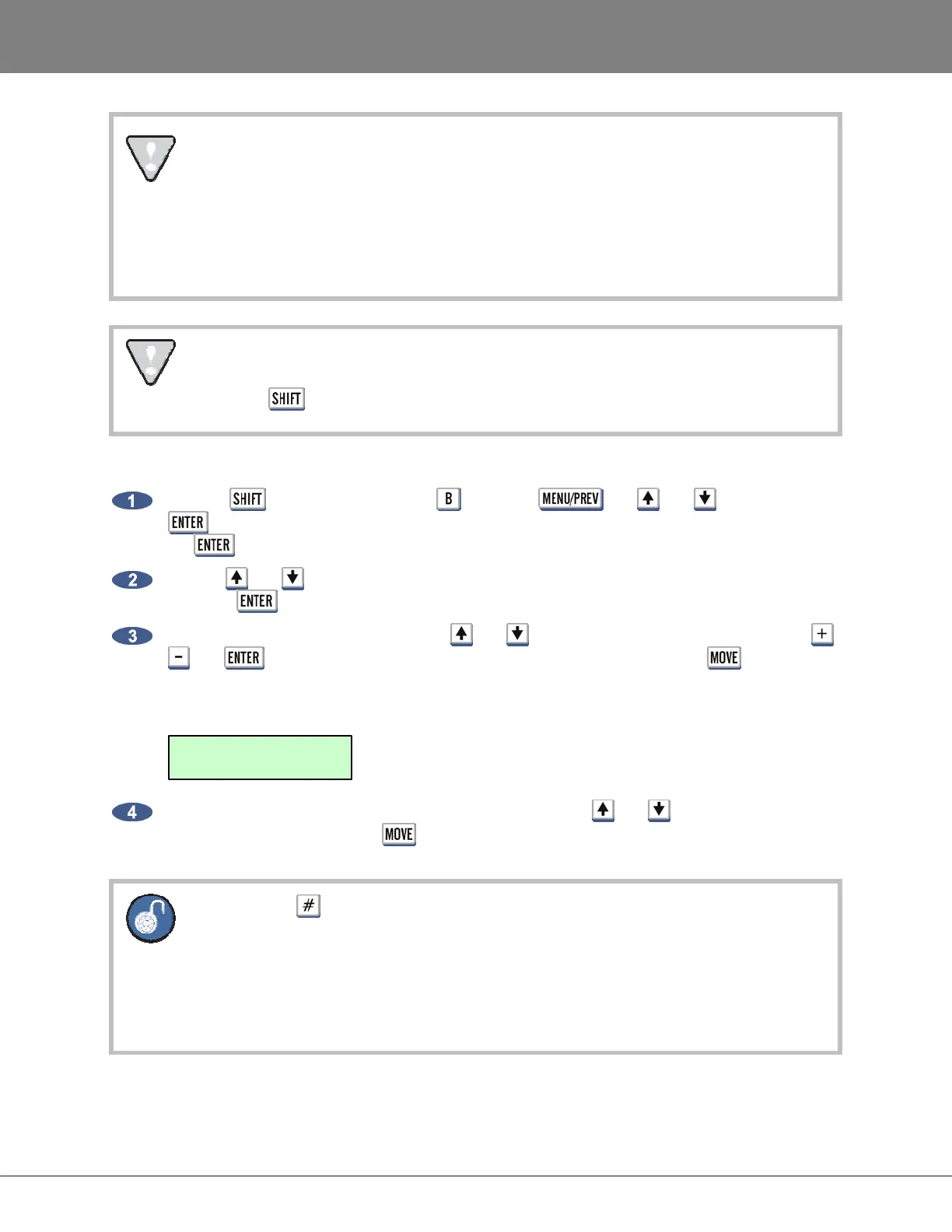
To move files and/or folders:
Hold the key and press the letter or use the , the and keys and the
key to go to the MAIN MENU / FILE MENU / FILE MANAGEMENT selection and press
the key.
Use the and keys to select the drive that contains the file(s) and/or folder(s) to move and
press the key.
Use the keyboard and numeric keys, the and keys, Jog/Shuttle Wheel as well as the ,
and keys to navigate to the file or folder to move and then press the key. The top
right corner of the Session Controller LCD and/or menu window of the RADARView display will
specify the size. The + symbol indicates that it has been selected. For example:
To add additional files and/or folders to the move list, use the and keys to navigate to the
file and/or folder and press the key. The additional files and/or folders must reside within
the current directory.
Pressing the key on the Session Controller or KC-24 will toggle between the
following:
a. number of files and size of the current folder or, file format, sample rate and bit
resolution of the current file
b. number of files/folders and size of the current copy selection(s)
MOVE: D: 6.6MB+
MY SONG/



 To Next Page