iZ Technology Corporation
At the EXPORT TO: dialogue, use the and keys to select the device to export to and
press the key. This list will include D:ARCHIVE (RADAR internal system drive partition),
N:NETWORK, A:FLOPPY, B: (DVD-RAM, DVD-R, BD-RE or CD-R), REV DISK, E:USB DRIVE
and any FAT32 or HFS Standard formatted SCSI drives connected to the RADAR.
If selecting B:DVD BLANK DISK, proceed to step 9.
Use one of the following methods to select a destination folder in the SELECT FOLDER:
dialogue:
a. Use the and keys to select an existing folder name and press the key.
b. Select NEW FOLDER and press the key to create a new one. The RADAR will
display a FOLDER NAME: dialogue. Type in a name for the folder and press the
key. This will return to the SELECT FOLDER dialogue with the new folder name as the
current selection. Press the key to accept this folder as a destination.
To create a folder within a folder, follow these steps:
• At any SELECT FOLDER: dialogue, select <NEW FOLDER> and press the key.
• RADAR will display a FOLDER NAME: dialogue. Type in a name for the folder (e.g.,
EXPORTS) and press the key.
• This will return to the SELECT FOLDER dialogue with the new folder name as the current
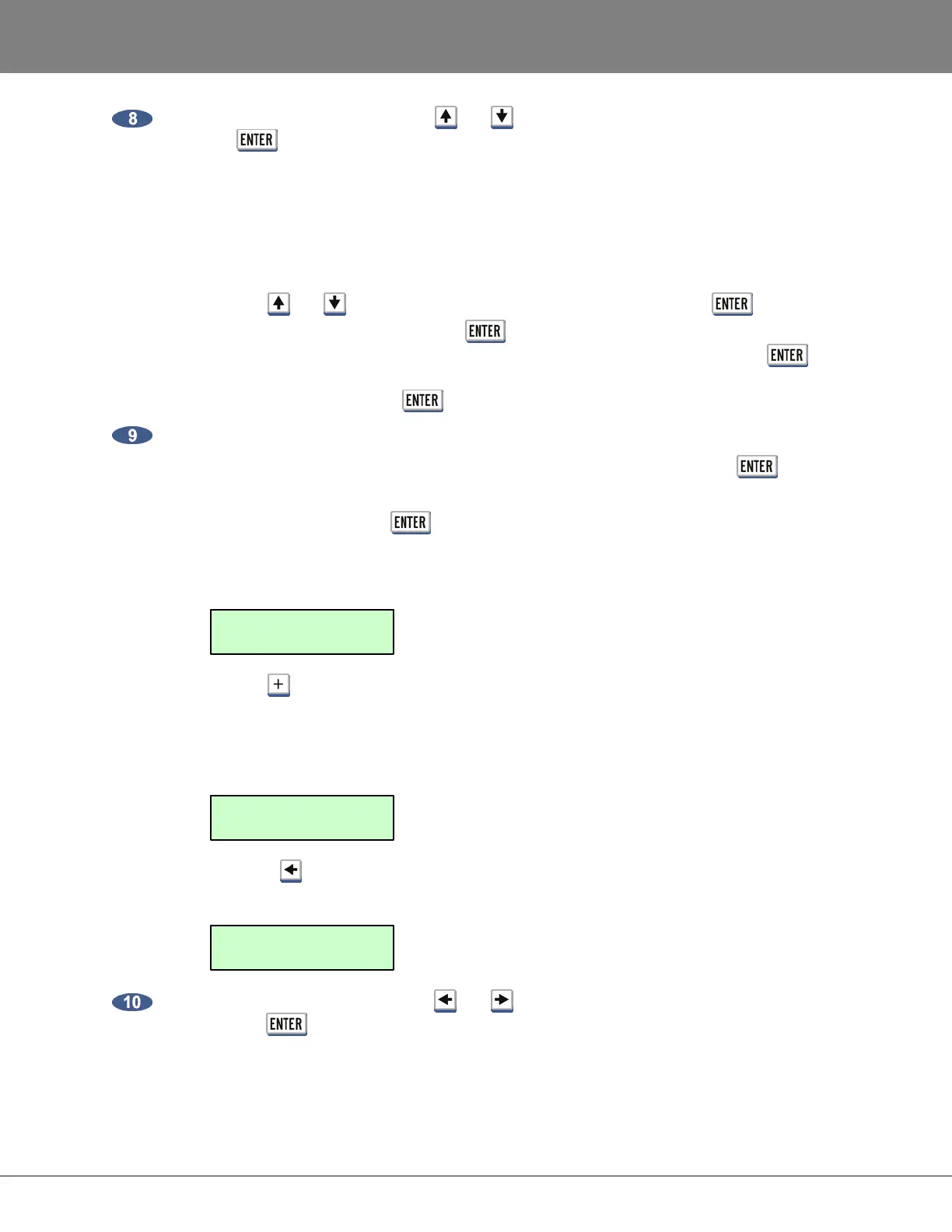
selection. Using the previous example, the display would look like this:
• Use the key to access the next level of folders. This will enter the new folder just
created.
• Repeat the previous four steps. For example, if the second new folder was Song 1, the
display would look like this:
• Press the key to display the complete SELECT FOLDER: directory. Using the previous
examples, the display would look like this:
At the TIME RANGE: prompt, use the and keys to select either ALL or MARK IN/OUT
and press the key. Selecting ALL selects the entire project from the project start time to the
end of recorded audio. MARK IN/OUT uses the MARK IN and MARK OUT location markers to
select a range of audio for export.
If exporting for the purpose of burning an audio CD, proceed to step 11.
SELECT FOLDER:
EXPORTS/SONG 1/
SELECT FOLDER:
SONG 1/
SELECT FOLDER:
EXPORTS/



 To Next Page