178 MI-42-0001 Rev. 19
QUALITY TESTING: Testing Image Quality
NOTES:
• AIRO will automatically scan the length of the Phantom, process the data, and run the Quality
Checks.
• QC Image Data is automatically stored on AIRO under Existing Scans with a patient name of
Phantom.
Options
• Retry after a Length of Travel warning:
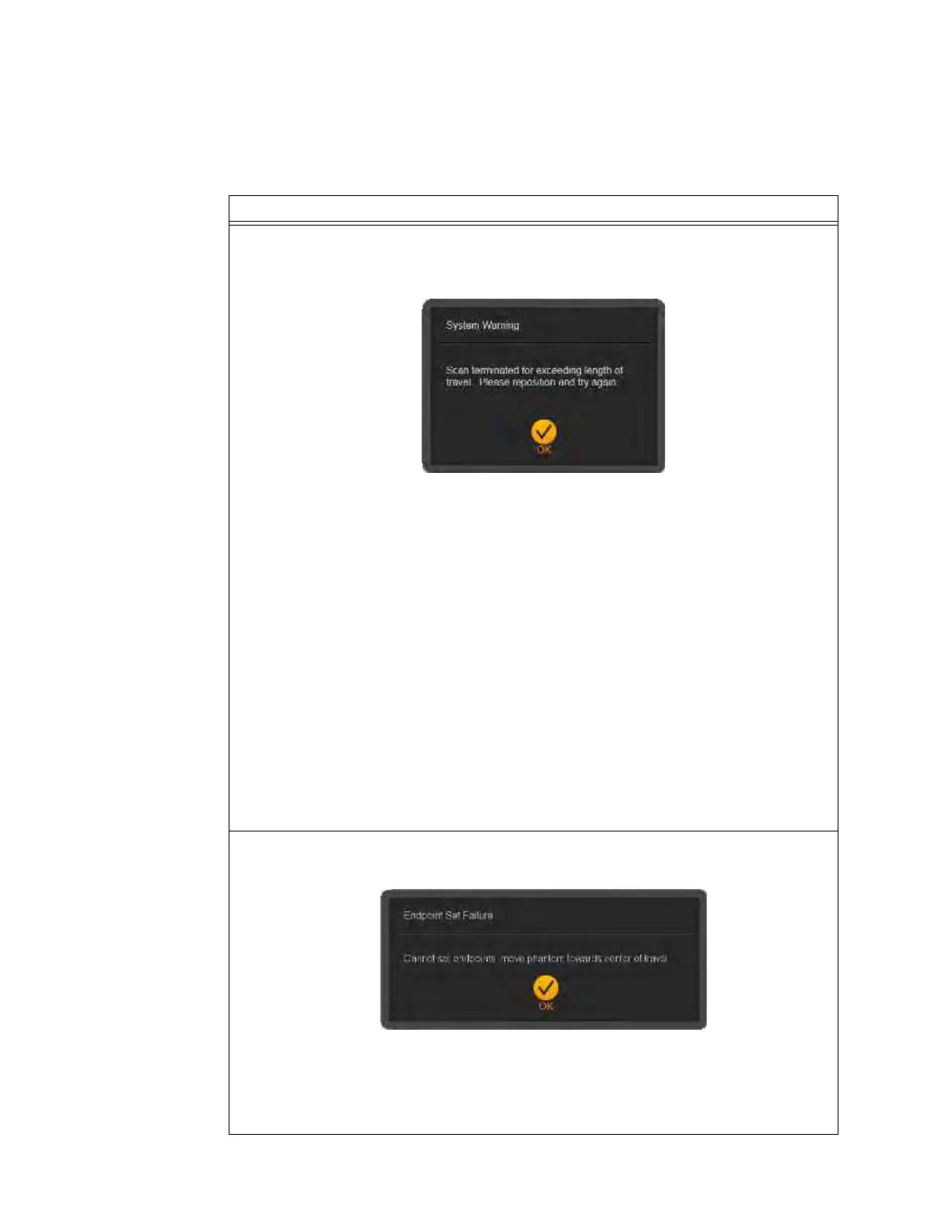
If the QC scan terminates and the System Warning dialog indicates that scan was longer than
the available length of travel:
1. Touch
OK
.
2. On the Pendant, move through the work flow for the terminated scan by touching
Next
on:
• QC Failed result summary screen
• 3D-image viewer screen
• Select DICOM node screen
NOTE: Because the QC scan terminated, there is no significant data on these screens.
3. On the dialog asking to continue without sending results to a DICOM node, select
OK
.
See Figure 146.
4. Move the Gammex 464 Phantom closer to the center of the base along the z-axis.
5. Re-align it with the laser lines (horizontal and vertical) as shown in Figure 140.
6. Return to the start of the QC cycle:
• For systems with the Pediatrics feature enabled, go to the Select KV screen and
restart the QC scan cycle. See Figure 139.
• For systems with the Pediatrics feature disabled, go to the Position the Gammex
screen and restart the QC scan cycle. See Figure 140.
• Retry after an Endpoint Set Failure:
If a QC scan fails to start and the Endpoint Set Failure dialog appears:
1. Touch
OK
to return to the Position Gammex screen.
2. Move the Gammex 464 Phantom closer to the center of the base along the z-axis.
3. Re-align it with the laser lines (horizontal and vertical) as shown in Figure 140.
4. Touch
OK
to run the QC scan.



 To Next Page