174 Chapter 4 Use the Océ TDS700 productive scanner
Scanner templates
Scanner templates
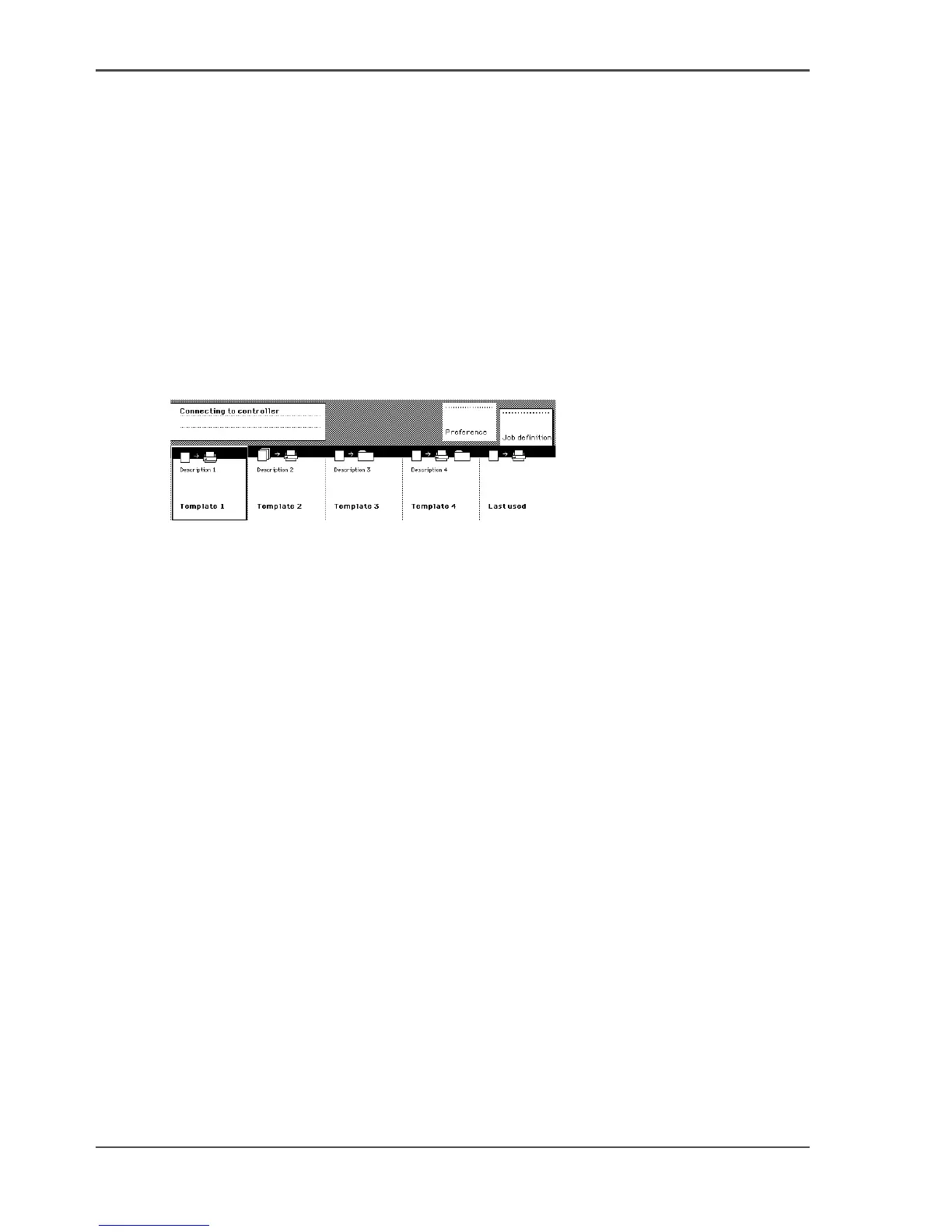
A scanner template contains all the settings for a job. You can use a scanner template
to store your favourite settings. For example, you can store and access the settings
that you use for specific jobs, customers or departments. You only need to select the
template and press the green key to start your job. The illustration below shows an
example with the following job templates.
■ Template 1
■ Template 2
■ Template 3
■ Template 4
■ Last used
[104]
[104] Scanner templates
In the Océ TDS700 Power Logic
®
controller application the key operator configures
the scanner template settings. The key operator can change the job template names,
except for ‘Last used’, for example into the following job names.
■ Single copy
■ Set copy
■ Matrix copy
■ Scan-to-file
■ Last used
When you select the ‘Last used’ job template, the scanner recalls all the settings from
the previous job. You can change the settings or do the same job again. The ‘Last
used’ job template does not display when you turn on the scanner. After you select
a scanner template, the sections display. The sections provide access to the settings
for the scanner input, the printer output and the scan-to-file output (see ‘Sections on
the scanner operator panel’ on page 172). Use the Custom Card here to provide
access to frequently used settings referred to the type of job.
When the scanner templates are active you also have a separate section to define the
following default scanner settings. The illustration below shows the 'Preference'
settings.
■ Automatic feed
■ Rewind original
■ Language
■ Account (optional)












 To Next Page