92 Chapter 3 Use the Océ TDS700 flexible scanner
Introduction to copy jobs
Introduction to copy jobs
Introduction
A basic copy job only takes two steps. Feed the original and press the start key. Every
other type of copy job is called an extended copy job. An extended copy job takes
one additional step, you define the copy job settings on the scanner operator panel.
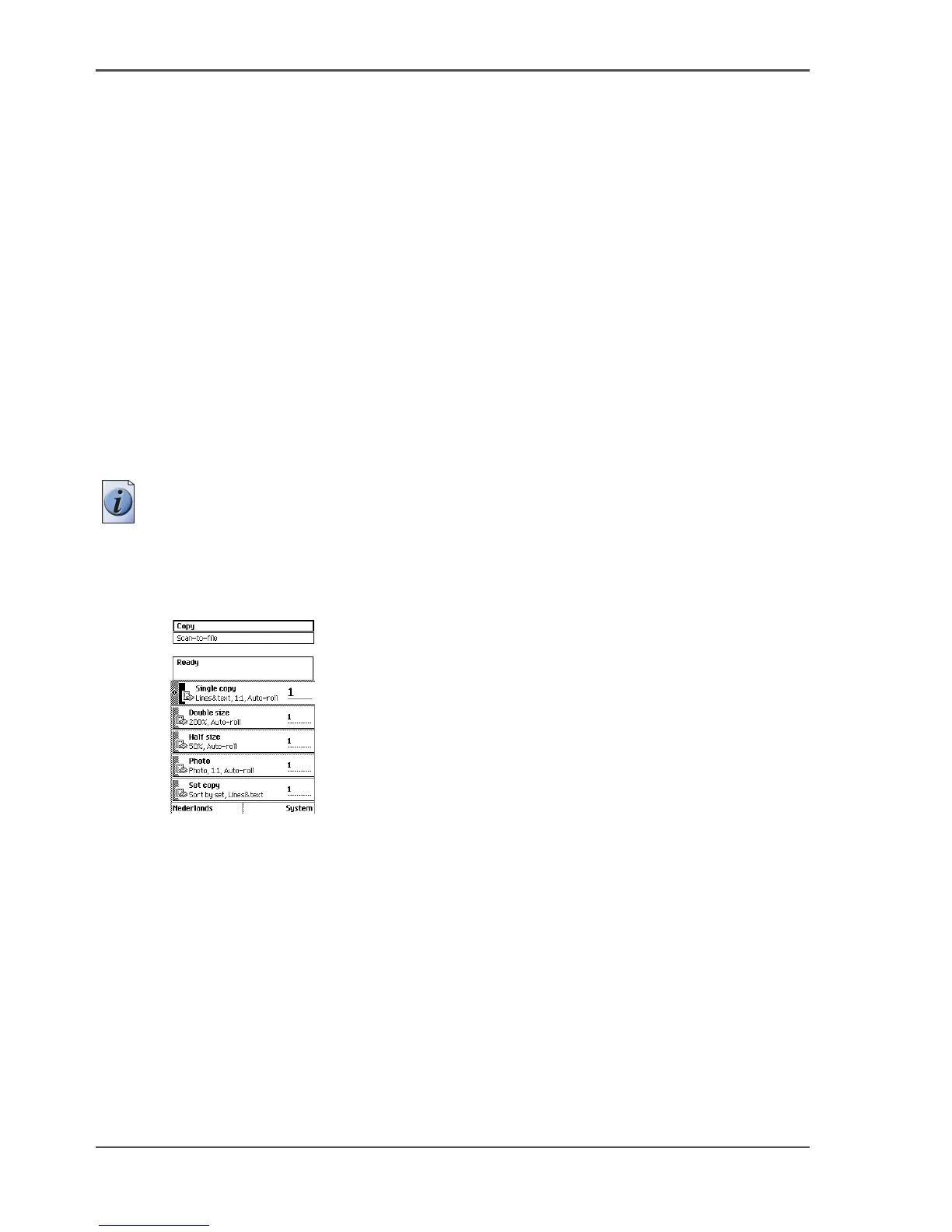
When you turn the Océ TDS700 on or when you select 'Copy', the scanner operator
panel shows five copy job templates. The copy job templates provide access to the
different settings per copy job template. When you select a copy job template, the
scanner operator panel shows the top 5 settings of the selected copy job template.
The top 5 settings are the most often used settings. You can define the top 5 settings
for each copy job template with the Océ TDS700 Power Logic
®
controller
application. You can use the scroll wheel to see the other settings. After you start a
copy job, you can manage your jobs from the 'Print jobs' workspace in the Océ
TDS700 Power Logic
®
controller application.
Note: When you select 'Scan-to-file' you have access to 5 pred-defined scan-to-file
templates. Scan-to-file jobs can be managed in the 'Scan jobs' workspace.
Illustration
[32]
[32] The copy job templates
Steps in a basic copy job
1. Feed the original.
2. Press the green start key.
Result
You do a basic copy job in 2 steps. The basic copy job uses the settings of the first
template.












 To Next Page