360 Chapter 10 Maintain the Océ TDS700
Load cut sheet material
Load cut sheet material
Introduction
When a sheet feeder is empty during a print job, a ‘Sheet feeder x empty’ message
is displayed on the printer operator panel and in the status bar of the Océ TDS700
Power Logic controller
®
application. You then have to load new cut sheet media.
Note: You must fan polyester cut sheet before use to prevent sticking together. Also
avoid the use of sheets that have already been printed on one side.
Attention: If you decide to reload the media when the drawer is not entirely
empty, it is recommended to remove all remaining media from the drawer before
you insert the new media. This way you can avoid the risk of inadvertently
shifting any remaining media out of place and blocking the path. This could
result in a jam.
Load cut sheet material
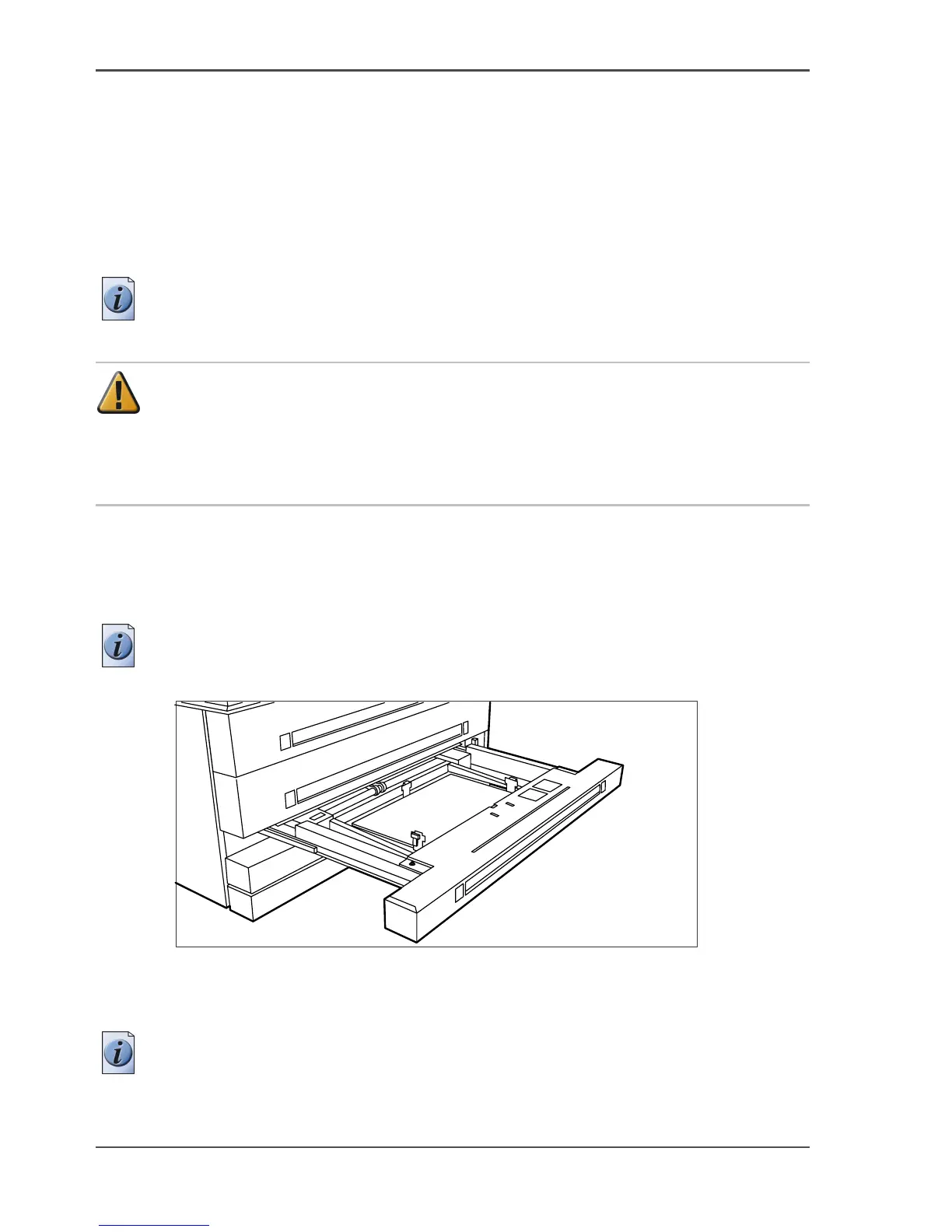
1. Open the appropriate drawer, see the illustration below.
Note: Do not open more than one roll drawer at a time to prevent overbalance of
the printer.
[232]
[232] Open the appropriate drawer
2.
Release the right-hand guide by squeezing the light green release handle on the
guide, see the illustration below. Move the guide to the required media size indicator.
Note: Make certain that the handle is properly aligned with the appropriate
indicator.












 To Next Page