346 Chapter 10 Maintain the Océ TDS700
Calibrate the scanner
Calibrate the scanner
Introduction
You can calibrate the scanner when you are not satisfied with the scan quality. Use
the calibration wizard to calibrate the scanner.
Before you begin
Clean the glass plate clean before you start the calibration procedure (see ‘Clean the
scan area’ on page 344). A dirty glass plate causes a decreased copy and scan
quality. Clean the glass plate when you have lines on the image that are not on the
original.
How to calibrate the scanner
1. Select 'System' with the lower-right softkey.
The 'System settings' screen opens.
2. Select 'Scanner calibration' with a left softkey to start the calibration wizard.
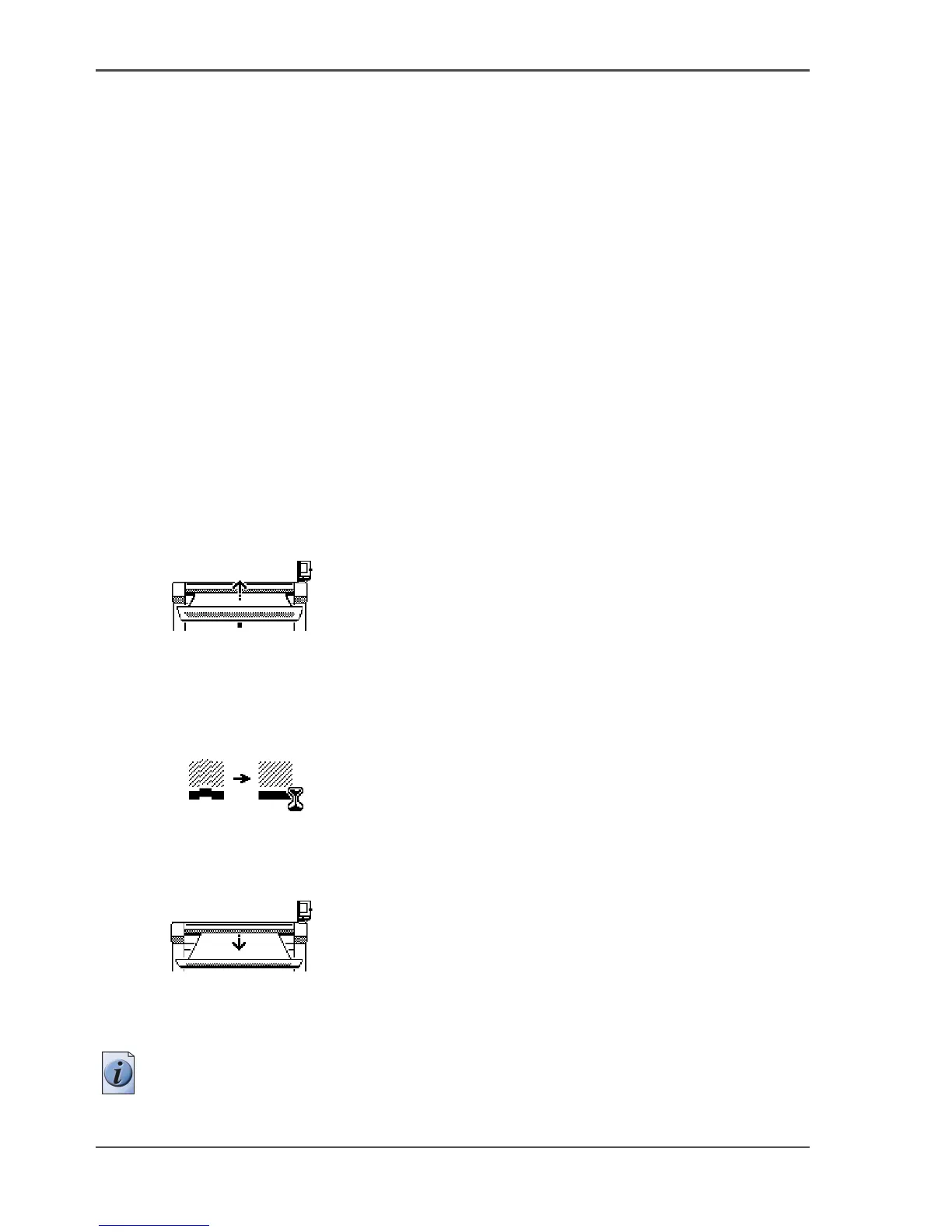
The message 'Insert calibration sheet' and the following icon appears.
[214]
[214] The 'Insert calibration sheet' icon
3. Insert the calibration sheet and press the green start key to start the calibration
process.
The message 'Scanner is calibrating...' and the following icon appears.
[215]
[215] The 'Scanner is calibrating...' icon
When the calibration process is ready, the message 'Press OK to continue' and the
following icon appears.
[216]
[216] The remove the calibration sheet icon
4.
Select 'OK' with the lower-right softkey.
Note: When the calibration process stops or fails, follow the instructions on the
scanner operator panel carefully.












 To Next Page