210 Chapter 4 Use the Océ TDS700 productive scanner
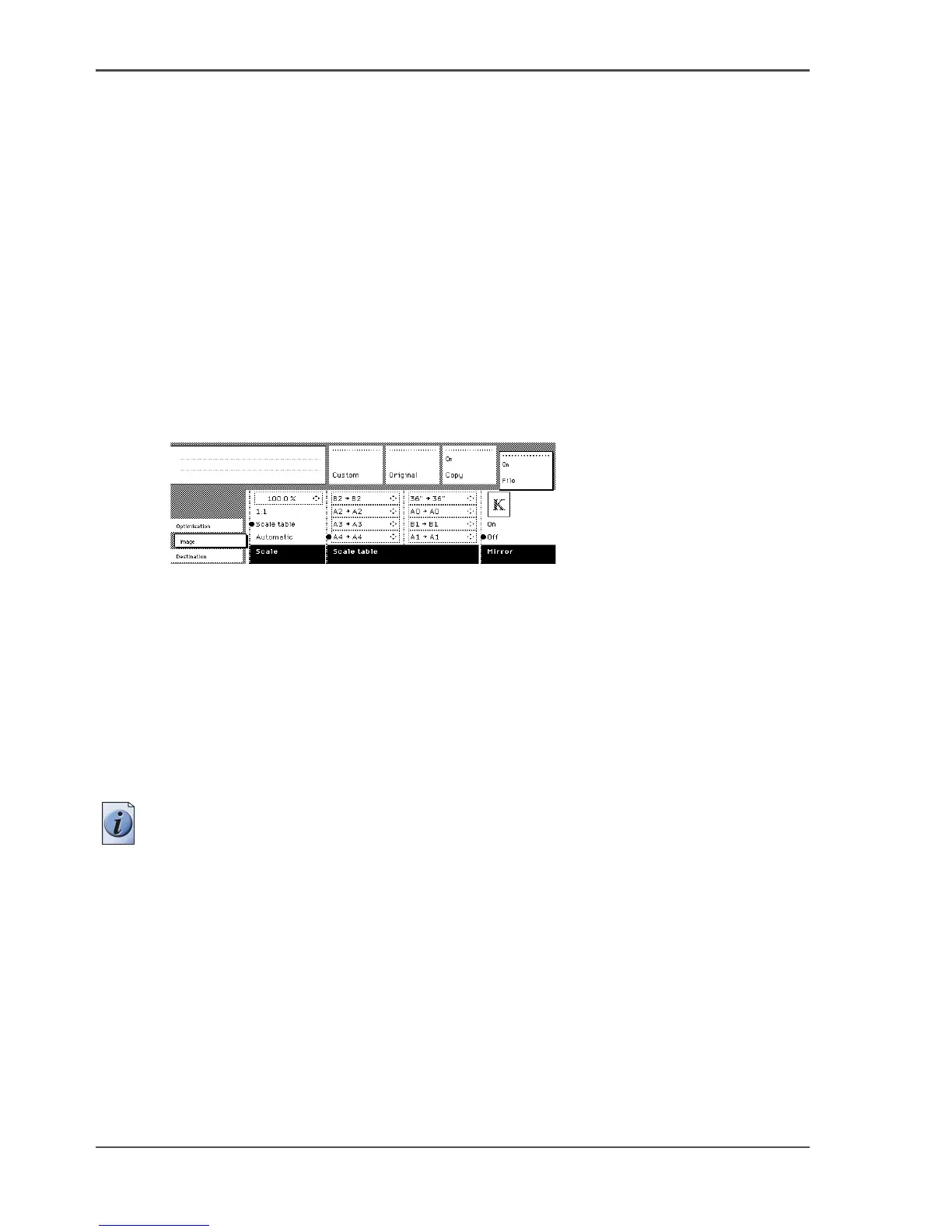
Scale table
Scale table
Purpose
Use the scale table to choose an automatic reduction or enlargement conversion of
your scanned file. The scanner offers 8 pre-defined scale size conversions to make
resizing your original easy and error free.
Before you begin
Make sure you have selected 'Scale table' in the 'Scale' section (see ‘Scale’ on
page 209).
Illustration
[132]
[132] Scale table
Use the scale table
1. Select the ‘Image’ card in the ‘File’ section.
2. Select scale table with the Scale function key. The 8 pre-defined conversion steps
become active.
3. Select the preferred enlargement or reduction step with the Scale table function keys.
The scale step immediately converts the original media size to another, fixed media
size, for example: A0 --> A1.
Note: The default values of the conversions are defined by the key operator in the
Océ TDS700 Power Logic
®
controller application.
4. Use the arrow up and down key to choose another conversion value for the selected
scale step. This change is only valid for the current job. After completion of the job
the default values for the scale steps are restored again.












 To Next Page