201
Make a scan-to-file
Make a scan-to-file
Introduction
Take the following steps to scan an original to file.
Illustration
[125]
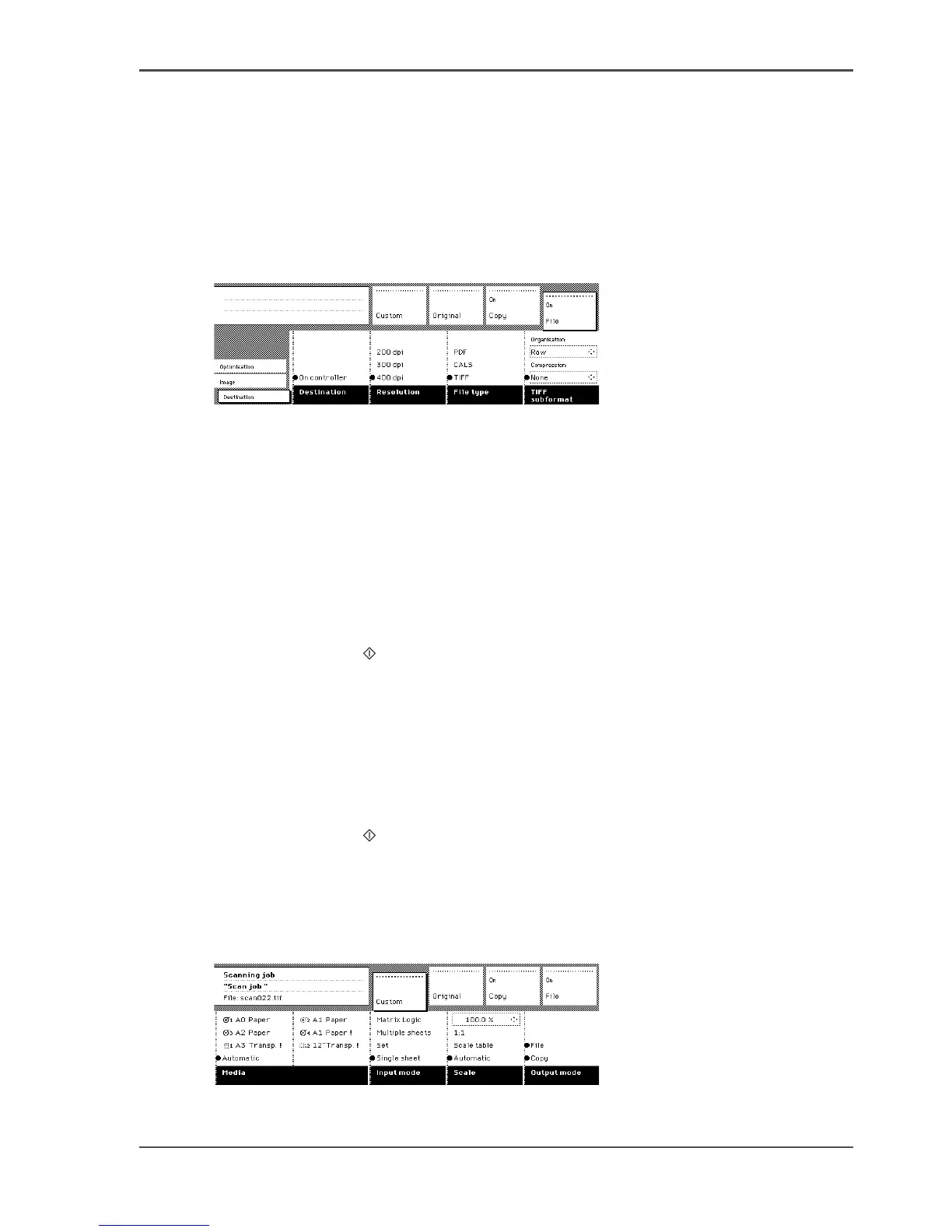
[125] Destination card in the File section
How to scan-to-file
1. Place your original face-down, right aligned along the original guide.
2. Select the appropriate original type.
3. Select the ‘Destination’ card in the ‘File’ section.
4. Press the section key ‘File’, to select ‘ File mode’ On.
The status message displays: Ready to scan to file.
5. Select a Destination.
6. Press the start key .
The original is scanned.
How to scan- to-file using a template
1. Place your original face-down, right aligned along the original guide.
2. Select the appropriate scanner template.
Make sure the 'Output' mode is set to 'File' or 'Copy&file'.
3. Press the start key .
The original is scanned. The digitised document will be stored on the controller or
at a remote location.
Result
[126]
A status message displays : “Scanning job “Scan job number X””
“File scan22.tif”












 To Next Page